
On this page
An agent is a role the AI takes on for longer work: a morning brief, a weekly review, a loose ends keeper, a bug fixer. Each has its own instructions, its own chat, and can run by itself on a schedule. Open the Agents page from the sidebar (Ctrl 0).
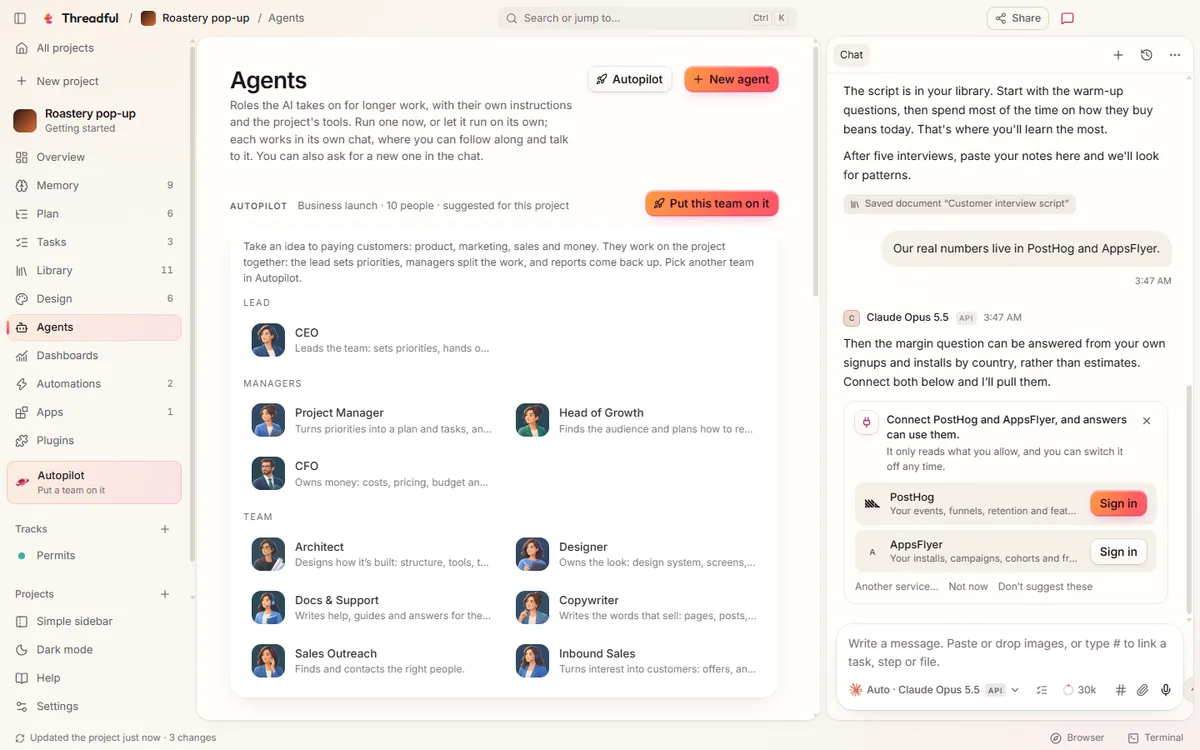
How to make an agent from a sentence
- Press New agent.
- Say what it should do and when, in your own words, like "Every Monday morning, sum up last week and say what should come next".
- Press Draft it (or Ctrl Enter).
- Check the draft: its name, instructions, what it may do and when it runs. Change anything.
- If you said when it should run, Run it on its own is switched on with that time.
- If a first job fits, Start it now offers it (off until you switch it on).
- Press Save.
Or write it yourself opens a blank editor instead.
Starting points
Ready-made agents to start from: Morning brief, Weekly review, Notes to actions, Loose ends keeper, Competitor watch, Content writer, Bug fixer, Study coach, Practice coach and Feedback triage. Click one to open it in the editor, filled in, then save it.
The editor
- Name, What it's for and Personality ("calm and exact, warm and chatty…").
- Instructions: brief it like you'd brief a capable colleague.
- Model: the one in Settings, or a specific model.
- Steps per run, at most: 30 unless you change it.
What it may do:
- May start coding runs: otherwise it suggests them and you start them.
- May start other agents: to hand parts of the job to agents made for them.
- May use this computer: run commands and programs, and work with files, in the folders you choose. With none chosen it works in a folder of its own and can read the project's code folder; its coding runs still work in the code folder. When a program it needs isn't there (Node.js, Python, Git…), it can offer to set it up the way Settings → Programs does; you're always asked first.
- A safety check reads every command first: ordinary coding work (building, testing, installing the project's packages, local Git) just runs, dangerous ones are refused, and risky ones come to you. It can never delete.
- Ask me first (on by default) asks before each command, file change or opening. An ordinary command you allowed isn't asked about again for half an hour.
- Always allow on a command's question keeps that command for the project, for agents and the chat alike: Settings → Code → Commands always allowed lists them, to take back.
- Auto mode on a command's question runs every command in the project without asking for 1 hour, 4 hours or until midnight; dangerous ones are still refused. See Questions about commands.
What it may use (for saved agents, when the project has extra plugins or connections on) can make the agent stricter than the project: Allow, Ask or Off for each. See Connections and plugins.
Every agent can also use web pages in Threadful's browser, when Web search is on: open a site, click, fill in forms and sign in with a login you saved. You can watch it there, take over or stop it, and it asks first before anything sensitive on a public site. See Browser.
Your agents
Each card under Yours shows the agent's picture, role and what it may do, like "Starts coding runs" or "Uses this computer". Its status says "Working now", "Last worked … ago" or "Not run yet". If its last job failed or it asked you something, a link opens its chat.
- Run (or Stop while it works) and Chat.
- Icons for New picture, Start from outside the app, Run on its own, Edit and delete (click twice). Deleting also removes its schedules.
How to run an agent
- Press Run on its card.
- Give it something to do this time, or leave the box empty for its usual job.
- Press Run. Its chat opens so you can follow along.
If it's busy, the job waits in line and starts as soon as it finishes what it's doing. The same goes for scheduled starts.
Agents follow the project's rules, and the skills that fit their work, on top of their own instructions (see Library). An agent allowed to start coding runs hears back when one finishes: whether the project's checks pass, with a picture of the page it made when there is one. With Plan first on in its chat, a coding run it would start waits on the chat's plan until you press Start (see Chat).
Agents, and Autopilot's team, can make pictures whenever an image service is set up (Settings → Images and audio, or an OpenAI, Google or xAI key), and edit them with Image tools, even in a project where those aren't switched on, so they never stop to ask. To keep them from it, set Images and audio (or Image tools) to Off in Settings → Plugins, for every project, one project or one agent.
Past runs
Under Yours, Past runs lists every job your agents were given, newest first, whether you started it, a schedule did or something outside the app did. Each row shows the job (or "Its usual job"), the agent, when it started, who started it, how many steps it took and how it ended: Working, Done, Failed, Stopped or Asked you. Click a row to read what the agent said, or why it failed, and to open its chat. With several agents, the buttons above the list narrow it to one. The first eight show; Show all lists the rest.
The list is read from the agents' own chats, so runs from before it existed are there too. Autopilot's team keeps its own record on the Autopilot page.
How to run an agent on a schedule
- Press Run on its own on its card.
- Choose when:
- Once, at a date and time.
- Repeat, every so many minutes, hours or days.
- Schedule, like weekdays at 9:00.
- On an event, like when a task is ticked off.
- Web address, for another program to call (needs Webhooks on in Settings → Automation).
- Press Save.
It runs in this project while Threadful is open; anything it asks you waits until you answer. When an agent asks you something, its reply fails, or it stops before it's done, a notification says so and it waits under Needs you on the Overview, where Answer or Open takes you to its chat. Agents with schedules are listed under Runs on their own at the top of the page.
If you keep starting an agent by hand at about the same time, its card offers to do it for you, like "Run it by itself: weekdays at 9:00?". Yes, run it then sets that up; No thanks hides the offer.
How to start an agent from outside the app
Start from outside the app on a card shows a command to run from a terminal, a script or your computer's task scheduler. It starts the agent in the background, whether Threadful is open or not. Add --task="…" to give it a job for that run.
- Copy copies the command.
- On Windows, Put a shortcut on the desktop makes a shortcut named after the agent.
A system notification says when it has started.
Pictures
The starting points, and Autopilot's ready-made teams, come with pictures of their own. Every agent you make gets one too, made by itself once images are set up (Settings → Images and audio, or an OpenAI, Google or xAI key in Settings → AI models); an agent made from a starting point takes that one. Until then, drawn portraits stand in. New picture makes another. To stop making them: Settings → Privacy → Agent pictures.
The Autopilot team
The Autopilot section on this page shows the team for this project. Its members are agents too, but they're listed there, not under Yours. See Autopilot.
Related
- Workflows: jobs with no screen that run on their own, made from a sentence on the Apps page.
- Automations: give an agent a task when something happens.
Every page of the guide
The same guide is in the app: open Help or press F1. Something missing or unclear? Write to hello@threadful.ai.
