
The Plan holds the big picture: phases, the steps inside them, and when they happen. Tasks are the next things to do, for you or the AI. The two are linked: a task can belong to a plan step, and a step finishes itself when its last task is ticked off. Both fill in as you talk in the chat, and you can change anything by hand.
The Plan
Open it from the sidebar (Ctrl 3). The header counts phases, steps and how many are done. Switch views with Outline, Roadmap and Timeline.
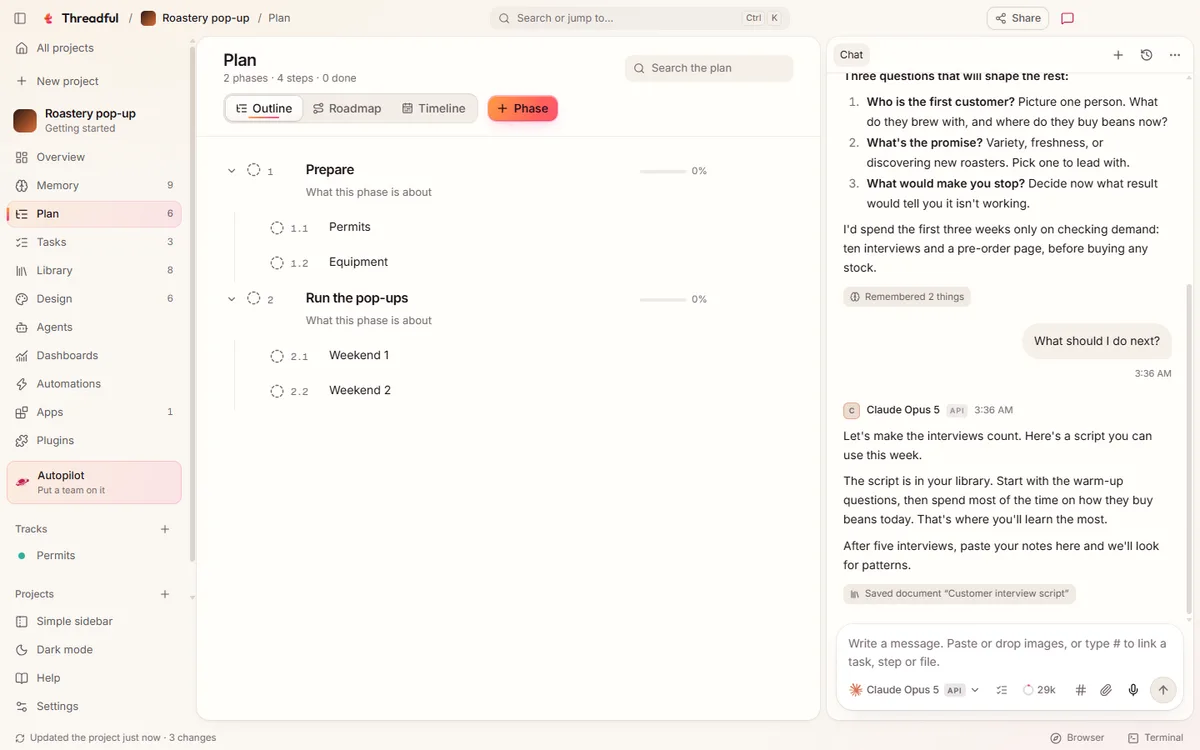
With no plan yet, press Ask for a plan (the chat asks for one) or Start one yourself.
How to add and change steps
- + Phase adds a phase.
- Hover a step and open its menu (⋯) for Add a step inside and Add a step after.
- Click a title or its details to edit them in place. Enter saves, Esc undoes.
- Steps are numbered by position: phases 1, 2, 3, steps 1.1, 1.2, and deeper steps 1.1.1. The numbers change when things move.
- Search the plan (Outline) finds steps by number, title, details or timeframe.
Statuses
Each step is Not started, In progress, Done or Blocked. Click the status icon to move it on: Not started, In progress, Done, then back to Not started. Pick Blocked from the step's menu. Finishing a phase sets off a little confetti.
The step menu
- Copy link: opens this step from other apps.
- Create a task for this: a task with the step's title, linked to it.
- Do after…: this step waits for another. It shows as an "after 1.2" chip; hover the chip and click × to remove it.
- Discuss in chat: starts a chat message about the step.
- Delete (or Delete with its steps), with Undo in the note that follows.
Each row also shows how many linked tasks are done (click to go to Tasks), its dates and a timeframe like "Week 2". Hover an empty timeframe for When?.
Roadmap
One column per phase, with each step as a card. Click a step to jump to it in the Outline.
Timeline
- Zoom with Whole plan, Weeks, Months or Quarters. Today scrolls to today.
- Plan starts sets the date that timeframes like "Week 2" count from.
- Drag a bar to move it, or drag its ends to change the start or end. Click a bar to open the date editor, with Start, End, the statuses and Clear dates.
- Rough dates, worked out from a timeframe, show hatched.
- "Not on the timeline yet:" lists steps without dates. Click one to give it dates.
- Add to calendar saves a calendar file for Google Calendar, Outlook or Apple Calendar.
Timeframes it understands include "Day 3", "Week 1–2", "Months 2–6", "Q1 2027", "H1", "Oct 2026", "October – December", "next week", "this month" and exact dates. Steps without their own timing are spread across their phase.
Plan steps finishing themselves
When you tick off the last task linked to a step, the step is marked done, and its phase too once all its steps are. A note says so, with Undo. It only moves forward and never reopens anything. A step with no linked tasks never finishes this way.
To turn it off: Settings → Automation → Finish plan steps by themselves.
Tasks
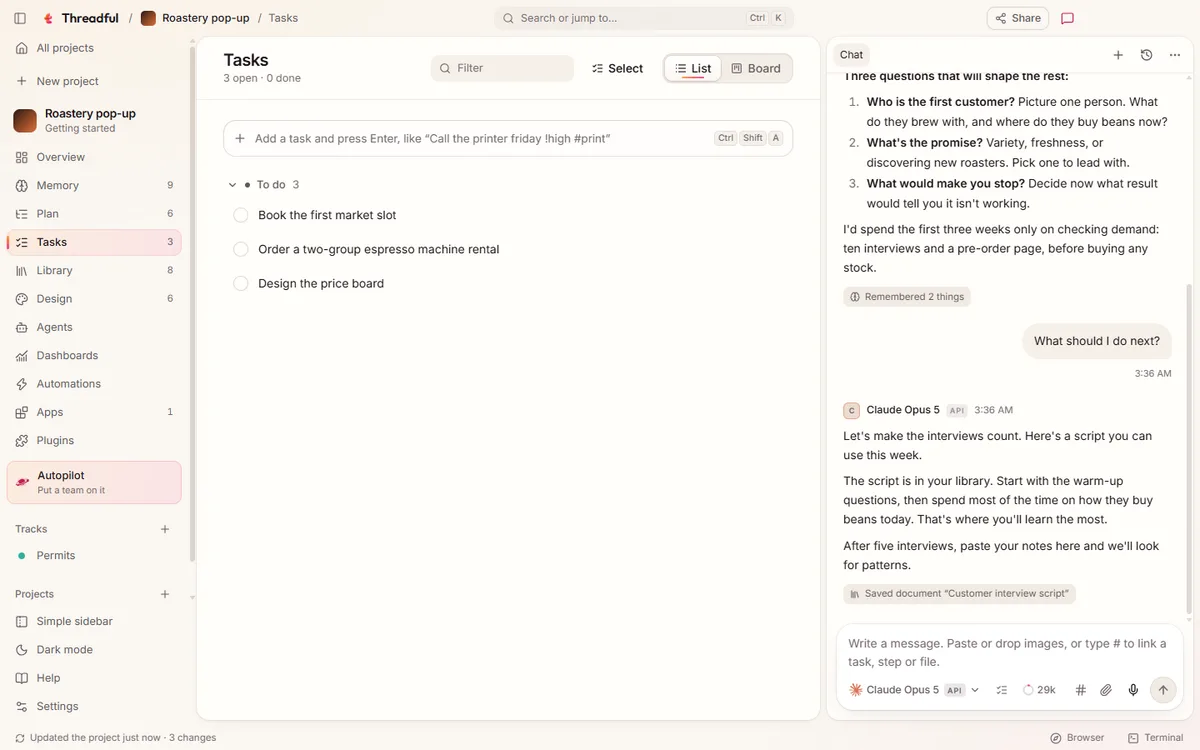
Open them from the sidebar (Ctrl 4). Each task is Later, To do, Doing or Done, with a priority of Low, Medium, High or Urgent.
How to add a task
Type in the box at the top and press Enter, like "Call the printer friday !high #print". The new task slides in at the top of To do. Anywhere else in the app, Ctrl Shift A opens Quick add (see Quick add and notes).
- !urgent, !high or !low sets the priority.
- #word adds a tag.
- A date at the end becomes the due date.
- Once you type, the box opens for notes: Shift Enter goes to them, Ctrl Enter adds the task from there.
- Paste a screenshot (Ctrl V) or drop pictures into the box. Type the task yourself, or press Suggest from the picture and the AI writes the title and notes from it. The pictures go into the task's notes, and to the library under Tasks.
- Esc clears the box.
On the board, each column except Done has its own "Add a task" box, and the new task lands at the end of that column, just above it.
Due dates in words
Write due dates the way you'd say them: "today", "tomorrow", "in 3 days", "in a week", "Friday", "next Friday", "end of week", "next week", "end of month", "Oct 15" or "October 15th 2027". They're saved as real dates and shown as "Today", "Tomorrow", a weekday or a short date. Overdue dates turn red, and today or tomorrow amber. Anything else you write is kept as you wrote it, but isn't treated as a date, so it never goes overdue.
List and Board
- List groups tasks under Doing, To do, Later and Done (Done starts folded).
- Board shows the same as columns. Drag cards between columns to change their status, or up and down to reorder. A card shows the first picture in its notes and the start of them, and where any work sent for it stands (see below). Done shows the latest finished first, a dozen of them until Show all.
- Drag a card to start coding on it: while you drag, "Drop to start coding on it" shows at the bottom. Drop the card there and Codex (or the Cursor CLI) works on the task in the project's workspace, the task moves to Doing, and the run shows in the chat. Coding switches on for the project if it was off. With no coding app set up yet, dropping there opens Settings → AI models to set one up (see Coding).
- Filter finds tasks by words in the title, notes or tags. "#word" searches tags only.
Tasks sent for work
A task handed to a coding run, or shared with Claude Code, Codex or Cursor, shows where that work stands on its row and its card:
- Coding: a run is at work on it. Checking: the run finished and its work is being checked.
- Queued: a run waits its turn in the code folder. Awaiting go-ahead: a run the AI proposed waits for you to start it.
- In Claude Code (or Codex, Cursor): it's open in that app's window.
- Run finished, Run failed or Run stopped: how its latest run ended, while the task is still open (for two weeks).
Click it to open the run's card under its bead on the coding strip, above the page. The line under the title counts the tasks sent for work, and the task's details say the same in a sentence under Sent for work, with Open its card, and Mark done once its run has finished. A run made from several chosen tasks shows on every one of them.
The task keeps up with its run by itself: it moves to Doing when the run starts or is queued; a run on one task that finishes with its checks passing (or none to run) marks it done, unless the task was changed while it worked (the coding app marked it, left a note on what's left, or you changed it); and a queued run cancelled before it started puts it back in To do. A run on several tasks marks each one done itself as it finishes them. A failed or stopped run leaves the task as it is.
Click the round tick to mark a task done (a half-filled circle means Doing). A note says Done, with Undo to put it back where it was; dragging a card to Done does the same. Ticking the very last open task sets off confetti.
Point at a task in the list and its buttons show in place of its tags and dates: Done, Code it (when a coding app is set up: a coding run starts on it and it moves to Doing), Open for its details, and ⋯ for the rest (the same as right-clicking it). To work on several at once, press Select above the list, or Ctrl-click (Shift-click) a task to start with that one chosen; the bar at the bottom sends the chosen tasks to Autopilot or to a coding run.
The task details
Click a task to open its details:
- Status, Priority and Due (type words, or use Pick a date).
- Plan step: link it to a step.
- Tags, separated by commas.
- Sent for work: where its coding run or Share stands, when it has one (see above).
- Decided and noted about this: memory items about the task or its step.
- Tracks: Start a track or Add to a track (see Projects and tracks).
- Code: work on it in code, when the project uses code (see Coding).
- Notes: written as they'll look (headings, lists, checklists), saved as you type, with Suggest and Refine to have the AI add to them or tidy them (see Quick add and notes). Paste or drop screenshots, or press Add a picture or file in the bar above: they're saved to the library and shown in the notes.
- Get help in chat starts a chat about the task. Delete has Undo.
- Copy link (top) opens the task from other apps.
Tasks in your calendar app
Settings → Automation → Calendar gives you a private address for calendar apps on this computer (Apple Calendar, Outlook, Thunderbird). Subscribe to it and tasks with due dates show up there. It needs the local server that Turn on switches on.
Related
- The Overview: the next tasks and the plan at a glance.
- Map and Memory: the ideas and decisions behind the plan.
Every page of the guide
The same guide is in the app: open Help or press F1. Something missing or unclear? Write to hello@threadful.ai.
