
On this page
Open Settings with the gear at the bottom of the sidebar, from the search box, or with Ctrl , (comma). Back or Escape closes it.
Three columns
- On the left, the sections: AI models, Usage, Images and audio, Web search and Browser; Code, Plugins, Connections, Automation and Programs; General, Reaching you, Your phone and Privacy; and Backup.
- In the middle, what's in the section: services with their logos, plugins with their switches, programs, or pages of settings.
- On the right, the one you picked, with everything you can change about it.
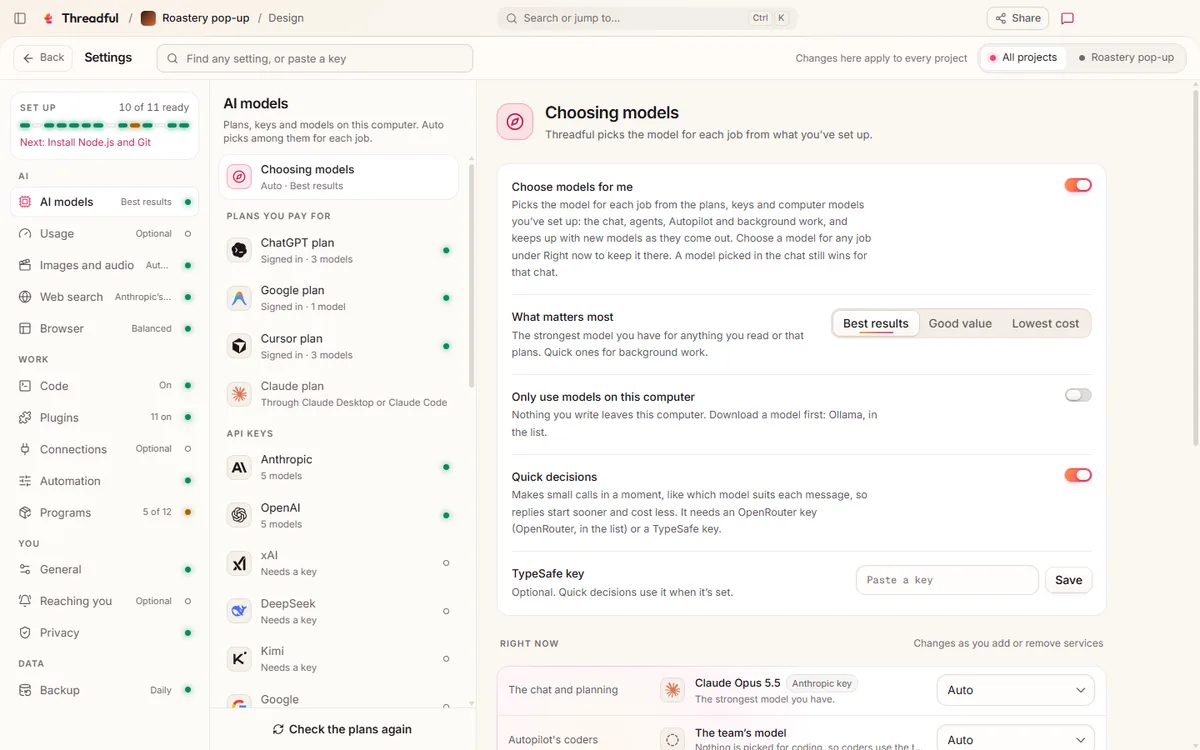
The lights and the Set up meter
Each section on the left has a light:
| Light | What it means |
|---|---|
| Green | Ready |
| Amber | Worth a look, like a search service without its key or a backup that's a few days old |
| Red | Needs you, like no AI model set up yet |
| Empty ring | Optional and not set up, like Reaching you |
Hover a light to read what it's about. The Set up card above the sections has a bar for each section and says how many are ready. When something needs a look, Next: says what, and takes you there.
The same lights show in the lists: beside each service, server and program.
Finding a setting
Type in the box at the top, like "voice", "code folder" or "backups". Results replace the list in the middle, with where each setting is. Pick one and it opens, with the setting glowing for a moment. Ctrl F puts you in the box.
Paste an API key there and Threadful tells which service it's for by its shape, with Save it.
All projects, or just this one
With a project open, the top right has All projects and the project's name. Most settings are the same everywhere. Two can differ per project:
- What matters most in Settings → AI models: a side project can use Lowest cost while the rest use Balanced, or one can put design and writing first. See AI models and keys.
- Plugins: which are on, and how each may be used. See Connections and plugins.
- Code: the code folder, which app does coding runs, GitHub, Vercel and Neon. Set for each project. See Coding.
Pick the project's name and change what you like: only that project changes, and it keeps its choice when All projects changes. A small square beside a section's name means the project has a choice of its own there. Follow All projects takes it back.
Plugins in the sidebar opens Settings → Plugins with the open project already picked.
Related
- AI models and keys
- Connections and plugins
- Growing with you: how much Settings shows.
Every page of the guide
The same guide is in the app: open Help or press F1. Something missing or unclear? Write to hello@threadful.ai.
