
On this page
- Show, hide and resize the chat
- How to send a message
- How to choose a model
- How to point the AI at something
- How to add pictures and files
- Messages waiting in line
- Web and Plan first
- Suggestions as you type
- Plan first
- What a reply shows
- When a reply offers to connect something
- When Autopilot finishes
- When the AI asks you something
- When a reply doesn't finish
- When you're offline
- Several chats
- Branch a chat
- The chat menu
- How full the chat is
- Rules and skills
- Speaking instead of typing
- Screenshots and copied images
- Searching the web yourself
- What changed
- Background updates
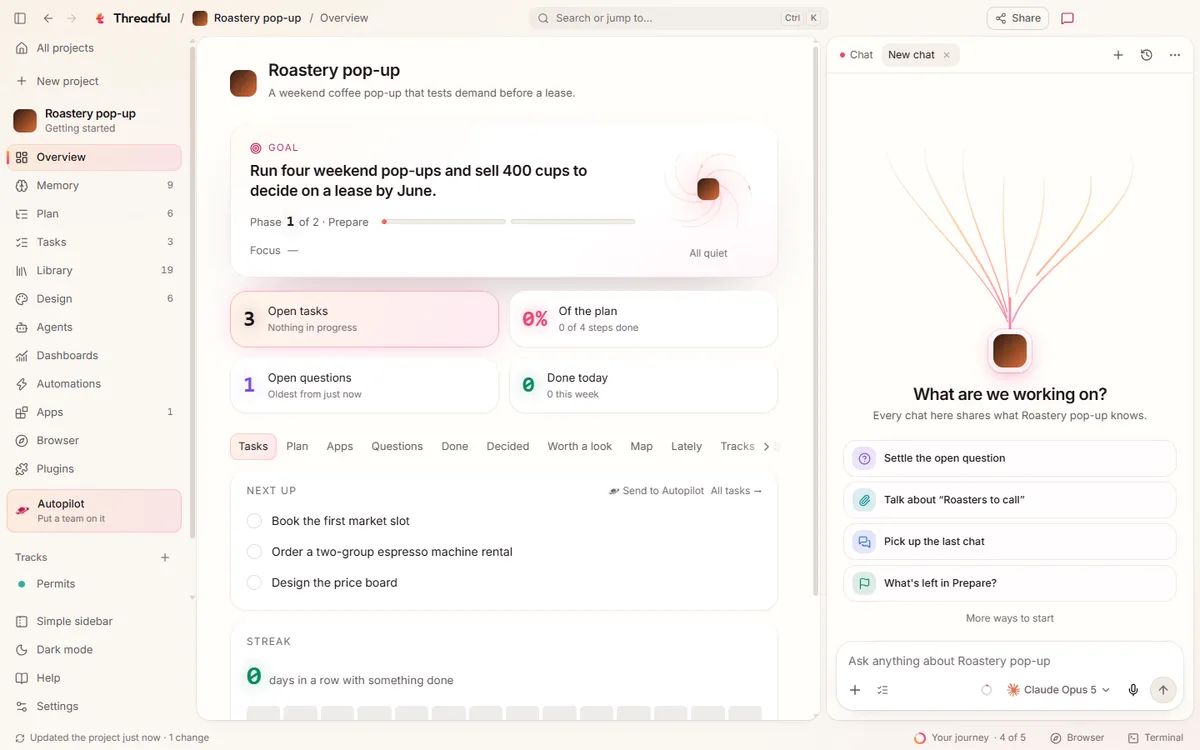
The chat sits on the right of every project. Every AI you connect shares one memory for the project, across every chat tab, and after each reply the app updates the plan, tasks and memory in the background.
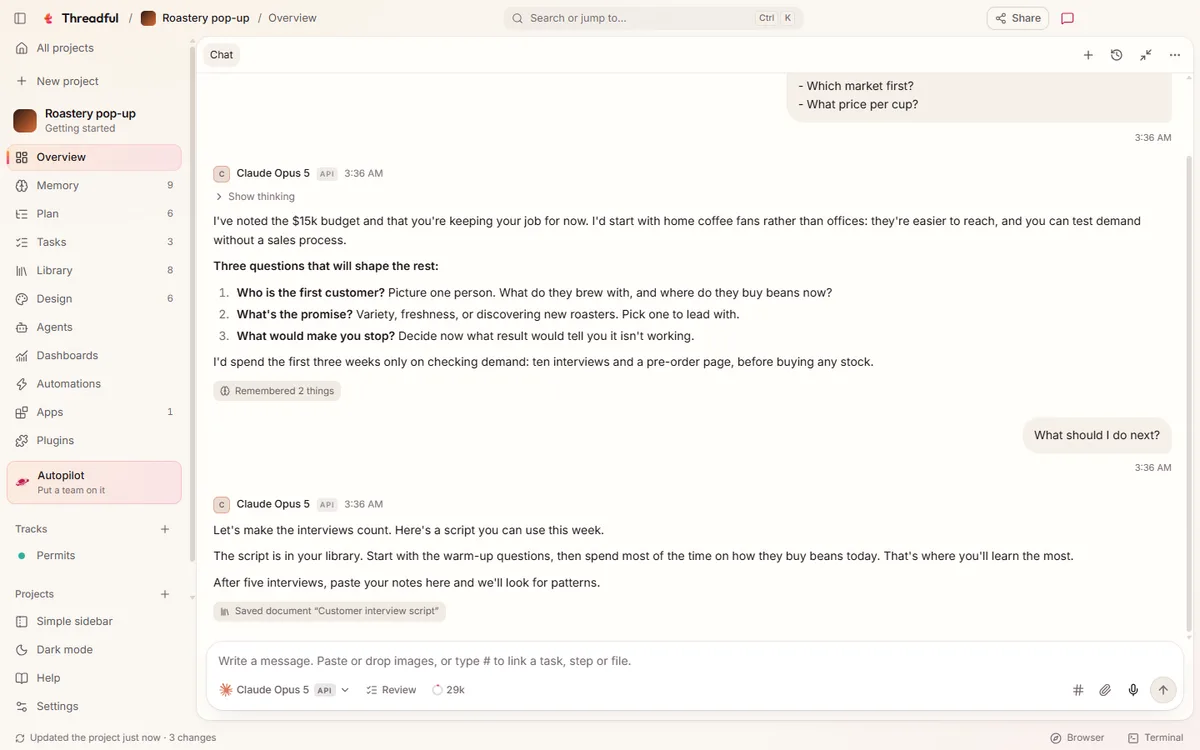
Show, hide and resize the chat
- Ctrl J, or the speech-bubble button in the title bar, shows or hides it.
- Drag the thin line between the page and the chat to make it wider. Double-click the line to reset it. The page always keeps room to be used: on a smaller window the chat gets narrower first, and the sidebar folds to its icons.
- Expand the chat (top of the chat) fills the window. Show the page again brings the page back.
How to send a message
- Type in the box at the bottom. Shift Enter makes a new line.
- Press Enter.
An empty chat shows the project's mark, with loose strands gathering into it as it opens (then they rest, faint and still, and only the mark glows softly), and a few places to begin that fit where the project is: something waiting on you, an overdue task, open questions, a file you just added, the chat you were in last, or, in a new project, Get it all out of my head, Find the real goal and Make a plan. Most ask at once; Get it all out of my head and a file start the message for you to finish, and the last chat opens. More ways to start shows the rest, like What should I do next? and Find the weak spots. The box itself shows a hint at a time until you click into it.
While a reply is coming in you can keep writing. What you send waits in line under "Up next" and goes out when the reply finishes. The square Stop button stops the reply; what the AI wrote so far stays.
How to choose a model
You don't have to: the button beside Send says Auto and the model Threadful picked from what you've set up (hover over it to see why). In a narrow chat it says just Auto, or the model's name. To use a particular model, click the button, search the list and pick one; pick Auto at the top to go back. Each model has a tag:
| Tag | Meaning |
|---|---|
| Plan | Uses a subscription you already pay for |
| API | Uses an API key. Billed per use |
| Local | Runs on this computer. Free |
If no AI is set up, the button says Connect an AI. Add AI providers or plans at the bottom of the list opens Settings → AI models. See AI models and keys.
How to point the AI at something
Type # (or choose Link a task, step or file under +) to open "Link an item". Pick a plan step, task, memory item (an idea, a decision, a fact…) or library file with the arrow keys and Enter. It becomes a chip above your text. In a sent message, click the chip to open the item.
How to add pictures and files
- Paste an image: it's saved to the library and shown as a thumbnail.
- Drop files on the box: they're added to the library and attached.
- + menu: From your computer…, From the library…, A part of your screen… (the window steps aside; drag over the part you want, or click to take the whole screen, and it's attached, kept in the library under Screenshots), From a web page… (opens the browser, where you can put a screenshot of a page, or part of it, in the chat; see Browser), From another project…, or Make an image, video or audio…. Images go to the AI as pictures, documents with their text. In From the library… the search finds every word you type in names, what pictures show, tags, folders and what documents say, and Pictures, Documents, Files and Links narrow it.
There's no limit on how many. The AI looks at up to 20 pictures of a message directly and reads the rest first, a few at a time. Long documents and web pages are read in parts, so nothing past a limit is left out. A line under the box says when this will happen, since the reply takes a little longer.
- Drag items from the library into the box.
The × on a thumbnail removes it.
Messages waiting in line
Messages you send during a reply show above the box.
- Click one (or its pencil) to change it. Enter keeps the change, Esc undoes it.
- Send now sends it at once and stops the reply that's running.
- × removes it.
If a reply fails or you stop it, waiting messages aren't sent. The heading says "Waiting: the last reply didn't finish, so these weren't sent."
A message you send while you're offline waits here too, saying it sends by itself when you're back (see When you're offline).
Web and Plan first
- Web (globe) searches the web for this one message, then switches off. It shows when the project has Web search switched on.
- Plan first (the list beside it) has the AI shape a plan with you before anything is made: see the next part. It stays on for the project until you switch it off.
- Both are under + too, ticked while they're on. In a narrow chat that's where they live, and each shows beside + only while it's on.
Suggestions as you type
When what you're typing looks like something Threadful has a place for, one quiet suggestion shows just above the box. Take it, or carry on: Enter still sends your message as it is, and Esc or × puts the suggestion away for that message.
| You type | It offers |
|---|---|
| A to-do, like "Call the printer friday", "Remind me to renew the domain" or a list of them | Add as a task (its date and priority read as in the Tasks box), or Add and send to ask the chat too |
| "idea: …" or "note: …" | Save as an idea or Save as a note |
| A web address | Read the page with your message: the page is kept in the library and attached, so the reply has all of it |
| "Make a logo…", "Design an ad…", "Write a blog post…", a deck, a video, a website, a newsletter | Start in Logo Studio (or the studio that makes it) with these words as the brief |
| "Make me an app that…", a dashboard, "Every Monday…" | Build it on the Apps page, Make it a dashboard or Set it up as an automation |
| "Plan the launch…", or several things to make at once | Plan it first, which switches Plan first on |
| An API key | Save it in Settings, taken out of the message so it never reaches an AI |
| A task, step or file by its full name | Link it, as # does |
Plan first
When you're about to do something with several parts, like a launch, a website and its brand, or an event, plan it with the AI first.
- Plan it out. When a message describes something like that, the reply may offer Plan it out. Press it: Plan first switches on and the AI starts the plan. Not now leaves it, and it isn't offered again in that chat. You can also switch on Plan first in the message box yourself.
- The plan fills in as you talk. It sits above the message box, named for what it's for. Each item is one piece of work, with where it's done in Threadful beside it: Logo, Website, Ad, Email, Presentation, Writing or Video Studio, Build it, a coding run, Autopilot, a dashboard or an automation. Keep talking and the AI adds items, changes them or takes them off.
- Nothing is made yet. Changes the AI would make to your plan and tasks wait on the plan too, and so do a coding run an agent would start and commands for the chat's terminal. Untick an item to leave it out, or press × to take it off.
- Start makes the ticked items: tasks, and steps of the project's plan. The plan then moves into the chat, where it stays. Items added after that say Add 2, and a few changes on their own say Apply.
- Open an item to see its task or plan step: where it stands, when it's due and its notes, with Open the task. Tick a task's circle to mark it done.
- As much detail as the work needs. An item for a coding run or a Share can carry its whole brief: what to build, what's decided and how to tell it's done. A longer one can be a document in the library, linked from the item. Start puts the brief in the item's task, so a coding run started from that task works from it.
- Where it's done. Click an item's studio (or Build it, an automation, and so on) to start there with the item's words, like a logo brief that already says "Draw the logo and pick the colours". A coding run's item opens its task, which has Start coding.
- Pin to the Overview (⋯ on the plan) keeps it as a note on the project's Overview, with the same items and links. Put it away clears a plan you don't want from above the message box.
What a reply shows
- Small chips under the reply say what the AI did. Click one to open what it changed. Many actions fold into one chip, like "7 actions · Tasks 4, Plan 3".
- Red chips, "Couldn't …", show what failed and why.
- A grey chip ending "sent back to the AI to fix" means the AI made a slip and was asked to fix it. You don't need to do anything.
- Show thinking opens the AI's reasoning, on models that share it.
- Files it made: pictures and videos show as tiles, with "Saved in" and the folder. See all opens them all.
- Hover a reply for Copy, Read aloud, Save to library and Delete (at once, with Undo in the note that follows). Its … has the rest, the same as right-clicking it: Quote in a reply, Branch from here…, Send to another project… and more.
- Code in a reply shows in colour for the language it names (TypeScript, Python, shell, HTML, SQL and many more), with Copy above it and Expand when part of it is out of sight.
- Tables in a reply read like a report: figures line up on the right, and a column of scores (out of 100, out of 5, percents) gets a small meter in each cell. A table wider than the chat scrolls sideways inside its box, with an arrow on the side that has more, and its first column stays in place. Point at a table for Copy at its top corner: it pastes into a spreadsheet as cells, or into a document as a table. Its … has Copy as Markdown, Save as CSV… and Add to the library, the same as right-clicking it. Tables in documents, the guide and CSV files in the library look the same.
- Click a picture (one you added, one the AI made, or one in a reply) to see it in the picture viewer, over the page you're on: the arrows or Left and Right go to the others beside it, the wheel, a double-click or + and − zoom, and a zoomed picture can be dragged about. Edit image, Show in the library and Copy image are at the top; Esc closes it. Pictures added to a message before you send it open the same way.
When a reply offers to connect something
When you name a service you use (like PostHog, Stripe or Notion), or the talk leans on figures one of them holds (revenue and margins, signups, installs), a small card under the reply offers to connect it, so answers use your real figures instead of estimates. Most connect with Sign in: your browser opens, you approve, and it's on for this project. Google Drive, OneDrive, Dropbox and the like connect through the folder their app keeps on this computer, and Google Docs and Sheets with Sign in with Google. Not now or × puts the card away. See Connections and plugins.
When Autopilot finishes
When an Autopilot team finishes, its results arrive in the chat as a card: where it stands, the main results (click one to open it), the steps left for you, and See the results. The AI reads them too, so you can ask what the team made or pick up from it.
When the AI asks you something
A card says "A question for you". Each question asks for the kind of answer that's quickest to give:
- Options: round markers take one, square markers several ("Pick any").
- Yes or No.
- A scale, like 1 to 5, with what each end means under it.
- A number, with its unit beside it.
- A date: pick one, or Today, Tomorrow, In a week or In a month.
- Put them in order: move each up or down, most important first, or This order is right.
- Your own words, in a box.
When the choice is between things that were made (designs, drafts, directions), each option shows them at the end of its row: its pictures (click one to see it larger), or the document it's about. What to look at first sits under the question.
Options, yes or no and scales also have Something else to write your own. Press Send answers; your answers go to the AI in words. Questions you skip go as "Skipped". You can also just reply in the chat.
When a reply doesn't finish
- Try again appears under the latest reply when it failed, or was stopped before it said anything. It names the model, and offers up to two others: the strongest on another service, and a stronger one on the same service. To use a different model, pick it in the box first. When a service can't answer at all (busy, out of credit, or a plan's limit used up), the next model answers by itself and the reply says so.
- Continue appears when a reply stopped after many steps or hit the length limit. Press it to let it carry on. In the project's chat, Continue and don't ask again carries on and stops replies asking after so many steps; Settings → General → The chat → Stop to ask after puts it back (10 steps, 30, 100 or Never). An agent's chat keeps the steps set on its page.
- An error in a warning box may have Set it up or Settings, which opens the page that fixes it.
See Troubleshooting for common messages.
When you're offline
When the internet goes, the title bar says Offline. Click it to see what still works (models on this computer, your files and the library, notes and tasks, the terminal) and what waits until you're back (replies from online AI, pictures and video, web search, publishing). Check now looks again at once.
- A message you send waits above the box, under "Waiting for the connection", and says it sends by itself when you're back online. Nothing is lost, and it goes on its own. On Auto with a model on this computer set up, that model answers instead.
- A reply the connection cut off says so in a grey box. When it hadn't changed anything yet, it tries again by itself once you're back. Try again is there too.
- The status bar says background updates wait until you're back online. They run once it is, and so do the things the app does in the background, like a paused Autopilot team.
When the connection returns, the title bar says Back online for a moment. Connection trouble means the internet answers but some services didn't; another model answers where it can, and it clears by itself.
Several chats
- + (New chat), or Ctrl T anywhere in a project, opens a new tab with the cursor in the message box. It names itself from the first line of your first message; you can't rename it by hand. + stays at the end of the tabs however many there are.
- Tabs come in three groups: Chats (yours), Agents (each agent's own chat, Autopilot's team too) and Coding (a coding run you opened as a chat tab of its own). Coding runs don't open tabs by themselves: a run the AI suggests is a line under its reply, and every run is on the coding strip above the page (see Coding). Once there's more than one kind, the buttons at the start of the tabs switch between them, with how many are open; a dot means one is at work. Each group shows six tabs at most, always the open one and any at work; the rest wait under +N beside them, newest first.
- The main Chat tab can't be closed. Hover other tabs for ×, or right-click a tab to close several at once (in the group showing).
- Old tabs close by themselves: a chat nobody has used for three days, and a coding tab a few hours after its run ends, moves to Chat history (never one at work). Agents' chats stay, so each agent keeps its chat; quiet ones fold under +N. To keep every tab open, switch off Settings → General → Close old tabs by themselves.
- Clear chat… (right-click a tab) starts it afresh. The messages move to History, and Bring back the earlier messages at the top brings them back. Memory and the rest of the project stay as they are.
- The clock button, Chat history, lists open and closed chats, marked Chat, Coding or Agent, and "closed by itself" for the ones that closed when old. Search across them, and click a closed one to reopen it. Opening a closed chat from anywhere else (a card, a link, Needs you) brings its tab back too.
Your half-written message is kept per tab.
Branch a chat
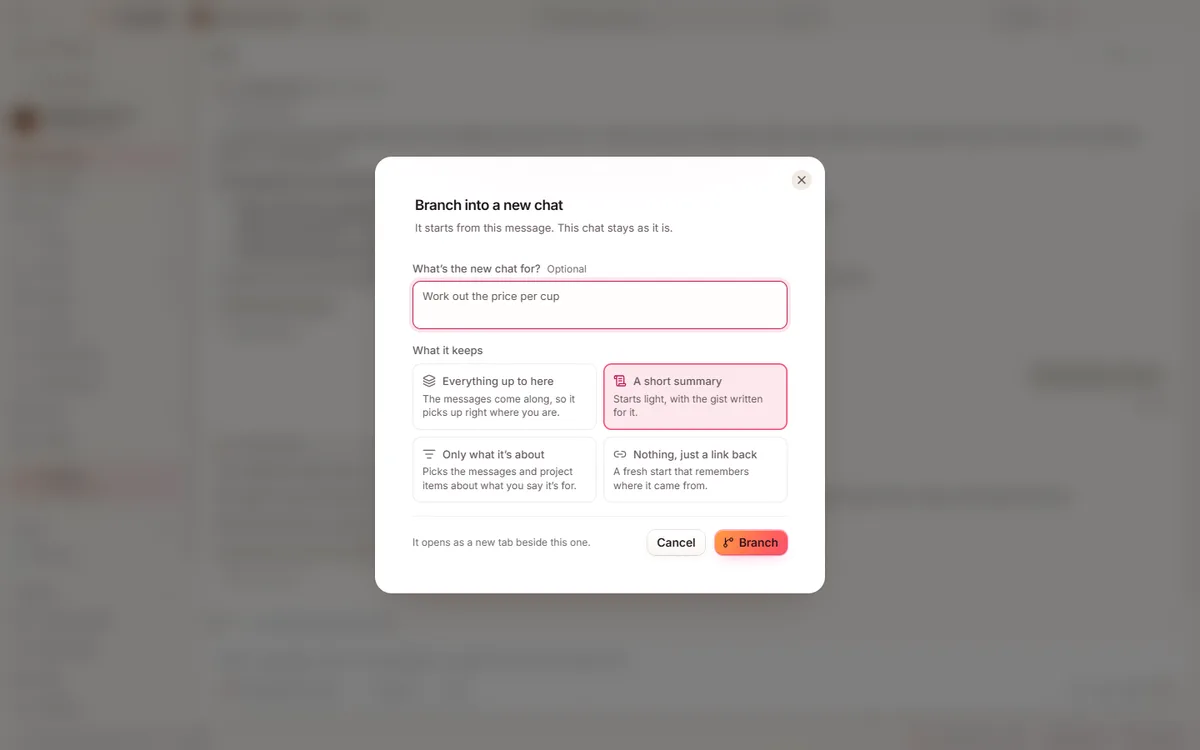
When one chat has covered a lot and you want to take part of it somewhere new, branch it: a new chat starts from that point, and the one it came from stays as it was.
- Right-click a message, or open its …, and choose Branch from here…. To start from the end of a chat, right-click its tab, or open … at the top of the chat, and choose Branch this chat….
- Say what the new chat is for. It's named from that, and it guides what's kept.
- Choose what it keeps:
- Everything up to here: the messages come along, so the AI picks up right where you are. Nothing said after that point goes with it.
- A short summary: the AI writes the gist for it, so it starts light.
- Only what it's about: the AI picks the messages about what you said it's for, with anything in the project that goes with it (tasks, memory, library items), and writes a short note from them.
- Nothing, just a link back: a fresh start.
- Press Branch. It opens as a new tab beside the one it came from.
The top of the new chat says where it came from: click the chat's name to go back to the message it branched at, lit up. What it keeps (or The summary) shows the note and the items it carries. A summary and Only what it's about need an AI set up in Settings → AI models; Everything and Nothing work without one. Branching an agent's chat makes an ordinary chat, answered by the chat's AI. A branch can be branched again, and carries what that one carried.
The chat menu
Click … at the top of the chat:
- New chat and Chat history, the same as + and the clock button.
- Branch this chat…: a new chat from the end of this one (see Branch a chat).
- Expand the chat (or Show the page again): the chat takes the whole window. On a narrow chat this lives only here, to leave room for the tabs.
- Update the project now: bring the project up to date from the chat straight away.
- Summarize older messages: shrink the chat so replies stay quick. Nothing is lost.
- See what the AI remembers: opens Memory.
- Continue in Claude Code (or Codex, or Cursor): shown when the project uses code and that app is installed. See Coding.
How full the chat is
The small ring and number beside the # button show how much the next reply will read, measured for the chat that's open (an agent's chat counts its instructions and tools too). It turns amber, then red, as it fills. Click it to see what takes the room, how much this chat has used, and Summarize older. Rules and Skills show there once the project has some (see Library): the rules always go with every reply, and a skill in full only when the message fits it.
Rules and skills
Ask in the chat to make something a rule ("Make it a rule: prices always with the currency") and it holds for every reply, agent, teammate and coding run in the project. Explain how a kind of work should be done and ask to save it as a skill, and it's followed whenever that work comes up. Both are kept in the Library, where you can write and change them yourself.
- Settings → Automation → Recent messages kept word for word sets how much is kept before older messages are summarized.
- Settings → General → Answer depth sets how much the AI thinks before answering: Auto, Fast, Balanced or Thorough.
Speaking instead of typing
With an OpenAI or ElevenLabs key saved, a microphone appears in the box. Click it ("Speak instead of typing"), talk, then click again to put your words in the box. A ring around it moves with how loud it hears you. It finds the microphone that hears you by itself: the first time, every microphone on the computer listens and your words come from the one that heard you, which is kept for next time. If that one later hears no speech for a moment (a muted headset, say), the others listen too, and the one that hears you takes over without losing what you said; a note says which. Right-click the microphone to pick one yourself, or to go back to Automatic. Read aloud on a reply needs an OpenAI key, or an ElevenLabs key with a voice chosen. See Images and audio.
Screenshots and copied images
Take a screenshot or copy an image in another app, then come back: a card above the box asks "Add your new screenshot?" or "Add the image you just copied?". Add saves it to the library under Screenshots and attaches it. The card goes away by itself after a minute. Switch it off in Settings → General → Offer screenshots.
Searching the web yourself
Press Ctrl Shift F. Hover a result for Save to library, Ask about this in the chat or Open in browser.
It searches the same way the AI does: with every way you have set up, the next taking over when one stops working. See Web search.
What changed
While a reply works, the project builds itself beside the message box: each task, plan step, memory item or library item it adds or changes shows there as it lands, lit for a moment, newest first, one click from opening. It stays a while after the reply, and × puts it away.
What a reply did shows under it on one line, as small chips ("Added 1 task", "Remembered 4 things"), each opening what it changed; when they don't all fit, +N shows the rest in place, and Less folds them again.
At the end of that line, What changed says how many things the reply changed. Open it for the list: the tasks, plan steps, memory, library items and goal the reply changed, and what the background update after it changed, each in a few words ("To do → Done", "renamed").
- Click one to open it.
- Undo beside one puts it back as it was before the reply; Undo all puts back everything the reply changed. Something the reply added is taken away again.
- Something changed again since (by you, or by a later reply) is left as it is, and the note says so, so nothing newer is undone without you seeing it.
Background updates
After each reply, the app brings the goal, plan, tasks and memory up to date, and the status bar shows what changed. To see it in the chat too, switch on Settings → General → Background updates in the chat. Each one is a single quiet line, "Updated the project" and what changed in a few words ("memory, 6 things remembered, the focus"); updates one after another share one line ("Updated the project · 3 times"). Click the line to see each one, with what it changed. To stop them, switch off Settings → Automation → Keep the project up to date.
Every page of the guide
The same guide is in the app: open Help or press F1. Something missing or unclear? Write to hello@threadful.ai.
