
On this page
Quick add catches a task, an idea or a note the moment you have it, wherever you are, with any screenshots that go with it. Notes, documents, a task's notes and an idea's description are all written the same way: as they'll look, saved as you go, with the AI ready to add to them or tidy them up.
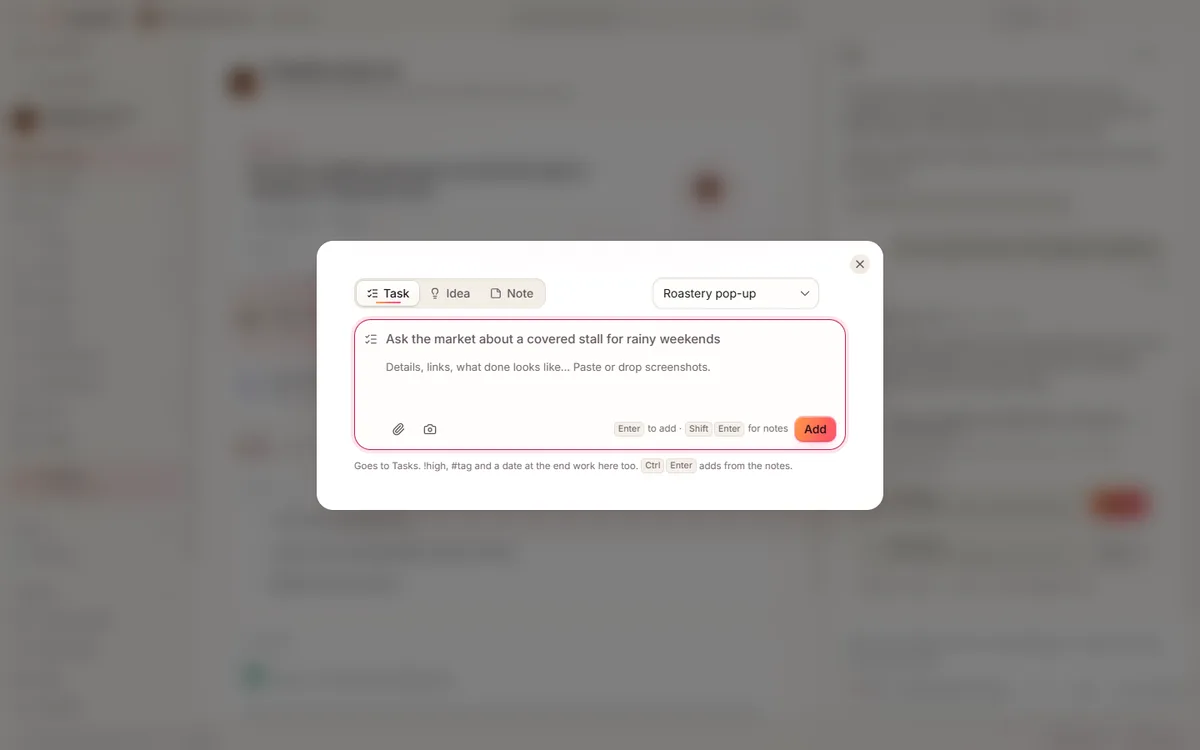
Quick add
Press Ctrl Shift A anywhere in the app. Choose Task, Idea or Note at the top, and the project at the right when you have more than one. Type a title and press Enter to add it.
- Shift Enter goes to the notes under the title. In the notes, Ctrl Enter adds it.
- It opens as a task on the Tasks page, an idea in Memory and a note in the library; anywhere else, as whatever you added last.
- Close it without adding and what you wrote is still there next time.
- A task takes the same shortcuts as the Tasks page: !high, #tag and a date at the end.
- Where it goes: tasks to Tasks, ideas to Memory, notes to the library under Notes. The note that follows has Open.
On the Tasks page and Memory's Board, the box at the top is Quick add for that page (on the Tasks board, each column has one): it starts as one line and opens for notes and pictures as soon as you type. Ctrl Shift A in the task list or Memory's Board goes straight to it, and Esc clears it.
With screenshots
Paste a screenshot (Ctrl V) or drop pictures and files into the box, or press Add a picture or file. They show in the box; point at one and click × to take it out.
Take a screenshot (the camera beside it) takes one for you: the window steps aside, the screen under the pointer is shown, and you drag a box around the part you want. A click takes the whole screen, and Esc or a right-click takes nothing.
With a picture in, you can:
- Just type what it's about and add it. The pictures go into its notes.
- Press Suggest from the picture: the AI reads the picture and writes the title and notes for you. If you've typed a title already, it keeps yours and fills in the notes. Change anything before you add it.
Pictures are saved to the library when you add it: under Tasks, Ideas or Notes.
Reading pictures needs an AI that can see them, set up in Settings → AI models.
From any app
Choose a shortcut in Settings → General → Quick add → Quick add from any app: Ctrl Shift Space, Ctrl Alt Space or Ctrl Shift Alt A, or Your own…, then press the keys you want. Pressed in any app, it brings Threadful forward with Quick add open. It's off until you pick one.
From the tray
Closing the window leaves Threadful running in the tray, near the clock (in the menu bar on a Mac), so Quick add, screenshots, notifications and long jobs carry on. The first time you close it, the window asks first: Keep it running, Quit Threadful (closing the window quits from then on) or Don't close, and remembers your answer. Click its icon to open the window, or right-click it for Quick add…, Take a screenshot to add… (the part you choose opens in Quick add), what's at work, and Quit.
Settings → General → In the background has Keep running when the window is closed (switch it off to quit when you close the window) and, in the installed app, Start when you sign in: Threadful starts with your computer and waits in the tray until you open it.
Other ways in
- The search box (Ctrl K): type "new idea …", "idea: …", "new note …" or "new task …", and add "for" and a project's name to put it there. Or pick Quick add a task, idea or note.
- Right-click selected words for Add as a task or Save as an idea. Right-click an empty spot for Quick add a task, idea or note.
Ideas
Ideas are kept in Memory, with the goals, questions and decisions they connect to. To go through them, open Memory and choose Board:
- Ideas is the first column, the newest first after the ones you pinned.
- Find in memory finds them by their words.
- Add an idea at the top adds one, with notes and pictures like Quick add.
- Click one to open its panel: its name, its notes, how central it is, its links, Make it a task and Forget.
- Map shows them by how they connect.
Writing notes
Notes and documents in the library, a task's Notes and an idea's description all open ready to write in.
- Write as it will look. Typing "# " makes a heading, "- " a list, "1. " a numbered list, "[ ] " (or "- [ ] ") a checklist, "> " a quote, and three backticks a block of code. Ctrl B and Ctrl I make words bold and italic.
- The bar above has the rest: the kind of text, crossed out, code, lists, checklists, a quote, a block of code, Link, Add a picture or file and a Table (inside one, the same button adds or removes rows and columns).
- Paste or drop screenshots and files: they're saved to the library and shown in place.
- Click a link to open it; Alt-click puts the cursor in it, to change its words. A link to something in the project by its name or file name (the AI writes some that way) opens it too.
- Show the Markdown (the button at the right of the bar) shows the note as plain Markdown to edit; press it again to go back. A note with parts only Markdown keeps (like HTML or footnotes) opens that way, so nothing in it is lost.
- It saves by itself a moment after you stop typing, and when you close it. The bar says Saved; if it couldn't save, Couldn't save. Try again. Ctrl S saves at once.
- If it changes somewhere else while you're writing (the AI updated it, say), it says so: Keep mine or Use the new one.
Suggest and Refine
Suggest has the AI add to the note: Keep writing, Fill in what's missing, Next steps, Questions to answer, Examples or An outline. What it writes goes after the paragraph you're in, or at the end.
Refine has the AI rewrite the part you've chosen, or the whole note when nothing is chosen: Sound like a person (fixes the habits that read as AI; see Writing Studio), Clearer, Shorter, More detail, Fix spelling and grammar, As a list, Friendlier or More formal.
Both have Your own words…: say what to add, or how to change it, and press Enter.
Nothing changes until you've seen it. The AI's words show in a card with Add it (or Use it), Try again and Don't use it, and Stop while it's writing. A rewrite shows as changes in place, what it was crossed out beside what it is: click a change to undo it before it goes in. After it's in, Ctrl Z takes it back. Writing Studio in the toolbar opens the note there, with its versions, habits marked as you type and Read it as…
Related
- Plan and tasks: the task list, the board and a task's details.
- Library: where notes and documents live.
- Memory and its Map: ideas and how they connect.
- Keyboard shortcuts: every shortcut in one place.
Every page of the guide
The same guide is in the app: open Help or press F1. Something missing or unclear? Write to hello@threadful.ai.
