
On this page
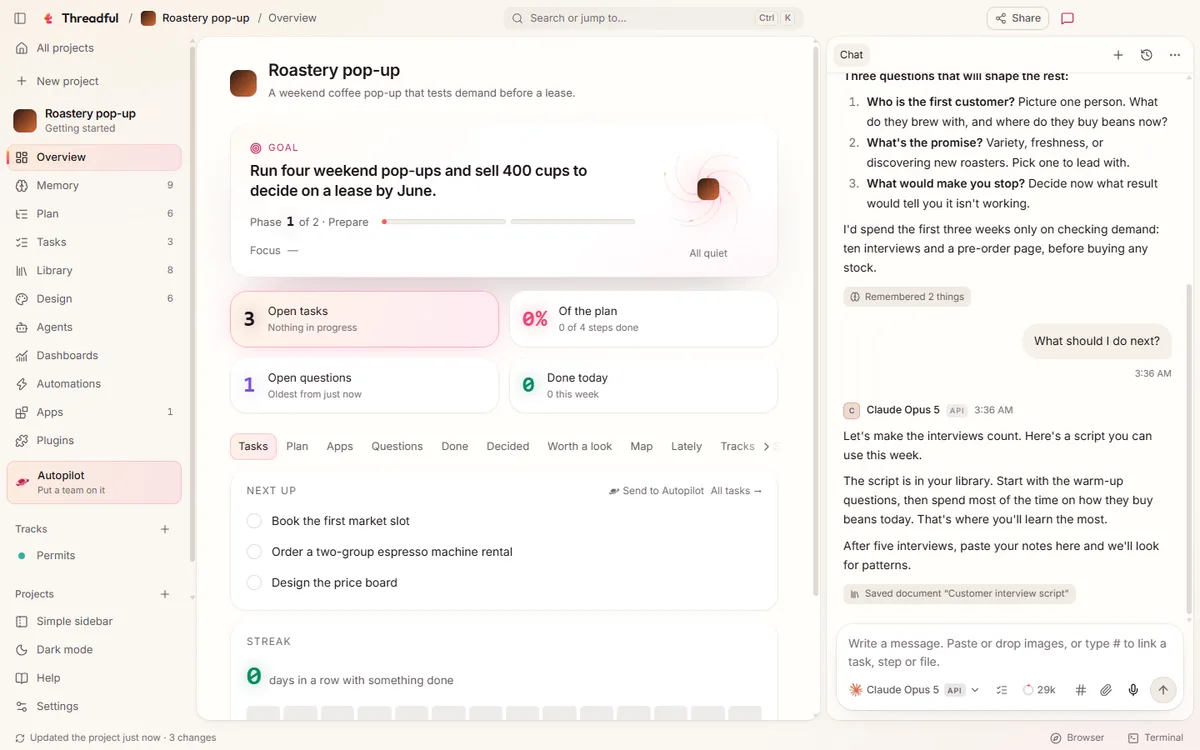
The Overview is the first page of every project (Ctrl 1). One lit panel shows the goal and how far along you are, a card shows the one thing that most needs you, four counters sum things up, and a row of tabs opens the rest in place. That's how every project starts; Layout at the top right lays it out another way (see Make it yours).
Make it yours
Layout at the top right opens Your Overview. While it's open, every tile has its name on its top edge: drag it to move it, choose how wide it is at its bottom right (⅓, ½, ⅔ or Full), or × to take it off (with Undo). Done puts the page back to work. Each project keeps its own layout.
| Layout | What it shows |
|---|---|
| Mission control | Everything at a glance: the goal panel, what needs you, the counters and the tabs, as this page describes. Every project starts with it |
| Focus | The goal and the next thing: what needs you, Next up, what's at work, what's due and your streak |
| Brand and design | Your look and what's being made: the brand kit, inspiration, recent designs, websites, favorites and quick links |
| Builder | Apps, coding and numbers: your most used apps, coding work, numbers from your dashboards, what's at work, websites and quick links |
Each layout is shown as a small picture of itself. Once you change one it's marked Yours, and Back to its name puts it back as it comes.
- Arrange it for…: say what you'd like, like "launch week", "the brand" or "just what's due", and the AI lays the page out for it. A line at the top says what it did, with Undo. You can ask in the chat too: "Arrange my Overview for the launch".
- Add a tile: the tiles below, and the deck's own parts (the goal panel, what needs you, pinned plans, the counters, the tabs and the buttons along the bottom), so any layout can have them. One already on the page says so.
- Auto Evolve: see below.
Tiles you can add
Each is a picture or a number first, and opens where it lives.
| Tile | What it shows |
|---|---|
| Next up | The next few tasks, the one in progress first. Tick one to mark it done |
| Due soon | Tasks due this week and late ones, each on a small calendar leaf: amber for today or tomorrow, red when it's late |
| Open questions | How many are open and the first few, with Talk it through |
| At work | What's running now, as strands. Click a bead to go where it's at work |
| Coding work | The latest coding runs and where each stands. Click one for its card |
| Streak | Days in a row with something done, and the last two weeks as bars |
| Memory's map | The ideas that stand out, and how they link. Click to open the Map |
| Brand kit | Your main brand's logo, its name in its own type, and its colours. Click to open the kit |
| Inspiration | Pictures kept in the library's Inspiration. Click one to open it |
| Recent designs | What's being designed, with its pictures. Click one to carry on |
| Websites | The project's websites and their addresses |
| Quick links | Places you choose with Add: a page, an app, a studio, a dashboard or a web address. Point at one and × to take it off |
| Favorites | What you starred in the library |
| Most used apps | Your apps, the ones you open most first |
| Numbers | Numbers you show on the Overview from a dashboard, with how each moved |
A tile with nothing to show yet says what would fill it, with a way to start.
Auto Evolve
Switch Auto Evolve on under Layout. It counts what you open in the project (apps, dashboards, designs, library items, automations and the pages you go to), on this computer only, and suggests up to three things near the top of the Overview, quietly marked Suggested from what you use: something you open a lot, or a tile for what you keep going to a page for (like Next up when you keep opening Tasks). Each says why, like "Opened 4 times lately".
- Pin it here (the pin): it gets a tile of its own, where the suggestion was.
- More like this and Less like this: suggestions of that kind count for more or less from now on. Less like this also puts that one away for good.
What it counts fades over a week or two, so it follows what you're working on now. It's never sent anywhere.
The goal panel
- Goal: up to three lines of it (hover for all of it); click to write or change it. Until then it says it "appears once the conversation makes it clear".
- Phase: "Phase 2 of 4" and its name, with a bar beside it: one segment per phase, filling as its steps are done (hover a segment for its name). Click the phase or a segment to open it in the Plan.
- Focus: what you're concentrating on now. Click to change it.
- What's at work (beside the goal): strands gathering into your project, one for each thing at work, with a bead on it: an agent (with its face), a coding run, a workflow, a reply, or a job like making a logo kit, building the website from your design or making pictures. A light runs along a strand while its work goes on; one waiting on you turns amber and pulses; queued work waits as dots underneath. The line under it says "N waiting on you", "N at work" or "All quiet", and up to three rows across the bottom of the panel list what's running. Click a bead or a row to go where that work can be watched: a coding run's card in the chat, an app's page (while it's built, changed or published), the design being made, the website or the pictures on the Design canvas, Autopilot for its team, or the chat of a reply or an agent. The list in the title bar (with Stop beside work that can be stopped, like the studios') and Home's Up next open the same places. The chat and your agents know what's at work too: ask "is the website done yet?".
What needs you
When something is waiting on you, an amber card shows the one that matters most, with a button to deal with it:
| What | Button |
|---|---|
| A question from an Autopilot team member | Answer |
| A question waiting for your OK (a command, a tool acting for you, a step on a website) | Answer |
| An agent that asked you something | Answer |
| An agent whose reply failed, or that stopped before it was done | Open |
| An automation that couldn't finish its last run | Open |
| An Autopilot plan or report to look over | Review |
| A suggested coding run | Start |
| A task that's due soon, overdue or high priority | Open |
| An open question holding up tasks or plan steps | Decide |
The second line says why it's first, like "blocks 3 items" or "overdue by 2 days". Hover it for the full reasons. N more after this one lists the rest, ranked by how much each holds up, how soon it's due and how long it has waited.
When nothing needs you, the card doesn't show.
Plans pinned from the chat
A plan made in the chat with Plan first can be pinned here: ⋯ on the plan, then Pin to the Overview (see Chat). It shows as a note under the card that needs you, with how much is done, each item and where it's done. Tick a task's circle to mark it done, open an item for its details, and Open the chat to carry on there. ⋯ → Take off the Overview removes the note; the plan stays in its chat.
The counters
Four counters sit under the goal. Click one to open its tab below; click again to close it.
- Open tasks: tasks to do or in progress.
- Of the plan: how much of the plan is done, and how many of its steps.
- Open questions: with how old the oldest one is.
- Done today: with your streak, or how many this week.
Numbers you choose to show on the Overview from a dashboard appear after these four, up to four of them, each with how it moved. Click one to open its dashboard.
The tabs
A row of tabs opens detail in place, one at a time. Click the open tab to close it. The app remembers which one you had open.
| Tab | What it shows |
|---|---|
| Tasks | "Next up": up to seven open tasks, with a tick circle for each. Beside it, your streak over the last two weeks |
| Plan | A card per phase with its progress. Click one to open it in the Plan |
| Apps | The project's apps and a few ready-made ones to add. See Apps |
| Questions | Open questions. Talk it through starts a chat about one |
| Done | What you finished this week |
| Decided | The latest decisions |
| Worth a look | Suggestions (below) |
| Map | A small picture of the Map. Click to open it |
| Lately | The last ten changes and who made them. Click one to go there |
| Tracks | Each track with its progress. New track starts one. See Projects and tracks |
| Summary | The summary of the chat so far, once the chat gets long |
Worth a look
The AI reads the project and suggests up to five things, each marked Do next, Watch out, Follow up, Idea or Going well.
- Click the title to open what it's about. Small chips below say what it's based on.
- The button does the obvious next thing, like Open task, Open in Memory or Talk it through.
- Look again refreshes the list.
- The ⋯ menu has Remind me tomorrow, Remind me next week and Forget about this (never suggested again). For a task, it also has Edit the task and Move the task to Later.
Without an AI connected, you still see plain findings from the project's records.
You may have lost these
Under Worth a look, one line gathers things that slipped out of sight: side chats untouched for two weeks, ideas left on their own, questions open for a week, and tasks untouched for three weeks. Click it to open the list. Each has one action, like Open, Make it a task, Talk it through or Start it. Hover for Snooze for a week or Dismiss.
The buttons along the bottom
- Autopilot: put a team of agents on the project. See Autopilot.
- Import past chats: bring in chats from other AI apps.
- Apps: go to the Apps page.
- Automations: open the Automations page. See Automations.
While an Autopilot team is working or paused, a small pill at the top right says so, like "Autopilot · 3 working". Click it to open Autopilot.
An empty project
A brand-new project's Overview is where to get it going: Open the chat, Hand it to Autopilot (a team on the goal), Import past chats and Bring in a website, then the Starters (a brain dump to a plan, slides, a one-page site, a weekly look back, a research brief, a small app; in the order the kind of work you said you do in setup reaches for them) and the studios under Make something. Start talking, and the goal, plan and tasks fill in as you go; the Overview's own panels take over once there's something to show.
What I learned from your past chats
Once the past chats you brought in are read, a card under the goal lists the decisions and the questions still open that were found in them, each with the chat it came from. Click one to open it in Memory; Not now puts the card away.
Your website
When a project mentions its own website (in its description, its goal, what it remembers, or in the chat) and it hasn't come in yet, a card under the goal offers to bring it in: its pages, logo, colours and pictures. Bring it in starts; Not now puts it away for that site. See Bring in your website.
Every page of the guide
The same guide is in the app: open Help or press F1. Something missing or unclear? Write to hello@threadful.ai.
