
On this page
Threadful turns what you're working on into a plan, then helps you do it, with any AI you use. The first time you open it, it asks what you're working on and a few quick questions about it, and about a minute later you're looking at something real, made from your answers.
Your first project
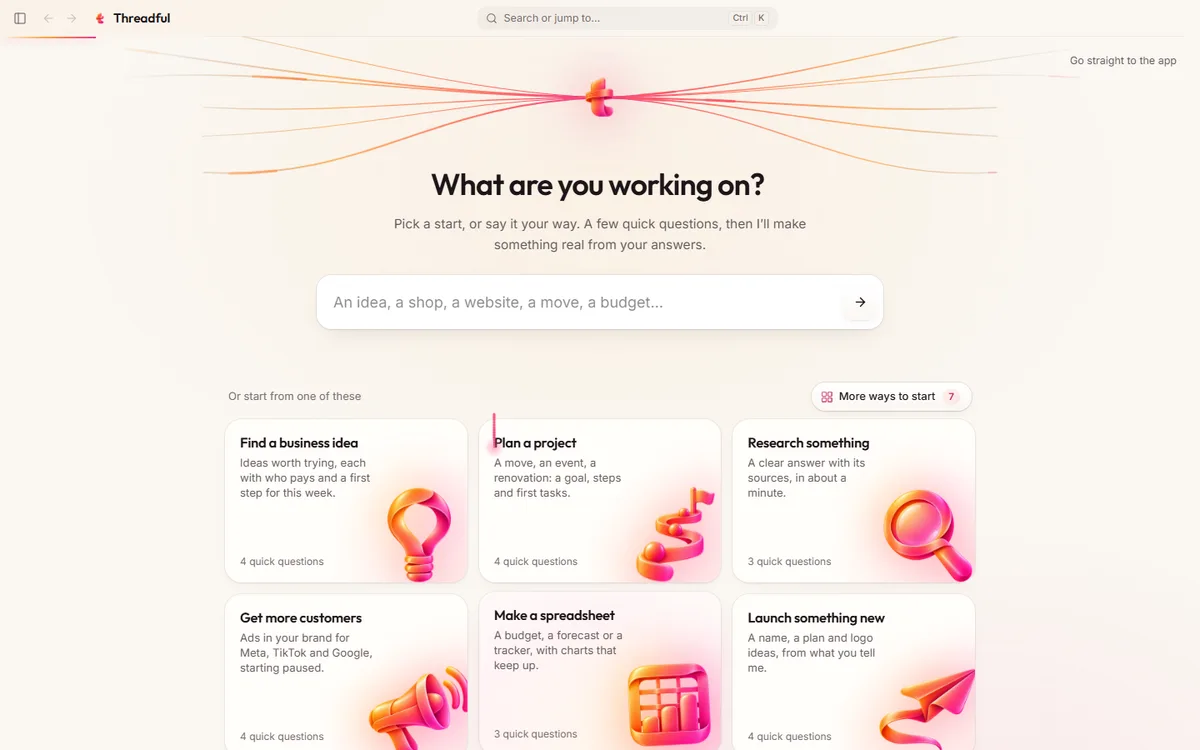
- "What are you working on?" Pick a start from the cards, or say it your way in the box, like "I want to find a new business idea", "We're redoing our kitchen" or "A budget for our wedding". As you type, the line under the box says which start it goes to; beside or are the others it could be, one click away.
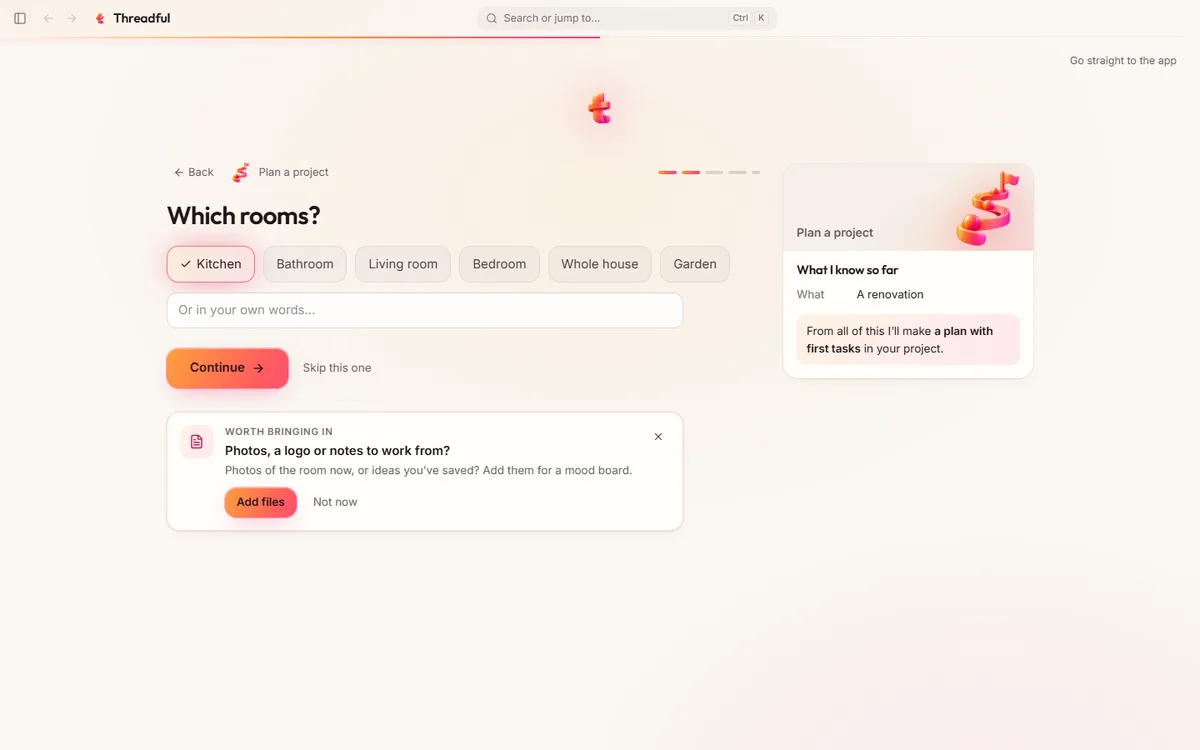
- A few quick questions, written for that start: four at most. A renovation asks which rooms, when and the budget; a logo asks the name, what you do, how it should feel and the colours you love. Pick from the choices, or say it in your own words in the box under them (your words are added to what you picked). What you typed on the welcome answers what it can, so "We're redoing our kitchen" skips "What's the project?" and picks Kitchen.
- More options under a question opens a few extra settings, like where you are, logos you like or how long the deck should be. Leave them closed if you like. Skip this one leaves a question out, and Continue with nothing picked uses the example shown.
- Along the way, Threadful offers what's worth bringing in, only where it helps: past chats on this computer that mention what you're working on, your website, photos or a logo, a folder, or the service you take payments with. One click brings it in; Not now puts it away. What it knows so far gathers on the right. A folder you add gets a quick look (not a full read) for what fits this start: logos, documents, spreadsheets, presentations, chat exports, pictures, and your website's colours and type from its stylesheets. The likeliest are ticked already; Bring these in takes what's ticked, and Not now leaves them.
- "Anything else for me to include?" ends every start. No, make it starts making. Yes, add something opens more you can bring: past chats, files or pictures, things you like, your website, a folder, notes, a service to connect (it signs in once the project is made) and your own AI key.
- Threadful makes a project for it, with what you brought, and opens the place it goes to (Idea Studio, Logo Studio, Presentation Studio, the chat…), with the first drafts on their way. A strip above the page says what it's doing, its steps, and how many are ready. A logo, website, ad or app's first ideas aim for a clean look that's popular now and suits what you do (plenty of space, clean lines, soft gradients, a bright moment or two), as a direction: your words and your brand come first. Refresh my website brings your site in first and makes its brand kit, so its new designs start from your real logo, colours, pages and words. Meanwhile a round of questions about the project waits in the chat, so it never starts blank.
- When they've landed, the strip says they're first drafts, not the finished thing. React to them: heart the ones you like, change anything, and take them further right there. Keep going says what's next: the questions waiting in the chat and the next steps for your start, each one click from where it's done. Close puts the strip away.
The cards are Find a business idea, Plan a project, Research something, Get more customers, Make a spreadsheet and Launch something new. More ways to start (it says how many more) shows the rest: Refresh my website, Name my business, Make a logo, Design a website, Make a pitch deck, Build an app and Work for a client. Which come first depends on what Threadful knows, like the link that brought you here.
Back, and going straight to the app
- Back on a question goes to the one before. Back on the strip stops what it started and brings back the last question, with every answer and what you brought in. If nothing had landed yet, the project it made goes too, so nothing is left behind.
- Go to the app on the strip closes it. The work carries on, and everything is in your project.
- Go straight to the app (top right of the welcome) skips all of this. To see the welcome again: Settings → General → Go through setup again, or the same words in the search box.
- Drop files anywhere on the welcome to bring them in.
Going further, only if you want to
Under the cards, Other ways to start has a few extras. None of them is needed for a first project.
- Set it up step by step: what you spend most of your time on, what you'd like to make first (the starts that suit it, or your own words), how at home you are with AI, the command line and code (it decides how much the app shows at first), and what you already have. Then that start's questions, with what you brought already in.
- Bring past chats or a folder: press Look around to find chats from Claude Code, Cursor and Codex on this computer, and exports in your Downloads, Desktop and Documents folders. Tick or untick what you want; the 25 most recent chats from each app come in now and the rest wait in Import. For chats kept online, press ChatGPT, Claude or Gemini under "Chats kept online:": its export page opens, and when the file lands in Downloads, Threadful brings it in. Add files and Add a folder bring in anything else, and "Have a website already?" brings in its pages, logo, colours and pictures (see Bring in your website).
- Use my own AI: connect the AI you already use (see the next section).
- I have an account: signs in to your Threadful account, in your own browser.
- Restore a backup: moving from another computer? This brings everything back from a backup file. See Backups and privacy.
Connecting an AI
The first drafts need an AI to make them. With none set up yet, after the questions Threadful asks for one: "One last thing: a way for me to think." Once one is set up, Carry on makes yours from your answers. Show me an example first opens a finished example for that kind of start instead (for Launch something new, logo ideas for a candle shop called Ember & Wick), in a project of its own named "Example: …", and the strip above the page says it's an example. Look around; it's all real, only made earlier. Make mine then sets up a way to think and makes yours, from your answers. Back takes the example away again.
Setting up a way to think shows what Threadful found on your computer:
- A plan you already pay for (ChatGPT plan, Google plan, Cursor plan): press Sign in, or Install if its app isn't there yet.
- Free, on this computer: one click downloads a model sized for your computer. It keeps downloading if you move on, and nothing leaves your computer.
- Other ways: paste an API key for Anthropic or OpenAI.
- Set up later skips this for now. You can connect one any time in Settings → AI models.
When your first drafts came from Threadful's free start, Keep going asks you to sign in to carry on (Google, Apple or an email link, in your own browser). What you made is already saved, and Not now carries on without it.
Starting another project
New project in the sidebar (Ctrl N) asks "What's next?" with the same box and cards, and starts as your first run: say it in a sentence or pick a start, answer its few questions, and it opens the right place with first drafts on the way, the strip above the page following it. Back on the strip comes back to its questions.
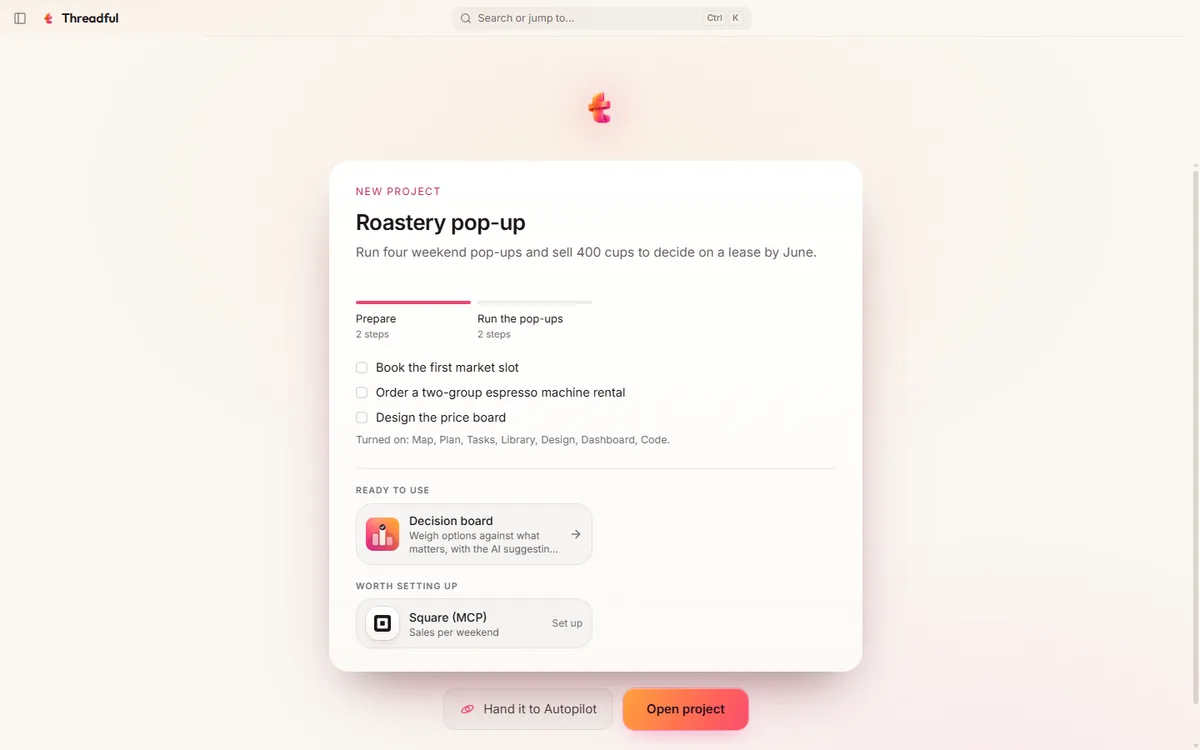
To plan it first instead, press Plan it with me first under the starts (Bring past chats or files goes there too, and Start empty makes an empty project). Say what it's about, pick another kind under "This one is" if you like, and bring past chats and files the same way. Press Make it: Threadful reads what you gave it and sketches a goal, phases and first tasks. If it fails, press Try again or Make it without a plan.
Then change the name or goal if you like. Under Ready to use are the ready-made apps made for it (click one to open the project straight into it), and under Worth setting up what would help and why, each opening the right place in Settings. Press Open project (or Enter). With an AI connected, Hand it to Autopilot puts a team of agents on the plan instead. See Autopilot.
Tips
- Enter moves on, and the number keys pick choices.
- Drop files on any question. It says "Drop it in", then "Got it" with the name.
The window at a glance
- Sidebar (left): the open project at the top, with All projects above it. Click the project to switch to another one or to one of its tracks, or to start a new one. Under it are a few big places: Overview, Tasks, Library, Design and Apps (a page shows only while it's switched on for the project; see Connections and plugins). The one you're on joins the page beside it. What you've pinned (an app, a studio, a dashboard) is listed by name under Pinned: shortcuts. On Apps or Dashboards, that place opens up to list its apps or dashboards: the pinned ones first, then the ones you use most, four at most, with Show all for the rest. The one open is marked. Then comes Autopilot, always there and lit, saying what your team is doing. Memory, Plan, Agents, Dashboards, Automations, the Browser and Plugins wait under More, and a page you use (or the Browser) joins the big places for a while. Help and Settings sit at the bottom, with three quick choices under them: light or dark, the text size, and sounds. Ctrl \ folds the sidebar down to its icons. On a narrow window (a laptop, or a screen set to 150%) it folds by itself while the chat is open, so the page keeps room; Ctrl \ opens it again. Share isn't in it: it's a button in the title bar (Ctrl 8) that opens a sheet with a one-page PDF, a picture summary, recent work, a brand kit and the logos, one click each (see Sharing).
- Title bar (top): the arrows beside the sidebar button go back to where you were and forward again (Alt ← and Alt →, or the mouse's side buttons), with the task, library item or memory item you had open, and as far down the page as you were. The logo takes you to All projects. The middle holds the search box, "Search or jump to…". On the right, a pulsing pill says "Updating the project" while the app works in the background. Anything that takes a while (making pictures, publishing an app, a coding run, a workflow, an install) shows there too, with how many more are running; click it to see them all, how long each has taken, and to go to where it is. The speech-bubble button shows or hides the chat (Ctrl J).
- Chat (right): talk the project through with any AI. See Chat.
- Status bar (bottom): on the left, "Up to date" or "Updated the project … · N changes". Click it to see what the app changed on its own, with Undo what it added for a few minutes after each update. On the right, Coding (once the project has coding work) opens the project's coding runs and Shares, and "N waiting on you", "N at work" and "N in other projects" take you to the Overview.
How to search everything
Press Ctrl K, or / anywhere outside a text box, or click the search bar on Home. It searches every project at once: projects and tracks, tasks, chats, the library (documents, pictures, links and files), memory (ideas, decisions, facts and the rest), plan steps, apps, agents, automations and designs, and also pages, commands, settings and this guide.
- Type a few words. The best match shows first, larger; the rest come grouped (Tasks, Chats, Pictures…), with the one picked shown on the right. Tab jumps to the next group, and Enter opens it, in whichever project it's in. A task can be marked done from there.
- Small typos are fine, and things that say much the same are found too, marked Related.
- Words that say what you want become filters, shown under the search box: a kind ("tasks", "pictures", "chats"), a project's name, a time ("today", "this week", "last week") or a state ("overdue", "due", "done", "waiting"). Click × on one to take it off.
- Type something to do and it's offered first: "new task call the printer for Kiln" adds the task to that project (without "for …", to the project you're in); "new project …" starts one; a question offers to ask it in the chat; a web address can be saved to the library; a pasted key is saved in Settings → AI models.
- A command named by what you type comes first, like Import chats, Take the tour or Switch to dark mode, and so does a page, like Tasks.
- With nothing typed, it shows what you opened lately and a few things to try. What you open from search comes up sooner next time.
- At the bottom, Search the web for "…".
All the shortcuts are in Keyboard shortcuts. On a Mac, use Cmd where this guide says Ctrl.
The tour
The tour is five short steps, most of them things you do: ask the chat something, open Tasks, open Design, then where Autopilot is and how to find anything. A "Your turn" step waits for you to do it; Show me does it for you (for the chat, it puts a question in the message box).
- Next (or Enter, or the Right arrow) goes on. The Left arrow goes back. End the tour (or Esc) stops it.
- It never starts by itself: the first run's strip shows the way instead. A note that points out something new doesn't come back once you press Got it, and neither does an offer of what to try next once you've said no to it.
- To take it again: Take the tour in Help (F1), in the search box, or Settings → General → Tour → Take the tour (with a project open).
Make it yours
In Settings → General (Ctrl ,):
- Your name: the AI uses it when it talks about you, and Home greets you by it.
- Theme (Dark, Light, System), Accent color and Font. Each accent is a gradient of three colours: Threadful, the first, is the logo's amber, coral and magenta. Pick another (Pink, Tangerine, Ion, Cobalt, Violet, Rose, Ember, Jade or Graphite) and buttons, switches and highlights take its gradient instead.
- Text size: Large unless you choose another, from Small to Largest. Ctrl + and Ctrl - change it from anywhere, and Ctrl Alt 0 puts it back to Large.
- Sidebar: Simple, the usual one, is described under The window at a glance above. When something under More happened since you last looked (an automation that didn't finish, an app ready to try, a plan step stuck), a small bubble under More says so: click it to go there, or the cross to put it away. Tasks shows a number only when some are due or late. Full shows every page, project and track at once, the way the sidebar used to: choose it here, under More (Full sidebar) or with "Use the full sidebar" in the search box. Simple sidebar at the bottom of the full one brings the simple one back.
- Sounds: soft sounds for what you do yourself, never for background work.
- First-run setup: go through setup again. Your projects stay as they are.
Where to next
- Projects and tracks: start more projects and split big ones up.
- Chat: get the most out of talking it through.
- The Overview: where things stand at a glance.
- AI models and keys: connect more AI.
Getting help
- Help at the bottom of the sidebar (or F1) opens this guide inside Threadful. Search it, or follow the links between pages.
- Short videos show how to do the main things (make a logo, write something, ask the chat, set up an automation…). Each plays under the part of the guide it goes with, and Help's Contents lists them all under Watch how.
- The search box (Ctrl K) shows guide sections that match what you type, under Help.
- Or ask in the chat: "how do I make a logo?", "why did Autopilot pause?". The AI looks the answer up in this guide.
Every page of the guide
The same guide is in the app: open Help or press F1. Something missing or unclear? Write to hello@threadful.ai.
