
On this page
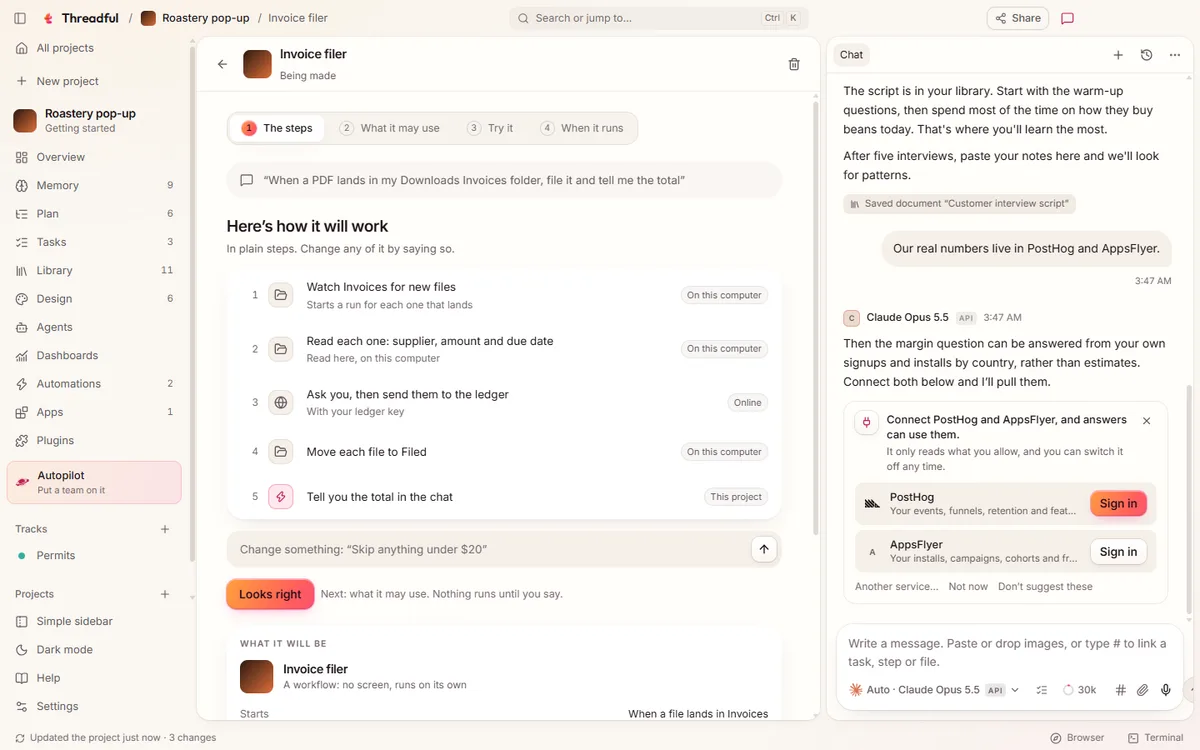
A workflow is like an app without a screen: it does a job for you, on its own. "When an invoice lands in Downloads, file it and tell me the total." "Every Monday, sum up the week and send it to my phone." You make one from a sentence, see its steps in plain words, allow what it may use, watch it try once, and then it runs by itself.
Workflows are on the Automations page, listed with your automations. A sentence about files and folders on this computer, or a web address that needs a key, becomes a workflow; the rest become automations.
How to make one
- On the Automations page, press New automation, say what it should do, and press Plan it (on the Apps page, a sentence that runs on its own goes there too).
- The steps. In a few seconds you see how it will work, step by step, and what it will need. Change anything by saying so ("Also skip anything under $20"). Press Looks right.
- What it may use. Each thing it needs is listed on its own: a folder to read, a folder to change, a site to reach, or one of your connections. Pick the folder, paste a key if a site needs one, and choose Allow or Don’t for each (a connection can also Ask each time). Its project (tasks, plan, memory, library and chat) and the AI are always allowed. Press Allow these and try it.
- Try it. It's written for those steps, then runs once while you watch, line by line. If it asks you something, answer right there. If it didn't work, Fix it has it look at what went wrong and try again.
- When it runs. When a file lands in a folder, on a schedule (like weekdays at 9:00), when something happens in the project (a task ticked off, something added to the library), when another program calls it, or only when you say. Choose whether to hear about Every time or Only when it needs me or goes wrong. Press Turn it on.
What it may use, and how it's kept safe
- Its code can't reach anything by itself. It uses only what you allow and its project's own tools, and Threadful checks each use against what you allowed.
- Folders: only the ones you picked, and nothing outside them. It can move and add files in a folder you let it change, but it can't delete anything.
- Documents: a workflow reads PDF, Word, Excel, PowerPoint, text and CSV files in a folder you let it read, with the same readers the library uses, so a sentence like "Total the Revenue column of each spreadsheet that lands in Reports" needs only that folder. Excel files can also be read as sheets of rows and cells. Nothing is uploaded, and scans and pictures give no words.
- Drives: a drive you've connected (Google Drive, OneDrive, Dropbox, iCloud Drive or Box, see Connections and plugins) needs nothing more when the Drives plugin is on in the project. A workflow finds files there, sees what changed since it last looked, reads them (Google Docs and Sheets too, once you've signed in with Google) and copies them into the library, so "Scan the drive twice a day and bring in anything new" never asks for a key.
- Sites: only the ones listed, and only public addresses. A key you paste is kept encrypted on this computer and added on the way out, so its code never sees it. With the Web search plugin on in the project, it can also read public pages and search the web.
- It can't use the browser or sign in to a site. When a job needs that, say it on the Automations page: an automation's step can sign in to a site with a login you saved (see Automations).
- Connections: only the ones it was given. On Ask each time, it asks before every use.
- If a change ever needs something new, it asks you again. The AI can't give itself access.
- Anything that asks first comes to you when you're away (see Reaching you). Nothing goes ahead without you.
Its page
Open a workflow from its card to see:
- Runs: each one with what started it, every file, site and tool it touched, what it asked, and how it ended. A run waiting for you shows the question with the answers. A run that didn't finish has Fix it.
- What it may use, with Change what it may use.
- When it runs, with Change. One that runs when another program calls it shows its address to copy.
- How it works: its steps. With How things are built switched on (Settings → General → How much to show), Show the code shows what was written.
At the top: Run now, and its switch to turn it on or off. Say a change in the box ("Also tell me the biggest bill") and it goes back through the steps.
On the Automations page, a workflow's row shows when it runs; click it to see its steps on one line and how its last run went, with Run it now, its switch, and Open for its own page.
You can also ask for one in the chat: "Run the invoice filer."
Its icon
Every app and workflow you make gets a real icon by itself, made with your image service (Settings → Images and audio). Until then, and without one, a drawn icon stands in. Click the icon on its page for Make a new icon, Choose a picture…, or Use the plain icon.
Good to know
- One run at a time. A file that lands while it's running waits its turn.
- A run stops after 10 minutes (time spent waiting for your answer doesn't count).
- Workflows run while Threadful is open.
Related
- Apps: apps you open, made the same way.
- Automations: simpler "when this happens, do that" rules.
- Connections and plugins: the connections a workflow can use.
Every page of the guide
The same guide is in the app: open Help or press F1. Something missing or unclear? Write to hello@threadful.ai.
