
On this page
- How to switch coding on
- The code folder
- More folders
- Built in
- How to start a coding run
- The coding strip
- What a run takes with it
- Where runs work
- Adding a note while it works
- When a run needs something
- When a run gets stuck
- The run card
- When a run changes an app
- Handing work to Claude Code, Codex or Cursor
- Everything coding apps did, in one place
- GitHub, Vercel and Neon
- The terminal
- Related
Threadful can put coding apps to work on your project. A coding run has Codex, Cursor, Antigravity (Google's, on your Google plan), GitHub Copilot, Claude Code or Threadful itself (Built in, with an AI model you have a key for) work on a task in the project's code folder while you watch on the coding strip above the page and the chat. A hand-off opens Claude Code, Codex or Cursor in a terminal with a brief, and brings what it did back into the project. You don't need to write code yourself.
How to switch coding on
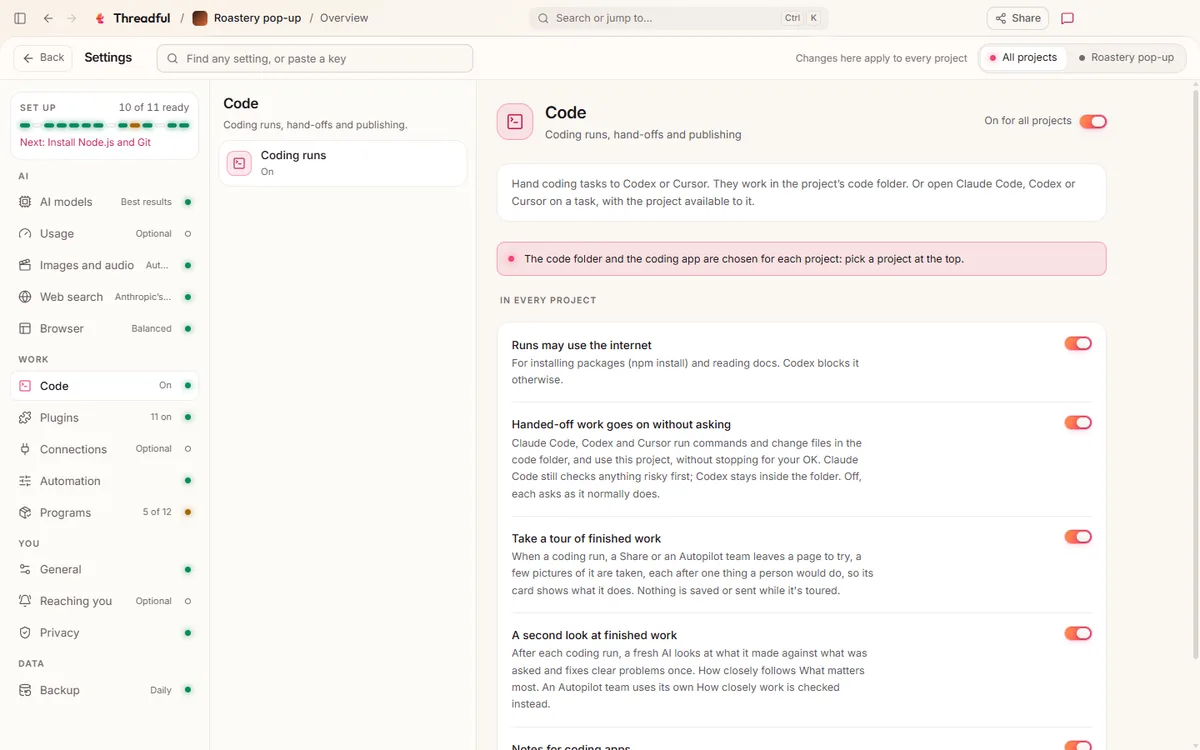
Coding is on in a new project. Settings → Code is where you change it: the switch at the top is for every project, or for this one when the project is picked at the top of Settings. The same switch is also under Code in Settings → Plugins.
The code folder
Coding happens in the project's own workspace, made for you the first time. To use a folder of your own instead, press Use a code folder in Settings → Code (with the project picked at the top) (this shows once "Your own code folder" is switched on, see Growing with you). Change picks another; Use the workspace goes back.
Other settings there (the last three are the same in every project):
- Coding runs use: Automatic, Codex, Cursor, Antigravity, GitHub Copilot, Claude Code or Built in. Automatic uses a plan you're signed in to (the coding model under Right now in Settings → AI models picks which), and Built in when none is. Once the apps have done a few runs each, Automatic also goes by how they went: when another ready app's recent runs clearly went better (finished, changed something, the checks passed), or went as well in half the time, it uses that one, and a run waiting to start says why ("Cursor did 8 of its last 9 runs well, Codex 3 of 7"). With coding on Lowest cost in What matters most, it doesn't move from your plan to Built in (which uses a key) unless the plan's runs keep failing. Pick one to keep every run on it. A plan whose limit is used up waits until it's back, even when you picked it: meanwhile runs go to your other plans, and the run's card says so.
- Built-in coding model: the model a built-in run uses. Automatic takes the best coding model you have a key for.
- A built-in run stops at: the most a built-in run spends on your key or credits before it stops by itself: $5, $10 (the default), $20, $50 or No limit. A run that stops there says so on its card; Resume carries it on with the same again. Runs on your plans aren't limited here.
- Project tools for built-in runs: Automatic gives a built-in run every project tool for design work (apps, websites, pages, how things look), which makes richer designs, and a short list for the rest, which is quicker and costs less. All of them and Short list keep it one way.
- Runs may use the internet: for installing packages and reading docs. On by default.
- Handed-off work goes on without asking: on by default. Claude Code, Codex and Cursor run commands and change files in the code folder, and use the project, without stopping for your OK each time. Claude Code still checks anything risky first, and Codex stays inside the folder. Switch it off to have each app ask as it normally does.
- Notes for coding apps: on by default. The project's notes (the goal, the work in hand, what's been decided, the look, the rules and skills) are kept in a file called AGENTS.md in the code folder, which Codex, Cursor and Claude Code read by themselves, so the project is still with them long after the first message. It's brought up to date whenever a run or a hand-off starts; only its marked part is Threadful's, and the rest of the file is left alone. It's never published with the folder. Switched off, Write it and Update it write it by hand.
- Versions (git): Start keeping versions, then say what changed and press Save a version. Branch shows the branch the folder is on and switches to another; New branch starts one from where it is. History lists the saved versions, newest first, and opening one shows what it changed, line by line.
More folders
Under Folders in Settings → Code, Add a folder adds a folder the project works with beside the code folder: shared code, assets, docs. Each one is Read only or Read and change:
- Coding runs and hand-offs are told about them and look in them when they could help. They change files only in the ones set to Read and change.
- Agents that use this computer get them too, the same way.
- The chat knows they're there and can list, search and read them, but never changes them.
The cross removes one; the folder itself stays as it is.
A website whose code is in a folder of yours (Use another folder on its page, see Its code in a folder you already have) shows here by itself, named after the website, with the folder under its name. It starts as Read and change, since it's that website's own code; set it to Read only and that's kept for that folder. It has no cross: it says "Comes from" the website, and stays while the website uses that folder. The arrow beside it opens the website's page, where Use another folder changes it. Once the website uses another folder, or is deleted, it's gone from the list. A run that builds or changes one of the project's other apps still changes only that app.
Threadful offers a folder when something says the project needs it: you name a folder on this computer in the chat, or an agent or a built-in run tries to use one outside the project's folders. A note asks Add it; it's added read only. Each folder is offered once a day at most, and never one the project already has.
Built in
A built-in run is done inside Threadful by an AI model you have a key for (Settings → AI models), with no other app to install. It reads, searches and changes files in the folder, runs commands (each goes through the same safety check as agents' commands), and checks its work like the other apps. Its steps show on its card the same way. When you pick what a run uses, Built in shows about what a run costs, from what your recent built-in runs used at that model's price ("about $3.50 a run", or credits on Threadful credits); once a run has ended, its card says what it cost and who paid.
When it says it's done, the folder's own checks run (its typecheck, lint, tests and build). If something fails, it fixes it and checks again. It's also shown the files it made and removes the ones it only needed to check its work, like screenshots or test pages. It can only remove files it made during that run.
Runs on your plans (Codex, Cursor, Antigravity, GitHub Copilot, Claude Code) carry on by themselves if Threadful closes. A built-in run stops when Threadful closes; Resume carries on from what it had done.
How to start a coding run
Codex, Cursor or the Google plan's Antigravity installed and signed in (see AI models and keys), GitHub Copilot or Claude Code set up in Settings → Programs, or an AI model with a key for Built in. GitHub Copilot signs in with GitHub: once the GitHub CLI is signed in (Settings → Programs, or Sign in with GitHub in Settings → Code), Copilot's runs use that sign-in.
Runs with: every run's card shows what it runs with: the app's logo, its model and who pays ("Your Cursor plan", "Your Anthropic key"). Before it starts it says Automatic when the project has no app of its own, with why it picked that one. Press the card's chip to change it: the apps that are ready are listed, one whose plan limit is used up says when it's back, and one that's signed out has its sign-in right there. Pick an app to use its model from Settings → Code, or one of its models below it.
- Waiting: Start (or Queue it when the folder is busy, with Run alongside now behind its arrow). Open in… hands it to Claude Code, Codex or Cursor in a terminal instead, and Not now leaves it.
- Queued: a change on the chip changes it where it waits.
- Working: a change asks first: the run stops and a new one starts with the same brief.
- Stopped or failed: Resume with the app on the chip. The same app carries on in its session; another starts afresh, told what the run did. Write a note for it to take along, and Refine with AI makes it clearer first.
- Done: Follow up asks what it should do next (with Refine with AI too) and Carry on starts it, in the same session when the app is the same.
A run the app starts for you (a full website, a fix, a build) follows Coding runs use, and its chip changes it the same way.
How good it should be: when you make an app or a workflow on the Apps page, or a full website from the Design canvas, pick Best results, Good value or Lowest cost beside it. It starts on what the project's choice says for coding (What matters most in Settings → AI models). The app keeps what you picked, so its later changes and fixes are made the same way.
From one task: open the task and, under Code, check what it runs with (the same chip as a run's card) and press Start coding, or use Code it on the task's row. Its bead comes onto the coding strip; click it to follow along.
From several tasks:
- On the Tasks page, press Code tasks.
- Tick the tasks you want.
- With several picked, choose One job for all or One after another.
- Press Start with Codex (or Cursor).
From the chat: when the AI suggests a run, a line under its reply waits for you ("Waiting for you"), and the chat stays where it is. The line says what it will run with, like "Codex · gpt-6". Press Start on the line to start it that way, or Change beside it to pick another app or model right there first. Click the line's title to open its card: edit the instructions or press Refine with AI, change what it runs with on the chip, then press Start. Not now leaves it.
- Codex works in its sandbox: it can change files only in the code folder.
- Cursor can run any command and change any file it can reach, without asking.
- Antigravity changes files only in the code folder (and the folders you let it change), and runs commands and reads web pages without asking.
- GitHub Copilot does the same, on your Copilot plan, without GitHub's own tools (posting on GitHub is left to you).
- Claude Code reads and changes files, runs commands and reads pages without asking, and anything else it would ask about is turned down. Its models are listed by their real names (Opus 5.5, Sonnet 5.5, Haiku 4.5), and the run gets that very model. A run's card says which model it ran on. Threadful keeps Claude Code up to date once a day (unless you switched its updates off yourself), and Update beside Claude Code in Settings → Code does it now.
If another run is busy in the same folder, or a run that just finished there is still being checked, the card says which and offers Start now in its own copy and Queue it; Run alongside now is behind the arrow beside Queue it. Runs that share a folder this way are each told about the other: files they didn't change may change while they work, and checks can fail in the other's half-done work, so they leave those alone and judge their work by their own files. Each is credited only with its own changes, and its card shows only those.
Every run can see the others at work in its folder, or in their own copies of it: what each is doing and the files it has changed so far. Its card shows them under Also working in this folder. When what one run did changes another's work (it renamed a class the other uses, say), it leaves that run a short note. The note reaches it at its next step, its card says who it's from, and the sender's card keeps what it sent.
A folder inside another counts as the same folder here (a website's folder inside the project's code folder, say): runs in either take turns, so two never change the same files at once.
Working in its own copy
Start now in its own copy (on the card, or Start in a copy on its line in the chat) starts a run at once in a copy of the folder that Threadful makes just for it, instead of waiting its turn. The run working in the folder carries on undisturbed, and the two never see each other's half-done work. The copy has the folder's files and its settings files (like .env), but not its installed packages: the run installs what it needs, and Threadful installs them before checking its work. Any page the run starts uses a port of its own.
When the run is done and checked, its changes join the folder as soon as no other run is working there (Bring them in now on its card doesn't wait):
- A file only it changed goes in as it is.
- A file changed in the folder too is put together with the folder's changes when they're in different places.
- When both changed the same lines, or a picture or other file that can't be put together, nothing is guessed: the folder keeps its own version, and a run that brings in the copy's change waits its turn in the folder. The copy is kept until that run is done.
The card says where its changes are: in its own copy, joining the folder, in the folder (and how many files), or what's still to bring in. Its line in the chat says the same, and when its changes join the folder a note under it says which files are in, with Undo right there (or, after a clash, the run that brings the rest in). Undo changes takes back out just what it brought in, leaving everything else in the folder as it is; a file changed again since is left and named. Put the changes back brings them in again. A run whose work stopped or failed in its copy keeps its changes there, with Bring them in or Throw them away.
To have every run you start while the folder is busy go to its own copy, switch on When the folder is busy, start in a copy in Settings → Code → Coding runs (the note after you first start one this way offers Every time too). An app's runs, Autopilot's and fixes still take turns. A copy needs Git; without it runs wait their turn as before (Settings → Programs sets Git up).
The coding strip
Coding runs don't open chat tabs. While a project has coding work, a strip above the page and the chat shows each piece of it as a bead, so you can see at a glance what's happening and open the one you want with a click:
- Needs you (amber): waiting for you to start it, stopped for something only you can fix, or a coding app waiting for your answer in its window. The words beside it say what to do: Start, Resume or Answer.
- Working (the ribbon's colours, with a light moving along the strip): at work, with how long it has been going, or being checked once it finished.
- Next: waiting its turn in its folder.
- Done: a tick when it works, red when it isn't right yet or didn't finish. Done work leaves the strip an hour after you open it, and by itself after half a day.
Click a bead to open the run's card under it, the same card as anywhere else: Start, Stop, a note, Try it, Resume with, Follow up. Above the card it says where the run was asked for (Asked in a chat, or the task it's for), and a click goes there. Under it, Ask in the chat puts the run in the message you're writing, and Open as a chat tab gives it a tab of its own, to talk it through.
What comes after a run stays on its bead: a fix after the checks, a second look's fix, a run you resumed or carried on, shown as small dots beside its name. Autopilot's runs are one bead; it lists each with where it stands.
What's next and what's done gather into piles ("2 next", "3 done"); click one for its list. All runs lists every run lately, on the strip or not, and elsewhere shows coding at work in your other projects. To give every run its own bead under Needs you, Working, Next and Done, set Settings → General → The chat → Coding runs above the page to Every run. When there's more than fits, the words beside the beads go first, then the names of the quieter ones.
The arrows at the strip's end fold it into the title bar: the beads that need you and are working, and the one that matters most in words, with the rest a click away. The arrows there bring it back. It stays the way you left it.
What a run takes with it
A run can't stop to ask, so everything it needs goes with it: the task, the goal, what's been decided, the design, the project's rules, and the skills that fit the work, in full (see Library). Pictures named in its instructions, like a sketch you attached in the chat, are put in the folder for it to look at, and taken away when it ends. While it works it stays connected to the project, so Codex and Cursor can look up the plan, the library and what's been decided instead of guessing, and keep its task up to date. A run can't start other runs.
What reaches outside your computer is left to you: a run on one of your plans can't push code, publish a package, deploy a site or post on GitHub (open pull requests, merge, comment). It's told so, finishes the rest, and says in its summary what to run; push from the Git panel, publish from the app's page, or run it in the terminal. To let runs do one of these for good in a project, allow it under Settings → Code → Commands always allowed (for example git push). Built in runs ask you first instead, like an agent's commands.
A run works in the project's files: it can install things, start a page and check its work there. It asks before it sends, publishes or deletes anything beyond that work.
Where runs work
Every run has one place to work, set when it's made and shown under its title on the card: In an app's name, In the project's code, or the folder you chose. It can read anywhere it needs to, but it changes files only there, or in folders you chose (the code folder in Settings → Code, folders set to Read and change under More folders, and folders you give Autopilot).
- A run that builds or changes an app works only in that app's folder. It can look at the project's other apps but not change them.
- Run again, Resume, Change, a fix after the checks, and the run that carries on with your notes all work in the same place as the run they follow.
- No run works in Threadful's own data (the library, settings, keys and backups) or where Threadful itself is installed. Threadful's own code is off limits too, unless a project uses it as its code folder. A run made to work in one of those places doesn't start; its card says why.
- Agents that use this computer work in a folder of their own when you haven't chosen one, and can read the project's code folder. An Autopilot run's members who use this computer work in that run's own folder, the code folder, and any folders you gave the team.
- While a run works, Threadful watches the project's folder. If the run changes files outside its place, its card lists them under Changed outside where it works, so you know to look at them. (Undo changes puts back only the run's own place.) When the run is tried again, the card of its newest try keeps that list, with "an earlier try" beside what only a try before it changed.
Each run also keeps a short record in the project's folder: where it worked and why, who asked for it, its brief, its log, the files it changed and anything it wrote outside its place. It's cleared a week after the run ends, like the run's log.
Adding a note while it works
Write in Add a note for it… on its card and press Add. The run gets it as soon as it finishes the step it's on: a built-in run reads it with its next step, and Codex, Cursor, Antigravity, GitHub Copilot and Claude Code stop there for a moment and carry on in the same session with your note, as the same run. The card shows Your note: where it went in. While a command or an edit is still under way, the note waits on the card, marked Queued, and the × beside it takes it back. If the run finishes before it can take the note, a new run carries on from where it is with your note, right under its card. A run that stopped takes the note when you Resume it.
Agents and Autopilot's team can add notes too, and each says who added it ("From the Designer"). Autopilot never adds notes to runs you started.
While a run works, its card says what it's doing: Working now, or Quiet for how long, with its last step. Check now looks again straight away and says whether it's still open and which page it's serving. A run that has been quiet for a few minutes offers Finish it, which ends it there as done: its work stays, and so does a page it's serving.
When a run needs something
A run you started can pause, holding nothing, and carry on in the same session afterwards. While it's paused, the folder is free for other runs, and its own copy (if it has one) waits with it.
- It asks you something. When it reaches a decision only you can make, with no sensible default, it stops to ask. Its bead turns to a question under Needs you, and the question shows on its card, its line in the chat, under Needs you on the Overview, and in a notification (on your phone too, when it's connected). Pick one of its answers or write your own, then Answer and carry on. Otherwise it picks a sensible default and says which in its summary.
- It shows you a first version. Switch on Show me a first version on its card before you start it (or ask the chat for a prototype first). It stops once there's something to open, with Try it and what's in and what's still to do. Looks right, carry on does the rest; Carry on with this asks for a change first; Stop here, it's enough finishes it as it is, and it's checked like any finished run.
- It waits for another run. A run in its own copy that can't go on without another run's work waits for it, under Next on the strip. When that work joins the folder, it's brought into the waiting run's copy and the run carries on by itself. Carry on without it on its card doesn't wait.
Runs that agents, Autopilot or automations start don't stop to ask you: they choose for themselves.
When a run gets stuck
A run that makes no progress for ten minutes is marked Stalled on its card. If it stays quiet for 25 minutes it's stopped, and then carried on from where it got to: in the same session when its app can, in the same place, up to three tries in all. A run waiting its turn in the same folder starts as soon as the stuck one is stopped, and a run left marked as working after its program went away is noticed within a minute, so a folder is never held by a run that isn't doing anything.
Some things trying again can't fix: the coding app is signed out, its plan's limit is used up, or the run was made to work somewhere it can't. Those runs aren't tried again by themselves. Instead they wait under Needs you on the Overview, saying why, until you fix it and press Resume, or Not now on the card to set it aside. When a coding app stops for one of those reasons and the other app is ready, the work moves to the other app instead.
A run can also run out of room: before it does anything, Claude Code reads the folder's CLAUDE.md, its tools and the brief, and a very long CLAUDE.md can fill most of what its model holds. Trying again the same way can't help, so it isn't tried again by itself. Its card says what filled it and what to do: run it on a model that holds more (Opus 5.5 or Sonnet 5.5 hold five times as much as older ones), or make the CLAUDE.md shorter. Resume then starts it afresh rather than in the full session.
Each try is kept with the run, with when and why it ended, in its record.
The run card
The card shows the run's status: Waiting for you, Queued, Working, Done, Failed, Stopped or Interrupted.
- Working: Stop ends it. A line under it says what it's thinking now, in a sentence. Once "How things are built" is switched on, the latest steps show live: commands, the files it changed and what it says as it goes. A run that keeps running the same command without changing anything in between (waiting on something by asking again and again) gets one note from Threadful to check once and carry on, and one that has been at work for 40 minutes (or 150 steps) gets one to keep to what was asked and wrap up. Both show among its notes like yours.
- Queued: it starts when the folder is free. Earlier, Later and Cancel change the order.
- Done: a summary, the files it changed (click one to read it), and anything it made for the library. A run saves only the finished files you need there, not the screenshots it takes to check its work; when a later run in the same folder makes one of those files again, it replaces it in the library instead of adding a copy. Open folder opens the code folder once "How things are built" is switched on.
Checked when it finishes
When a run finishes, Threadful checks the work itself instead of taking the coding app's word for it: the project's own checks run (type checks, lint, tests and the build, whichever the project has). They're judged on what the run changed: only problems in what it changed, or broke, go to a new run that fixes them, right under the card, and the checks run again, twice at most. The card says "Checking that it works…", then "It works: the project's checks pass", or which checks still find problems, with Fix these. When the checks fail only in files the run didn't touch, the card says "It works: its own changes pass the checks" and names the other files that still fail. A project without checks skips this, and so does a run that changed only notes or docs. When the checks can't run because a program they need isn't on this computer (Node.js, Python, Git…), no run is sent to fix it: the card says which program, with Set up right there (the same as Settings → Programs), and you run the checks again once it's in.
Other runs waiting for the same folder wait while a finished run is checked, so a fix for it comes next rather than after them.
A second look
Then a fresh AI takes a second look at what the run made, against what was asked: the page at desktop and phone width, the changes and the checks, against the "Done when" lines of its brief. It never reads the coding app's own account of the work. The card says "Taking a second look at it…", then what it found:
- "A second look found nothing wrong with what was asked."
- When it's sure something breaks what was asked, the run fixes it once, in the same session ("A second look found a problem, so the run is fixing it"), and the work is checked and looked at again: "A second look found 1 problem; the run fixed it."
- "Not right yet:" with what's still wrong and where it was seen.
- Your call: things worth a look that are yours to decide, what it couldn't check, and any change that loosens a check (a skipped test, a silenced error).
How closely it looks follows What matters most for coding: Best results looks at every change with your strongest model, Good value at runs with a page or of some size, Lowest cost only at runs with a page. To switch it off, use A second look at finished work in Settings → Code. An Autopilot team's runs don't follow this switch: the team has its own How closely work is checked (see Autopilot).
Threadful also looks at what really changed in the folder, commands included. A run that says it's done but changed nothing, when it was meant to change something, is told so and carries on once, in the same session, right under its card ("It said it was done without changing anything, so it carried on to do the work"). If it still changes nothing, its card says "It changed nothing" rather than "It works", and so does the Coding panel. A run that ends with an error after saying something along the way counts as not finished.
Something to open
Then the card leads with something you can open, never a folder or an address to copy:
- Try it, when the run left a page running (with a picture of it) or built an app. It opens in the browser inside the app, or the app opens in place. Under it is a short tour: a few pictures of it, each after one thing a person would do (opening a tab, scrolling, typing into a search box), with a line on what each shows. Watch the tour shows them one at a time (the arrow keys go through them), Save as a video makes them into a video kept in the library, and Take it again takes a new one. Nothing is saved or sent while it's toured, and it never clicks anything that would delete, pay, send or sign in. A card from before tours has Take a tour of it. Settings → Code → Take a tour of finished work switches tours off.
- Watch, when it made a video: it plays on the card.
- A picture, when that's all there is.
- Otherwise one sentence on why there's nothing to try, like "It changed the project, and nothing is running." When the run said how to start its page, or its folder does (a start script, a server file), Start it starts it in the project's folder and opens it. When it doesn't come up, a window says why: what it ran and the end of what it printed, with Fix it (a run under the same card finds why and fixes it), Set up … when a program it needs isn't on this computer (Node, Python and the like, from Settings → Programs), Try again, or Ask the chat.
Try it on an app's run opens the app's own page, at the page the run worked on, with Mark up and the rest of its tools (see Apps).
An agent that started the run hears the same: whether the checks pass, with the picture attached.
Buttons after a run:
- Resume: for a failed, stopped or interrupted run. It carries on from where it stopped.
- A run that writes nothing at all for 25 minutes (often a page's server left running in the foreground) is stopped and says so. What it did is kept, and Resume carries on. The 25 minutes count from its last output, even if Threadful was closed or restarted in between.
- A run whose app says it's finished but doesn't close is finished for it within seconds, as done. One that has given its answer, or posted it in the chat, but doesn't close by itself (often because a page it started is still serving), or that is only waiting on a dev server it started in the foreground, is finished for it after a few quiet minutes, as done. So is a Cursor run that said what it did and then sits with nothing under way, after about ten quiet minutes. The page it said it serves keeps going, so Try it works.
When a run stops because its app is signed out, busy or out of its plan's limit, and another coding app is signed in, it carries on there by itself, from where it got to, and a notice says so. A plan whose limit is used up then rests until the time it gave, or for an hour (longer if it's still out then): new runs, and replies on Auto, go to your other plans first meanwhile, so the one that ran out doesn't hold you up. It's used again as soon as it's back.
- Run again: start a finished run again, in the same place. A run that was building an app starts in that app's folder.
- Undo changes: puts the folder back as it was before this run. Put the changes back reverses that. Threadful keeps the folder as it was with Git; on a computer without it, the card says the run can't be undone and offers Set up Git (on Windows, a small Git of Threadful's own, set up in one click). A run that worked beside another in the same folder can't be undone this way, since putting the folder back would take the other run's changes too: the card says so, and See the changes shows what to put back by hand.
- Go back to… (a run that changed files for more than ten minutes): while a run works, its folder is saved every ten minutes or so as it changes files. This takes the folder back to one of those points, keeping what the run had done by then and taking back what came after, which helps when a long run went wrong late. Put the changes back reverses it.
- See the changes (beside the files it changed, once "How things are built" is switched on): what the run changed in each file, line by line, between the folder before it and as it left it, so a fix run or anything done after it isn't mixed in. It still shows after its changes are undone.
- The log (once "How things are built" is switched on): the end of what its app printed while it worked, with its errors first, and Open its folder for the run's whole record.
- Check for errors: runs the folder's own checks again. If there are problems, Fix these starts a run to fix them.
- Deploy preview: when the folder is linked to Vercel.
- Push and open PR: when the run committed on its own branch.
When a run changes an app
A run that changes one of your apps works in the app's own folder, so the app is the newest version on its page, the Apps page, Home and your phone. When a run in the code folder made a newer version of one of your apps, its card says so: Update … puts what it made into the app (what the app keeps stays), and Another app… picks a different app or makes a new one.
Handing work to Claude Code, Codex or Cursor
A hand-off opens the app in a new terminal window, in the code folder, already started on a brief of the task.
- From a task: Open in Claude Code (or Codex, or Cursor).
- From the chat: … → Continue in Claude Code (or Codex, or Cursor), with the chat so far.
- From a suggested run's card: the Open in buttons.
These show for apps installed on this computer, once a terminal is part of what you see (they open in one; see Growing with you). Settings → Programs installs Claude Code in one click.
The project stays with it after the first message: the brief has the rules and the skills that fit, the notes file in the folder keeps the goal, the work and what's been decided in front of it, and Claude Code, Codex and Cursor are all connected to the project, so they can look things up and report back while they work.
It works on its own: it runs commands, changes files and uses the project without stopping for your OK (see Handed-off work goes on without asking above). The first time an app opens in a folder, it may ask once whether you trust the folder; say yes and it won't ask again there.
A card in the chat follows the session, even while you stay in the app's window. Its label says where the work stands:
- Opening, then Working while the app answers.
- Finished: what the app did comes back into the chat by itself: its messages, the files it changed, and the tasks and decisions they settle. It also comes back whenever you return to Threadful.
- Needs you?: it went quiet in the middle of its answer, so it may be waiting in its window for an answer or a permission.
- Problem: it stopped with a problem, said plainly, like a usage limit, a sign-in that ran out or a busy service. Continue in Claude Code (or Codex, or Cursor) picks it up where it left off.
- Stopped: you stopped it before it finished.
- Didn't start: nothing came from it five minutes after it opened (its window closed, or it asked you to sign in). Open Claude Code again (or Codex) opens it again.
When it finishes, stops with a problem, needs you or doesn't start while you're elsewhere, a notification says so.
The card leads with what you can open, the same way a run's card does: Try it when it left a page running (with a tour of it under it), Watch for a video it saved, a picture, or one sentence on why there's nothing to try (with Start it when it said how to start it). Before anything comes back it says "Nothing has come back yet." Under that is what it did, in its own words; the number of files it changed opens to show them.
- A note for Claude Code (or Codex, or Cursor): write it on the card and press Add. It goes with the work the next time you continue.
- Bring back now brings it back straight away. Cursor doesn't always keep a log Threadful can read: then the card counts the files it changes, and you press this when it's done.
- Continue in Claude Code (or Codex, or Cursor) reopens the same session, told what changed since and your notes.
- The … menu has Stop following / Follow again.
Handing the same task to the same app again continues that session. The Coding panel in the status bar lists this work too, with Continue and Open (below).
Everything coding apps did, in one place
Once the project has coding work, the status bar has a Coding button (it says how many are working while runs are under way). It opens a panel with two lists, and above them, while any are running, Programs: what's running for the project on this computer (a page a run left serving, one you started with Start it, an agent's server), each with who started it, its address and its output, and Stop.
- Runs: the latest coding runs, an app's builds and changes among them. Each line says where it stands (working, waiting for you, taking a second look, done, "Done, it works" once the project's checks pass, "Done, not right yet" when a second look found something still wrong, or didn't finish) and offers one way in: Try it, Watch, Start it, or a sentence on why there's nothing to try. Open opens its card under its bead on the coding strip. Show all lists the rest.
- Shared with Claude Code, Codex or Cursor: work you handed to one of them, whether it's still followed, and Try it or why not. Continue opens their app on it again; Open goes to its card in the chat.
Click outside the panel or press Escape to close it.
GitHub, Vercel and Neon
These panels sit in the Code plugin's settings and use your own sign-ins (set them up in Settings → Programs, or with the Sign in button in each panel).
- GitHub: Fetch, Push and Pull; Open PR; open pull requests and issues, with Import as task for an issue. From a task, Create issue makes a GitHub issue for it.
- Vercel: link the code folder to a Vercel project (or make one), Deploy preview, and see your deployments. Promote makes a preview what visitors to your production address see; it always asks first.
- Neon: choose a database project. With A branch for each coding run on, each run gets its own copy of the database, so it can't change the real one. Its address is never shown.
The terminal
Once "A terminal" is switched on (see Growing with you), the status bar has a Terminal button (or press Ctrl `). Commands run in the project's code folder. Ctrl C stops the one that's running. See Keyboard shortcuts.
Tabs and kinds of terminal
Each tab is a terminal of its own, with its own folder: cd in one tab doesn't move the others. + opens another tab of the kind you used last, and the arrow beside it picks a kind: PowerShell, Command Prompt, Git Bash, or a Linux you have through WSL on Windows; zsh, bash or fish on a Mac or Linux. Only the kinds on your computer are listed, and the one you pick is used for new tabs. Close a tab with its ×, or click it with the middle mouse button.
What to run next
Chips over the command line suggest what to run next, and a click runs one:
- After something fails: the usual fix (installing what's missing, the version of npm that PowerShell will run, what's using a port), Run again and Ask the chat about this.
- What the folder needs: installing its packages, the scripts in its package.json (the one that starts it, its tests, its build), and Git: what to push or pull, and Commit…, which puts the command in the box for you to add a message.
- What a program said to run next, and the commands you run most in this project.
Say what you want… (or a line starting with #) turns words into a command, like "# find the biggest files here". The command goes in the box and nothing runs until you press Enter.
Adding it to the chat
Select any output and click Add to chat beside it: it goes into your message as a block that says which terminal and folder it came from. Point at a command to add it with everything it printed, or right-click for the same.
The chat's own terminal
The chat can run commands too, when that's quicker than asking you: look around the folder, check Git, run the project's tests, builds and scripts, install its packages, start its dev server and look at the page, or check something on disk. It works in the project's folders (the code folder, and those under More folders), and cd carries over from one command to the next. It uses Git Bash when your computer has it, else PowerShell (bash or zsh on a Mac or Linux).
- You see everything it runs. Each chat gets a tab of its own in the terminal, named after the chat, showing each command, why it ran and what it printed. A command's chip in the chat opens that tab.
- Safety check first. Every command is checked before it runs. Ordinary coding work just runs, without waiting on anything: looking around, local Git (commit, branch, pull, merge…), installing the project's packages, building, testing, linting, starting its dev server or its Docker. Deleting (other than generated output like node_modules), wiping and changing the system are refused. Anything risky, like pushing, deploying, publishing or installing for the whole computer, waits for your OK (see Questions about commands below).
- Nothing waits on you without saying so. Pagers, editors and prompts for passwords are switched off for its commands, so they print and finish. If a program stops to ask something anyway, the chat says so: it answers if it knows the answer, and otherwise asks you to type it in its tab. Never give it a password in the chat itself.
- Long commands keep going. A command is waited on for up to two minutes; one still going after that carries on in the background, and a dev server or a watcher is left running once it's up. A long command still going shows in the title bar with Stop. A dev server or a watcher isn't work that ends, so it goes under Programs in the Coding panel instead (in the status bar), with its address and Stop. Either way the chat can read what they print and stop them.
- Stopping. Stop on the reply stops the command it's waiting on, Ctrl C in its tab stops the one at work there, and closing the tab stops everything it started.
- Plan first. With Plan first on, its commands wait on the chat's plan like other changes, and run when you press Start or Apply.
Full-screen programs (an editor like vim, top) don't work there. The chat's terminal comes with the Code plugin: switch Code off for a project (Settings → Plugins) and the chat no longer runs commands there; set it to Ask and every command asks first.
Questions about commands
The chat, agents that use this computer and built-in runs all ask the same way before a risky command. The question shows the whole command in a box of its own: long lines wrap, a long command scrolls inside the box (it says how many lines), and Copy copies it. It stays on screen until you answer it or press Later, which sets it aside under Needs you; its buttons wait a moment when it appears and again when you come back to the window, so the click that brings the window forward can't answer it by mistake. If the chat stops waiting before you answer (you stopped its reply, say), the question stays and says so, and Close puts it away.
- Run runs it once. Don't doesn't.
- Always allow keeps that command for the project, for the chat and agents alike. Settings → Code → Commands always allowed lists what you've allowed, to take back.
- Auto mode runs every command in the project without asking for a while: pick 1 hour, 4 hours or Until midnight in the question. This command runs, and so does any other one waiting. Dangerous commands are still refused, and an Autopilot team on Plans only still asks (only the fixed rules check its commands). The title bar shows Auto mode with the time left; its menu has End auto mode now. When the time is up it ends by itself and says so, and risky commands ask again.
Settings → Code → Auto mode has the same switch, with how long next to it: turn it on for the time chosen, or off to end it now. Only you can turn it on; the AI can't.
Related
- Apps: make small tools from a sentence.
- Autopilot: a team that starts coding runs on its own.
- Troubleshooting: when a run fails.
Every page of the guide
The same guide is in the app: open Help or press F1. Something missing or unclear? Write to hello@threadful.ai.
