
On this page
Automations are work that happens by itself: on a schedule, when something happens, or when you press Run it now. Every day at 7, sign in to each partner's dashboard, read yesterday's earnings, add them to the Partner earnings data and tell you if one drops by a third. When a coding run finishes, give the Designer the next piece. When a page shows "In stock", add a task.
After your 30-day trial, automations are part of Pro: yours stay listed with their runs, and don't run until you're on Pro (see Plans and your account).
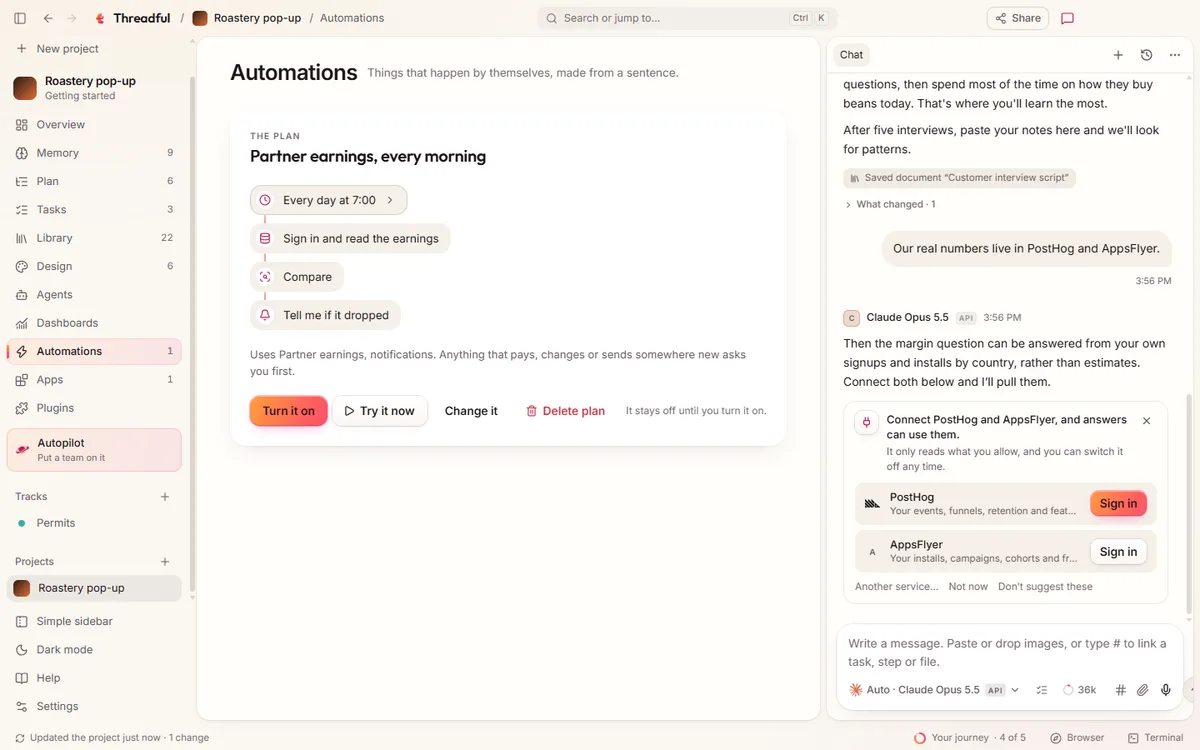
Automations and workflows are on one page: Automations in the sidebar. They run while Threadful is open, in the tray too. Emails your website sends by itself when someone signs up or books are flows, kept in Email Studio: a row at the top of the page leads there.
How to set one up
- Open Automations in the sidebar. The first time, it asks What should happen by itself?; after that, press New.
- Say it in a sentence: "Every day at 7, sign in to the Lootably partner dashboard, read yesterday's earnings, add them to Partner earnings, and tell me if they drop by a third". Or click one of the three Ideas made for your project.
- In a few seconds you see the plan: when it runs, then each step, as a column. Click when it runs to pick another time: every day, weekdays, Mondays, Fridays, the 1st, every hour, at a time.
- If something a step needs isn't there yet, the plan says so under Before it can run, with the fix right there (see below).
- Try it now runs it once and shows how it went; it stays off. Change it takes a change in words. Delete plan deletes it (with Undo in the message that follows).
- Press Turn it on.
Work with files and folders on this computer, or a web address that needs a key, becomes a workflow instead: it opens on its own page to finish setting up.
You can also ask in the chat ("every Monday, tell me what's stuck"), or press Set one up step by step to choose each part yourself. What the AI sets up, in the chat or anywhere else, is a plan too: it stays off until you check it on the Automations page and press Turn it on, so nothing signs in, sends or starts without you. Later puts it back in the list, under To check, where its row says it's waiting for you and has its own Delete plan button.
Before it can run
Every step has to be one Threadful can really do. When one can't yet, the plan says what's missing, marks the step, and Try it now and Turn it on wait until it's put right. Nothing is swapped for something else without you: "email me" stays an email.
- Email. "Email me a daily summary" is an email to you. If Threadful doesn't know your address yet, type it in once: it's kept for the next "email me". If this project can't send email yet, press Get a key (Resend's page opens and the key is picked up for you) or paste a Resend key. Resend is free to start; until your own address is checked there, it sends only to the inbox you signed up with, which is fine for emailing yourself. Other ways to send opens Design › Emails › Sending, and a mail account you connected can send too. Or press Notify me instead if a notification will do.
- A service it reads, like Stripe or PostHog: connect it right there, with the same button the chat offers.
- Your phone, for a dashboard sent to it: Settings → Reaching you.
- An AI key, for the AI's steps: Settings → AI models.
- A coding app, for a step that starts a coding run: Settings → Code.
- Something that's gone, like an agent, workflow or dashboard a step names: Choose again opens it step by step.
- A saved login for a site it signs in to (Settings → Browser), and Autopilot at work for a step that tells the team, are worth knowing but don't stop it.
The same list shows on an automation's page if something it needs goes away later. One that's on can't be switched on again until it's put right, and a change that leaves it unable to do a step puts it back as a plan to check.
What a step can do
- Have the AI do it: read pages, compare figures, decide whether something needs a look. A step can sign in to sites with your saved logins (save them in Settings → Browser): it opens the site's sign-in page and the app fills in your login; the AI never sees it. It reaches only the sites it was set up for. There it signs in and reads without asking; anything more (a click that pays, changes or sends) asks you first.
- Add rows to a dashboard's data: what a step finds (yesterday's earnings for each partner) is kept as rows of a data source, so a dashboard can chart it. A day read twice is updated, not added again.
- Show a notification, Add a task, Post a note in the chat.
- Give an agent a task, Tell the Autopilot team, Run a workflow, Start a coding run.
- Send it to a web address (what happened, as JSON) or Send an email: a short email of words (what the step before found, titled with the automation's name), or one of your designed emails, to you, another address or
{email}(the address in what happened). - Send a dashboard: a picture of one of your dashboards with its numbers, to your phone through Reaching you, or to an email address.
Each step is told what the one before found. A step can run only when the step before found something that needs a look, like a notification when a partner dropped.
When the AI writes something people will read (a post, a message, an email), click Make it sound human beside its step on the automation's page: what it writes is made to sound like you, as Writing Studio does, before the next step uses it. Click it again to switch it off.
What it can wait for
- On a schedule: every day at a time, weekdays, Mondays, the 1st of the month, every hour.
- Work in the project: a task ticked off, something added to the library, a coding run finishing or failing, a workflow finishing or failing, work coming back from a coding app, an agent finishing a reply, an Autopilot round or Autopilot finishing, one of your apps saving something.
- A number crosses a line: one of your dashboard's numbers going above or below a figure, or dropping or rising by a percent on the day, week or month before. It's looked at whenever the number's figures change, and goes off once when it's past the line (again only after it has come back).
- Things on your computer and the web: the code folder going quiet, a file or folder changing, a program exiting, a web page changing (or showing some words, like "In stock"), another program calling a local address (needs Webhooks on in Settings → Automation).
The page
The list on the left shows each automation's name, when it runs and when it last ran, with a switch to turn it on or off, and ⋯ (or right-click) for Run it now, Pause it and Delete it. With more than one kind, they're grouped, each with how many:
- Needs you: on, but something it needs is missing or its last run couldn't finish. The row says which.
- To check: plans waiting for you, and workflows still being made.
- On and Paused.
- Done: watchers that went off, folded away. Click a group's name to fold it or open it.
Once there are a few, the arrows at the top pick the order: Newest first, Next to run (each row then says when), Ran most lately or By name. Once there are many, Find one searches their names and what they do.
Click one to see it:
- Its name, whether it's on, when it last ran, and Run it now.
- When it runs, then its steps, as a column. While it runs, each step shows as it's done, and the title bar has Stop. Click when it runs to change it, and to choose what happens if it's still running when it's due again: Skip this time, Run it right after (what a schedule does unless you change it) or Stop it and start again (what something that happens does is skip, unless you change it).
- How the last run went. See it on the dashboard opens the dashboard that shows its rows (or makes one).
The rest is under More:
- What it may use: the sites it signs in to (and whether a login is saved for each), the services it reads, the data it adds to, email, your phone, notifications, agents.
- Every run: when, what each found, and how long it took.
- Its rows: the latest rows it kept.
- Change it in words: "run at 6 instead", "also read CPX Research".
- Set it up step by step, and Delete it (with Undo).
Watchers
A watcher runs once, then it's done ("when the Cursor run finishes, start the next piece"). One the AI sets up waits for you to turn it on, like any plan. Done ones are folded away under Done.
If it goes off too often
While one runs, the title bar shows it, and clicking it there opens it. When one that runs by itself can't finish, a notification says so, and it waits under Needs you on the Overview until a run goes well or you turn it off.
If an automation runs more than 20 times within an hour, it pauses itself: "Paused: it went off 20 times within an hour, which looks like a loop." A notification tells you too. Fix what makes it loop, then switch it back on.
Related
- Workflows: work that needs code of its own, on the same page.
- Dashboards and data: show what automations keep.
- Agents and Autopilot: what automations can hand work to.
- Reaching you: get told when you're away.
Every page of the guide
The same guide is in the app: open Help or press F1. Something missing or unclear? Write to hello@threadful.ai.
