
On this page
Share is a sheet, not a page: it opens over whatever you are looking at. Press Share in the title bar (top right), press Ctrl 8, or search for "Share" with Ctrl K. Press Esc to close it.
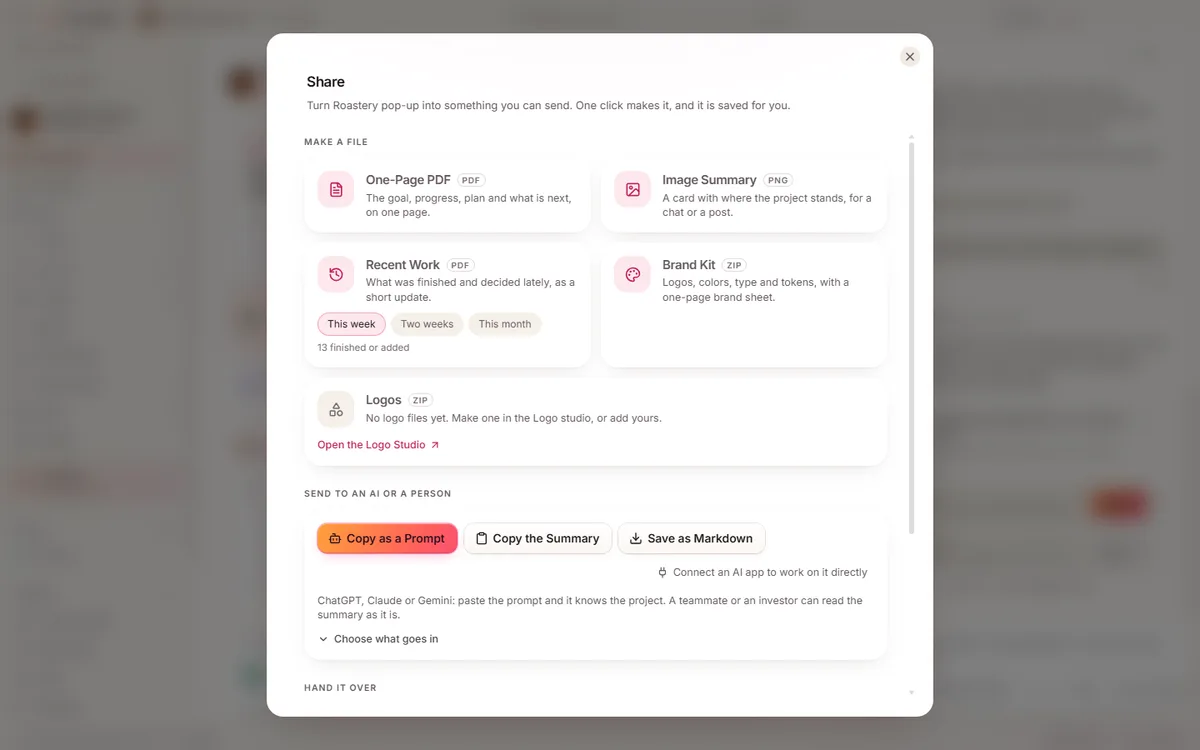
Make a file in one click
Each card under Make a File makes its file the moment you click it, with no questions and no model needed. The file is saved in the Threadful Shares folder inside Downloads, named after the project. A card with what was made appears below, with a look at it and three buttons:
- Show in Folder opens the folder with the file selected.
- Copy Picture (for the image) or Copy as Text (for the PDFs) puts it on the clipboard, ready to paste into a chat, a post or an email.
- Add to Library keeps a copy in the project's Library, under "Shares".
| Card | What it makes |
|---|---|
| One-Page PDF | The goal, phase and focus, how much of the plan is done, the dashboards' main numbers with how they moved, the plan's phases, what is next, where things stand, decisions and open questions, on one A4 page. |
| Image Summary | A 1080 × 1350 picture with the same story as a progress ring, three numbers (the dashboards' main ones when there are any) and what is next, for a chat or a post. |
| Recent Work | A one-page PDF of what was finished, decided and added lately: tasks, plan steps, decisions, library items and coding runs. Choose This week, Two weeks or This month first. |
| Brand Kit | A zip with the design as DESIGN.md, tokens, CSS and Tailwind files, the vision board, every logo file, and a one-page Brand Sheet as a PDF and a picture. |
| Logos | A zip with every logo file the project has: the logo on light and on dark, the app icon, the mark, one-colour and reversed versions, and the icon sizes. |
The pages are drawn in the project's own colours and type from the Design page. A project with no design yet gets Threadful's own look. PDFs are always on light paper, so they print well; the picture follows the design, dark or light.
A card says so plainly when it has nothing to work from. Logos and Brand Kit point to the Logo Studio or the Design page when the project has no logo files, colours or type yet.
Hand it to another AI
Under Send to an AI or a Person:
- Press Copy as a Prompt.
- Paste it into any AI chat.
It copies a short request plus the project summary: the AI reads it, says where things stand and what's next, and carries on from there.
- Copy the Summary copies the same summary without the request, ready to paste into an email or a message.
- Save as Markdown saves it as a file.
- Connect an AI app to work on it directly lets an AI app work on the project and see its work in the project's chat. See Connections and plugins.
Choosing what goes in
Choose what goes in opens chips that switch parts of the summary on or off. The prompt, the summary and the saved file follow them, and a preview with a word count sits below.
| Chip | What it adds | Starts |
|---|---|---|
| Summary and memory | Where things stand, decisions, constraints, open questions | On |
| Plan | Phases and steps, with status and timing | On |
| Tasks | Open and finished | On |
| Key ideas | Ideas from memory and their links | On |
| Library list | Every document, file and link | On |
| Full documents | Their complete text | Off |
| Recent chat | The latest messages | Off |
Your choices are remembered.
Send to another project
To use something from one project in another, send just that: the rest of the project stays where it is, so the other project's AI only sees what you chose.
Start from any of these:
- In the Library, press Select, choose items, then Send to project in the bar at the bottom.
- On an open item, press Send to project, or right-click a card and choose Send to another project.
- Right-click a chat message and choose Send to another project. Its words go as a note, with any files it carried.
- In Share, under Hand It Over, press Send items to another project, then Add from the library.
The sheet shows What Goes (leave any item out with its ×, or add more from the library), the projects and tracks it can go To, and How It Arrives:
| Way | What happens |
|---|---|
| A New Chat | A new chat named "From" and this project's name opens in the other project, with the items attached to the message box and your note as its first words. Add your question and send it. |
| Library Only | The items are copied into the other project's library and nothing else changes. |
| One Bundle | One document holds the words of the documents, notes and links, shows the pictures, and names the files kept beside it, with your note at the top. The AI there reads it in one go. |
Copies always go into a folder called "From" and the project's name in the other library, and count as filed by you, so Tidy up never clears them. Each copy remembers where it came from: send the same item again and the copy already there is used, not a second one. The originals stay where they were. Threadful remembers the way you used last.
Bring something in
From the project that needs it, choose Add → From another project in the Library, or From another project in the message box's + menu. Pick the project, then what to bring from its library. The copies land in the same kind of "From" folder; from the message box they are also attached to the message you're writing.
Hand it over
Under Hand It Over:
- Send items to another project and Bring in from another project open the sheets described above.
- The wiki opens the project's wiki, to download, publish or send it with private things taken out (see Library).
- Everything, as a .zip holds a README with the full summary, a file of context for an AI, the whole conversation, the project data, the numbers (each dashboard in words, and each data source's rows and each number's entries as CSV files), documents as text and the original files. It always includes everything. It also holds project.pdf, the project as it looks: the summary, the plan and tasks, then every chat with its replies formatted as they read here (headings, lists, tables, code, links), a line on what each reply did, and the pictures sent and made. In a very large project the PDF shows the newest 3,000 messages and 200 pictures, and says so; the rest are in the conversation file and the files folder.
- Export the project saves one .replanr file: a Starter Scaffold (the setup, what the project knows and its settings and presets, without chats or keys) for a team to start from, a Full Copy to move it to another computer, or the parts you Choose. See Backups and privacy.
- Import a project opens such a file and shows what it holds and brings first. If the project is already there, import it as A New Copy or Replace the One Here.
- Written overview has the AI write a one-page document, saved in the Library under "Summaries" with the date. This needs an AI model.
- Backups opens Settings → Backup. For a copy of everything, see Backups and privacy.
Links to one item
Copy link in a project's menu, a plan step's menu or a task's details copies a link that opens that item in Threadful from other apps, like a note, a document or a calendar invite. It only works on a computer where Threadful is installed.
Related
- Memory: the decisions and facts the summary is built from.
- Design: the colours, type and logos the PDFs and the Brand Kit use.
- Backups and privacy: back up everything, not just one project.
Every page of the guide
The same guide is in the app: open Help or press F1. Something missing or unclear? Write to hello@threadful.ai.
