
On this page
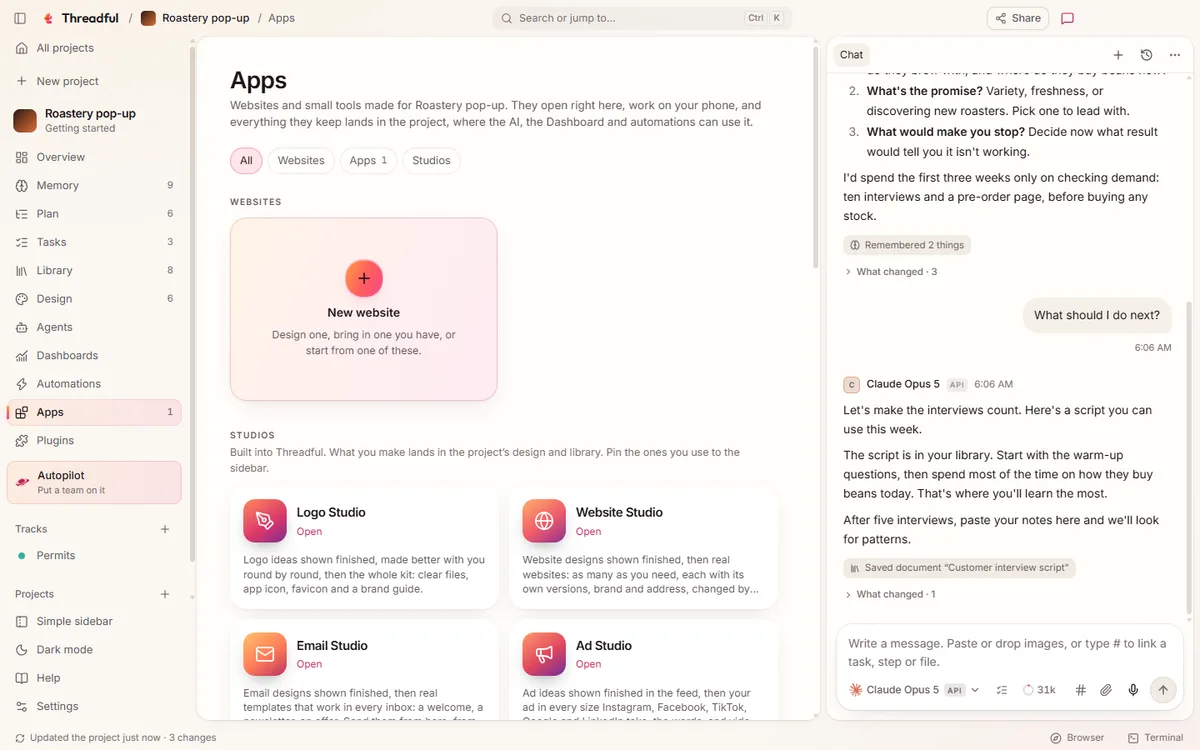
Apps are small tools made for your project: a checklist, a calculator, a sign-up form, a flashcard quiz. They open right here, work on your phone, and everything they keep lands in the project, where the AI, the Dashboard and automations can use it. Open the Apps page from the sidebar.
Your websites come first on the Apps page, under Websites: each website designed on the Design page as a card with its picture (a full website's home page as it looks now), its address, its brand, how it stands (changes waiting, a Run under way, or the version live) and how many versions it has. With more than one brand they're grouped by brand. Click one to open its own page (see Design); New website designs one, recreates a site you have from its address (its main pages, with its own pictures), brings in a site's brand to design from, or starts from a copy of one of these (see Design). All, Websites and Apps at the top show one kind at a time. The studios aren't here: they're under Design in the sidebar (see Design).
Jobs with no screen that run on their own, like filing invoices as they arrive or sending you a look back every Monday, are on the Automations page, with workflows among them.
How to make an app from a sentence
- On the Apps page, find "Make something from a sentence", under Make your own (after the ready-made apps).
- Under "What should it do?", say what it should do, or click an idea under Try, like "A checklist for launch day" (More ideas shows the rest). It works out whether you mean an app (something you open) or something that runs on its own, which goes to Automations; pick An app or Runs on its own to choose yourself.
- To build it with things you have, like a logo, a menu or a price list, click Add from the library (or the library button in the box, beside the arrow) and pick them. A count on that button shows how many you added. Pictures go to it as files to use, and documents and files it reads.
- Press Enter (or the arrow, Make it).
You can also just ask in the chat, like "make me an app that splits a café bill between friends", or "make the tip calculator round up": it's made (or changed) the same way, and its page opens.
It's built in a few minutes, and you can carry on meanwhile. The card says "Making it…" until it's ready. It gets a real icon by itself when you have an image service (Settings → Images and audio); click the icon on its page for Make a new icon.
Making apps needs Codex or Cursor installed and signed in. If neither is ready, the box says so with Install, then Sign in (with your ChatGPT account, in your browser), right there; automations and the ready-made apps below still work. See AI models and keys.
Trying a few ways at once
Not sure which coding app makes the best version? Try a few ways builds the same app two to four ways at once, and picks the best.
- In "Make something from a sentence", say what it should do, then click Try a few ways (beside how good it should be).
- It starts with three ways that differ: the coding apps ready here, each with its model, like Codex, Cursor and Built in. Click one to change its model or take it out; Add a way adds another, up to four.
- Pick how hard they think: Low, Normal (each app's own setting) or High. The line beside it says what it costs: a way on a plan uses your plan, and Built in says roughly what a run costs on your key.
- Press Enter (or the arrow). Its page opens.
Each way builds it on its own, in a folder of its own, then checks it and takes a second look at its work, fixing what it's sure is wrong. While they work, each is a card with its app's logo, what it's doing now and its clock, and the coding strip shows them all as one bead. Once all have finished, they're compared: each page at laptop and phone width, against what was asked (Judged on 3 points shows the points). The best comes first, marked The pick, and every way shows its score out of 10, what's best about it and what's missing, how long it took and who paid.
- Click a page to open it full size and try it. Desktop and Phone switch how they show, and the arrow keys go from one way to the next.
- Build this makes it the app, and its page opens. Undo in the note puts it back among the ways for ten minutes; after that the other ways go.
- Refine carries that way on with your note, and they're compared again.
- The round arrow tries that way again from the start; Try them all again starts every way afresh.
- Stop stops them all, and ⋯ › Throw them all away takes them away (with Undo).
While it works, it's a card on the Apps page under Trying a few ways, and the title bar says "Trying three ways". You can also ask in the chat, like "make a tip splitter, try three ways", or have an app you have changed a few ways at once.
Studios
The studios (Logo Studio, Website Studio, Writing Studio, Email Studio, Ad Studio, Video Studio, Presentation Studio and Sound Studio, and the ready-made Name Studio, Idea Studio and Spreadsheet Studio) are under Design in the sidebar: click Design and it lists the five used most, with More studios for the rest. Right-click one there to pin it. See Design.
A website built on the Design page opens on its own page, whose Preview is like any app's page: it runs on your phone and publishes like any app, and its Design tab is where it's changed (see Design).
Ready-made apps
Add one in a click, with no building. The studios among them (Name Studio, Idea Studio and Spreadsheet Studio) are under Design in the sidebar, the rest under Ready-made here:
| App | What it does |
|---|---|
| Name Studio | Names for a business, product, project, game or feature, as branded cards, with domains checked |
| Idea Studio | Brainstorm on anything with real techniques; keep the best and send them into the project |
| Spreadsheet Studio | Say what you need (a budget, a sales tracker, a price list, a plan) and get its sheets, sample rows, formulas and totals. Where figures matter, the sheets are linked by formulas, figures show as bars, shades and coloured labels, sheets get charts, and an Overview shows the main figures against the ones before. A simple list stays a plain sheet. Change it in words, or by hand: double-click a cell, click a figure to see its formula in the bar above the grid and change it there (a worked-out column's formula changes for every row), Add a row, Add a chart, switch a chart between bars, a line, an area, a ring or bars across, pick its colours, and Undo. Keep it here, Download for Excel (formulas, charts, colours and number formats, ready for Excel, Google Sheets or Numbers), a sheet as CSV, or Make it a dashboard, which keeps up as the sheets change |
| Focus | Pick today's three from your tasks, work in timed sessions, tick them off as you go |
| Skill Trainer | Learn a new skill: the path in stages, drills to practise, sessions logged from your phone, and a coach for the next one |
| Decision board | Weigh options against what matters, with suggested criteria, and record the decision in the project |
| Weekly look back | For any week: what got done, what moved and what's stuck, each with a reason, a few lines looking back, and the top 3 for next week |
Press + Add to the project. It opens straight away, with its own icon. After that it's yours like any other app: you can change it with a sentence too.
Apps added before the Skill Trainer had that name (Practice tracker) take it by themselves, unless you renamed them. Presentation Studio was a ready-made app too; it's built in now, and decks made in the app come into it (see Design).
Skill Trainer
Say what skill you're learning (Spanish, the guitar, putting…) and where you are with it (New to it, Know a bit, Getting good), then press Make my plan. You get Your path, the skill in three to five stages, each saying what you can do by its end, and the drills to practise, each measured its own way (a score, a count, minutes…) with an aim. Tap a drill to log a session in two taps, from here or your phone. Tick a stage when you've got it; the next one is marked Now. Plan my next session and How am I doing? read your sessions and where you are on the path. Learn as many skills as you like: the skill's name at the top lists them, each with where you are on its path and this week's sessions; click one to switch, or Learn another skill to start a new one, with its own path and drills. Removing one takes its path and drills (with Undo); its sessions stay in the project. The ⋯ menu has Add a drill, Learn another skill, Make a new path (from where you are now) and Save a summary to the Library.
Weekly look back
Pick a week along the top: This week, Last week or an earlier one. It counts what was done, moved on, got stuck and was added, lists each with a reason, then writes a few lines looking back and the top 3 for the next week. Add as a task puts one of those in your tasks. Each week's look back is kept; Write it again brings it up to date.
Your apps
Each app under "Apps" shows what it keeps, like "12 practice · 3 notes · 2h ago".
Each card says what kind of app it is (Game, Tool, Website, Website design, Emails, Ready-made and so on) and has a line about what it is. The line is written for you after every change, so it stays true. Write your own and it stays as you wrote it; empty it to have it written for you again.
- Open opens it.
- The pin puts it in the sidebar, under Apps.
- The globe publishes it (below).
- The pencil changes its name and description.
- The bin deletes it: click once for "Delete?", then again.
With six or more apps, a line beside Apps sorts them out: a chip for each kind there is (All first, then Ready-made, Game and so on, with how many) shows only that kind, and the order beside it is Newest, Name or Recently opened. Both are remembered on this computer for next time.
When another app seems to have replaced one (a full website built from a design, or a newer app with the same name), its card asks Replaced by …? Hide it takes it off the list and off Home; N hidden apps · Show under the list brings them back, with Show it again on each. Keep it stops asking.
Every app you make gets an icon of its own when you have an image service (Settings → Images and audio). A website designed on the Design page, and the full website built from it, use your brand's app icon. Ready-made apps keep the icon they come with; Make an icon for it on the app's page makes another.
Your apps also show on the Overview's Apps tab and on Home. On Home, each app shows once: a ready-made one that's in more than one project shows from the project you added it to most recently, and clicking it opens that project straight into the app.
When a change finishes, it's checked and looked at before it's done, like any coding run (see Coding). The project's coding runs and work shared with Claude Code, Codex or Cursor are one click away from any page: Coding in the status bar (see Coding).
An app's page
Along the top:
- Back returns to where you were.
- The icon: Make an icon for it (needs an image key), Choose a picture…, or go back to the plain one.
- The name: click to rename it.
- Change it: type a change, like "add a dark mode", and press Enter. The new version loads when it's done.
- Size: desktop, tablet or phone.
- Mark up: a picture of the app as it shows now, to draw on (boxes, arrows, lines) with a note on what should change. Fix it changes the app, looking at your marks; it can also go to the team or the chat (see Browser). On a website designed on the Design page, Fix it changes that page on the Design canvas.
- Reload.
- Open on your phone (below).
- Console: messages from the app, with a red count for errors.
- What it keeps: every collection it saves, with recent records.
- …: Open in your own browser (a website on its own server), Pin to the sidebar, Pin to the browser (or Unpin from the browser: its icon at the start of the browser's tabs, see Browser), Open its web address (once published) and Delete the app. Deleting removes its folder; what it kept in the project stays.
An app always opens here, wherever you open it from: the Apps page, Home, the sidebar, the search box, Try it on a coding run's card, or a link to one of its pages in the chat. So Mark up and the rest are always at hand. Only Open in your own browser takes it out of Threadful.
A full website built from the Design page is an app too. When it runs on a server of its own, it starts by itself when you open it (the first time it gets what it needs, which can take a minute or two) and shows here, with Previous page, Next page and its address above it. It's on its website's page, whose Design tab shows its real pages to click and change (see Design). If it stops, the page says why, with what it printed, Start it again, and Ask the chat to look into it, which opens the chat with that already written for you to send.
It always runs as one copy, at one address that stays the same, so what you see is the latest version:
- After every change (from Change it, the chat, Mark up or Autopilot), Threadful starts it again from the new code, and its page reloads by itself, with nothing old left in the cache. A page of it open in your own browser loads the new version by itself too (see Browser).
- A coding run doesn't leave a copy of its own running: any it leaves is stopped when it ends.
- A link to any of its pages, even one with an older address, opens that page on the current copy.
- An older copy found running from before shows a line above the site with Stop it.
- When another program (say, another project's site) is using its usual port, it moves to a free one, with its own address in its settings moved too, so you always see this site and never the other one. Copies left running when Threadful was closed suddenly are stopped the next time it starts.
- … → Start it again, fresh restarts it from its current code whenever you like.
How to open an app on your phone
- On the app's page, press Open on your phone.
- Scan the QR code with your phone's camera. Your phone must be on the same Wi-Fi.
What it saves on the phone lands in the project. It stops being shared when you close the card, leave the app's page, open another app this way, or after two quiet hours.
How to publish an app
Press the globe (Publish) on the app's page or card. Before anything happens, the Publish window reads how it's published and leads with that way, marked Suggested, with why in a few words and the address it goes live at.
- An app made here gets a web address with Vercel: free, and publishing again updates the same address, which anyone can open. Each app gets a Vercel project of its own the first time, and the window shows the address it will get. If Vercel isn't set up yet, Set up Vercel installs it and Sign in to Vercel signs in to a free account, right there. Then press Publish; it takes a minute or two. A full website, one that runs on its own server, publishes the same way: Vercel builds it.
- A website whose code is in a folder of yours (see Use another folder in Design) goes out the way it already ships. The window reads its folder (its link to a Vercel project, deploy notes in its README, CLAUDE.md or AGENTS.md, a deploy script, a GitHub workflow, another host's settings) and, with your own Vercel sign-in, its project, team and domains. When it deploys to Vercel from its folder, the button names its address (Publish to threadful.ai, say) and asks first; A preview first makes a preview instead. Nothing is written into your folder.
- When it goes live another way (a push to GitHub, a deploy script of its own, Netlify, Fly.io, Cloudflare), the window says so, with its command and Open a terminal here: a terminal opens in its folder with the command typed, and runs it only when you press Enter. A folder that isn't linked to a Vercel project on this computer says how to link it, then Check again.
While it publishes, the window and the title bar follow its steps (getting ready, sending the files, building, going live) with what the build is doing. Then the window shows the live address with Open, a button to copy it and a picture of the page. If Vercel couldn't build it, the window shows the end of its build log with Fix it (a coding run finds and fixes what stops the build; publish again once it's done) and Try again; if Vercel signed you out, Sign in to Vercel is right there.
Domains. Under the address, Domains lists the project's domains. Add a domain adds one you already own, like acme.com or shop.acme.com. The window then shows the records to set where you bought it (GoDaddy, Namecheap, Cloudflare): their type, name and value, each with a button to copy it. It can take a few minutes, sometimes an hour; Check again says when it works. A domain whose DNS is already with Vercel is set up by itself.
Other ways to publish folds the rest: a preview with Vercel, Download it to host anywhere (Download the zip saves the app's files with a note on putting them on Netlify Drop, GitHub Pages, Docker or your own server; Show opens the folder it's in), and any other way it found. Read from its folder shows what was read: what it is, how it's built, its Vercel project and the deploy notes found.
Both carry the app as it works here, with the project's look. What an app keeps (entries, scores, a form's answers) comes back to the project while it runs in Threadful or on your phone; on a published address or a downloaded copy, it stays in each visitor's own browser, and asking the AI from inside the app needs Threadful. When an app keeps things, the Publish window says so. A website designed on the canvas with a sign-up or contact form says which forms won't reach you yet: on the web address, someone who sends one is told "This form can't send yet" instead of being thanked for nothing. Files that hold keys (.env, but not .env.example) are never published or downloaded.
Parts that only pretend. An app made to try an idea often pretends: a checkout that takes no money, emails that never leave, bookings that go nowhere, a sign-in that lets anyone in. Before it goes on a web address, the Publish window lists what its code still pretends, with where. Only code that goes live is read: never what a build made, what the folder's own ignore files leave out, or code marked as only for development. Make them real has a coding run swap them for real services (keys go in its settings, never in the code; its card says which to add), or tick It's fine as a demo for now to publish it as it is.
The "Created with Threadful" badge. On the Free plan, an app made here, a website designed on the Design page and a deck's web page go out with a small "Created with Threadful" badge in a corner of each page, and the Publish window says so. Pro takes it off: published on Pro or its trial, nothing is added, and pages already published on Free lose it by themselves within a few minutes, without publishing again. A full website's own code, a folder of yours and the zip you download never get it. The badge sets no cookies and keeps nothing in your visitors' browsers; their browsers load it from threadful.ai.
Once it's published, the card says so and Open its web address is in the app page's … menu.
Errors on the web address. A few minutes after each publish, and every half hour after, Threadful reads the last hour of errors on the published address from Vercel (with your own sign-in, only reading). New ones bring a notification, and the app's page says what went wrong and where, with Fix it (a coding run looks into them; publish again when it's done) or Not now.
Starting from a starter
Two starters in Settings → Plugins lead here: A small app from a sentence and A one-page site, which starts building a simple site for the project.
Tips
- If a change doesn't work out, or it stops before the app has a page, it's tried once more by itself. If that doesn't work either, the card and the app's page say what happened with one thing to do: Sign in when the coding app is signed out (then Try again), Carry on when it was cut off by closing the app, else Try again (or say it another way).
- The app's Developer tools show in the … menu once they're switched on (see Growing with you).
- Apps can be the source of Dashboard numbers and can start automations when they save something. See Dashboards and data and Automations.
Related
Every page of the guide
The same guide is in the app: open Help or press F1. Something missing or unclear? Write to hello@threadful.ai.
