
On this page
The Library holds everything in the project: documents, files, links, notes, pictures, videos and more. Every AI in the project can search it, so what you add here informs every reply. Open it from the sidebar (Ctrl 5).
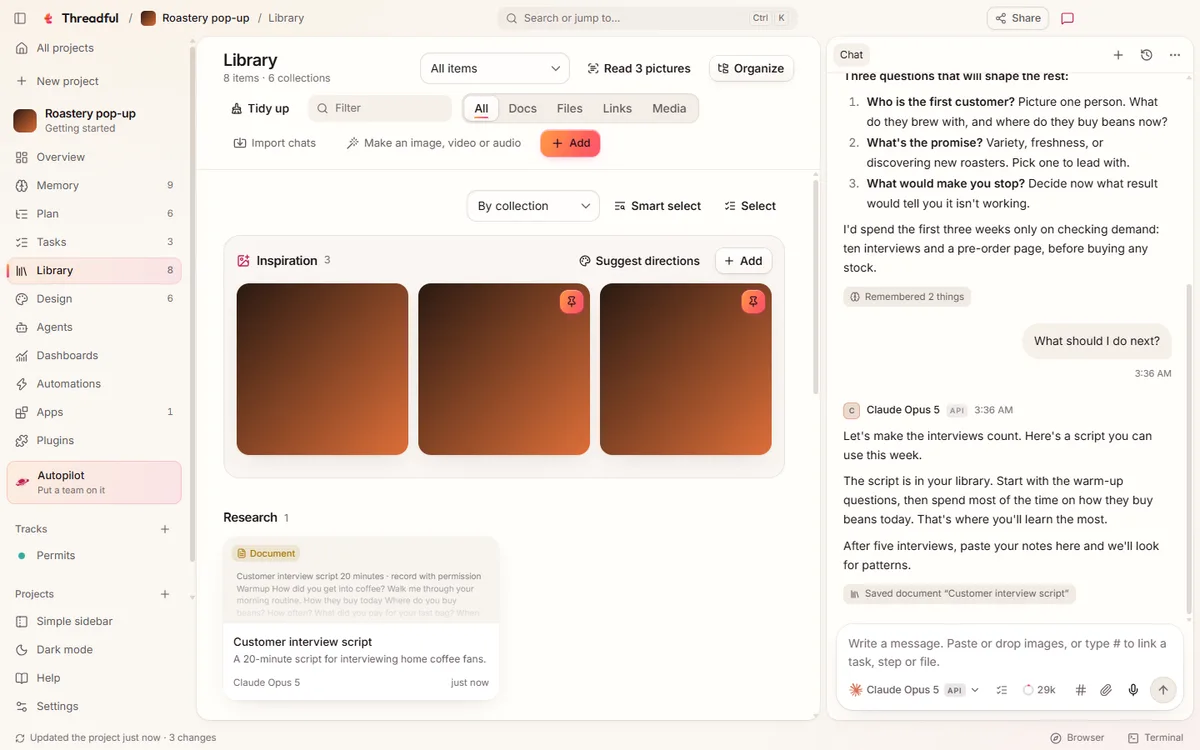
How to add things
- Drop files anywhere on the page. Text, PDFs and code become searchable.
- Paste with Ctrl V. Images, videos and Lottie animations go to Inspiration; other files go to the library.
- Make an image, video or audio at the top of the page opens Create (see Images and audio).
- The Add menu has:
- Add files…
- Add inspiration…
- Make an image, video or audio… (see Images and audio)
- Import chats… (see Projects and tracks)
- From another project: choose a project, then what to bring from its library. Only that is copied, into a folder named after that project (see Sharing).
- Search the web
- Save a link: paste a web address and press Save.
- New note: opens an "Untitled note" ready to write in. Quick add (Ctrl Shift A) makes a note from anywhere.
- New rule and New skill (see below).
New items are sorted into collections by themselves.
The wiki
Wiki, at the top of the library and on the left, is this project in a few linked pages, written from what it holds: its goal, plan and tasks, its memory, its library, its design, what's been made and its numbers. The first time you open it, it's written while you watch, a page for each part the project has something on: Overview, Plan and progress, Decisions, Open questions, What we know, Ideas, What's been made, Brand, and Research and documents. Each says only what the project's records say, linked to each one, and the pages link to each other.
- The pages are on the left, or in a row along the top when the page is narrow. Find in the wiki finds words in all of them, and the page you open shows where they are.
- At the top it says when it was last updated and how many things it's written from. Refresh now brings it up to date at once.
- It keeps itself up to date: once things have changed, at most once an hour, the pages whose records changed are written again and the rest are left as they are. It uses a quick AI model, so it costs little. Keeps itself up to date, under the pages (and in … at the top), turns that off. Without an AI model set up, the pages are put together from the records instead.
- Edit changes a page by hand. A page you changed keeps your words and says so; Update it anyway writes it again from the project, and what you wrote stays in its versions (see Writing Studio).
- A page's … has Write this page again and Leave this page out. The … at the top has Write every page again, Bring back for a page you left out, and Delete the wiki (with Undo).
- The pages are documents in the library too: search finds them, and the chat, agents and outside apps can read the wiki and ask for it to be brought up to date.
Sharing the wiki
Share at the top of the wiki (also Share → Hand It Over → The wiki) takes it out of the app:
- Download: Markdown files (a zip, a file for each page), One web page that opens in any browser, or a PDF.
- Publish: a website of the wiki, published like an app (see Apps). Anyone with its address can read it.
- Send to a project: each page goes into another project's library as a note.
Every way first takes out private things, each kind with its switch: Keys and passwords (always), Emails and phone numbers, People's names (never the project's own name), Money and figures, File paths and links into the app, Lines marked private (start a line with "Private:" to keep it in the app; everything under a heading with "Private" in it stays too), and Anything else that looks private, read by AI. Each switch says how many it found. The Preview shows each page with what's taken out struck through, and the copy leaves all of it out, each marked by its kind, like ‹name› or ‹amount›. The switches stay as you leave them for the project.
Rules and skills
On the left, under How work is done, are two places of your own that every piece of work in the project follows: every reply, agent, Autopilot teammate, coding run, hand-off to Claude Code, Codex or Cursor, and work done in the background.
- Rules hold for all the work here. Keep each one short, like "Use British spelling" or "No stock photos". Starred rules come first. When there are many, the first ones go in full and the rest by name, and the AI reads those when it needs them.
- Skills say how one kind of work is done here. Start with when it applies ("When: writing a blog post"), then the steps. A reply reads a skill when its work fits; a coding run gets the skills that fit in its instructions, and a teammate handed that kind of work is told which skill to follow.
Press Rules or Skills, then New rule or New skill, and write it (the title is its name). You can also ask in the chat: "Make it a rule: prices always with the currency" or "Save how we write the newsletter as a skill". In a track, the main project's rules and skills count too.
The chat's context meter shows how much room the rules and skills take (see Chat).
Finding things
- Filter searches titles, summaries, collections, tags, link addresses and the words in notes and pictures. From three letters, it searches inside files and pages too, and shows the matching lines.
- The kinds, as chips over the list (Documents, Pictures, Video, Audio, Files, Links, each with how many there are), narrow it to that kind. Click more than one to see them together, like pictures and video; click one again to let it go, or All for everything. Kinds with nothing in the folder showing aren't offered, and the choice stays while the app is open.
- The Top row shows what you use most: opened often, used in the chat, or named by tasks and plan steps.
- The order, above the list: By collection (the collections with something new first, and the newest first in each), Newest first (one list, no collections) or A to Z. It stays as you leave it.
Doing the same to several at once
Press Select above the list, then click the items you want (a tick shows on each). The bar at the bottom says how many are chosen:
- All chooses everything the list shows (or None again).
- Add to chat adds them all to the message you're writing.
- Send to project sends copies of them to another project: into a new chat there, its library, or one bundle (see Sharing).
- Star puts them in Favorites (Unstar when they all are).
- Move to… puts them in one of your folders, or No folder.
- Delete deletes them all, with Undo in the note that follows and at the top of the library, for ten minutes.
Done (or Esc) stops choosing.
Smart select, beside Select, chooses by what you describe, and what not to: "pictures in the Drop 01 folders, except the Keep folder and my favorites", "documents about prices", "everything the AI made that I never opened" or "screenshots from last week, not the blurry ones". Press Choose: everything that fits is chosen, however many, with the same bar to act on it, and the note that follows says how it read your words ("Pictures, in Drop 01 and the folders inside, not in Drop 01 / Keep, not starred"), so check them first.
It understands kinds, folders (a folder includes the folders inside it, by its path or its name), starred items, who made something (you, the AI, a team member, Autopilot), when it was added, whether you've opened it, and words in titles, descriptions and text. Without an AI set up, or when the AI doesn't answer in time, it goes by your words the same way.
With a folder open, it chooses in that folder: "logos in this folder that aren't tangerine" means the folder you're looking at, and so do words that name no folder. Name another folder, or say "everywhere", to choose from the whole library.
What only looking at each item can settle, like "the blurry ones", is read item by item: first by what's known of each (its title, description, tags and the words read in a picture), and only pictures whose words don't say are looked at, a few at most. While it works, the box says what it's doing and how far through it is, and Stop ends it with nothing chosen; it also shows in the title bar. It never just hangs: anything it couldn't tell in time is left out rather than chosen, and the note that follows says how many and why.
Asking the AI to sort the library
In the chat you can ask the AI to look through, sort or clear the library the same way: "how many pictures are in each Drop 01 folder?", "move my starred pictures into Drop 01/Keep", "delete every picture in Drop 01 except the Keep folder". It lists every item that fits, not just a few found by search, moves or stars many at once, and deletes by the same description. It always asks before deleting, it never deletes anything you starred (unstar it first if you mean to), and the note after a delete has Undo for ten minutes.
Collections and folders
Collections are made for you, grouped by what things are. "Not sorted yet" comes last. A big collection shows its first twelve; Show all shows the rest, more as you scroll down.
Made along the way, at the bottom of All items, holds what the AI saves while it works: pages it read, web screenshots, drafts, agent pictures and design ideas you haven't kept (under Design drafts). It stays closed until you open it, so the things you work with stay in view. Nothing in it is deleted by itself, filtering still finds it, and starring an item moves it back up with the rest.
Tidy up
Tidy up (at the top of the library, and Tidy up what nobody uses in Made along the way) lists what the AI and the app left behind that nobody uses: pages the AI read, web screenshots, drafts, and pictures the AI or a team made that nobody opened. It never offers what you added yourself, starred, put in a folder or opened, or anything newer than a day, and never anything the project uses: a picture on a website or in an email design, in a design you're working on or its logo files, on the vision board, on a slide, in an ad, an app's icon, the project's picture or icon on Home, a picture you added to a message in the chat, or anything a task, a note or a document shows or names. It works this out in a moment even in a library of thousands, and the app keeps working meanwhile.
Everything starts ticked; untick what to keep, or a whole group at once, and press Remove. Show them opens a group: pictures as small previews, which load as they come into view, and pages and drafts as a list; a long group shows more as you scroll. Click one to tick or untick it, and Shift-click another to do the same to everything between them. Choose above them picks All, None, The older half, Older than a month or Bigger than 1 MB in that group. Undo in the note that follows, and at the top of the library, brings it all back for ten minutes.
Folders are your own. On the left:
- New folder makes one. Its … menu has Rename, New folder inside and Remove folder (what's inside moves up a level; nothing is deleted, and Undo puts it all back in the folder).
- Drag cards onto a folder to file them. Drop them on All items to take them out again.
- Star a card (Add to Favorites) to keep it under Favorites.
- Drag the edge between the folders and the list to make the folders wider or narrower (or press it and use the arrow keys); double-click it to put it back. It stays as you leave it.
Organize suggests folders, collections, titles and tags for the whole library. Tick the ones you want and press Apply. Nothing changes until you do, and one Undo takes it all back.
Working with an item
Hover a card for Add to chat (adds it to the message you're writing) and delete.
Deleting takes two clicks: the first turns the button red and says "Delete?". The second deletes it. Undo is in the note that follows, and at the top of the library, and brings it back with its file for ten minutes. Right-click an item for Delete too, with the same Undo.
A sound's card shows its shape with a play button: press it to hear the sound right there, without opening it, its shape lighting up as it plays. A video plays without sound as you point at it; its play button plays it in place with sound. Only one thing plays at a time: starting a sound or a video anywhere in the app stops the one before.
Click a card to open it beside the list. There you can:
- Edit the title and "Add a one-line summary".
- Change its Collection and Folder, or star it.
- Write in a note or document straight away: it saves by itself as you type, with Suggest and Refine for the AI to add to it or tidy it, and Show the Markdown to see it as plain text (see Quick add and notes).
- For a picture: click it, or press Edit image, to open the image editor (see below). Under it, Make more like it and Make a video from it open Create starting from that picture, and Make an SVG of it opens it on SVG, to save an SVG file of it beside it (see SVG files).
- Send to project to send a copy to another project (also on right-click as Send to another project).
- Open in system app, Open a link, or Show in folder.
- Pull out the key colors of an image.
- For a sound: its shape, large, to play (click along it to play from there), with Edit in Sound Studio (trim, fade, loop or layer it, see Sound Studio) and Use in a new beat. A video plays here with its controls.
To go through them one by one, use the arrows at the top (it says where you are, like "3 of 12") or the Left and Right arrow keys; on a picture, arrows also show on its sides when you point at it. They follow the list as the page shows it, so a search or a folder steps through just those. Esc closes it.
Pictures that have been read show when and where a photo was taken, its tags, and "Words in it". Read N pictures at the top reads the ones that haven't been yet, so search finds them by what they show. New pictures are read by themselves while Settings → Automation → Read new pictures is on.
Pictures go where you need them
Any picture from the library can be dragged to wherever pictures go, from wherever it shows: the library, the chat, a task's notes, design ideas, your logo files and the canvas.
- Drop it on the chat's message box to add it to your message.
- Drop it on a task's notes to show it there.
- Drop it on a design brief's pictures to guide the look, or on Inspiration to make it a reference.
- Drop it on a folder to file it.
It's the same picture, not a copy: nothing is saved twice. Right-click any of them for Copy image (to paste into another app), Add to chat or Show in the library.
Viewers
- Markdown, JSON and CSV files switch between a formatted view and Raw. Code is shown with colours.
- PDF: page arrows, zoom, and Find.
- Slides (PowerPoint files, no PowerPoint needed): speaker notes under each slide, thumbnails below, and Present for full screen. Arrow keys move between slides; Esc leaves.
- Files with no preview offer Open in system app.
The image editor
Open an image and click it, or press Edit image. A picture in the chat has an Edit image button when you point at it, which opens it straight in the editor.
- Crop (drag, then Enter), Rotate left, Rotate right, Flip across, Flip upside down.
- Resize, and Light and color (brightness, contrast, colour).
- Pen, Highlighter, Box, Arrow and Text to mark it up, in your design's colours first.
- Remove background: runs on this computer, no key needed. The first time, it downloads what it needs.
- Plain background: clears a single-colour background.
- Trim and Upscale 2×.
- Reimagine: describe a change and press Make it. This needs an image key, and the new version goes to the library as a separate picture.
To look closer, hold Ctrl and turn the wheel (or pinch) where you want to zoom, or use − and + at the bottom, with Fit and 100%. Move about with the scrollbars or the wheel, by dragging with the hand (the first tool), or by holding Space (or the middle button) and dragging with any tool.
Ctrl Z undoes and Ctrl Y redoes. Changes are only kept when you press Save…: choose a format, then Save a copy or Save over the original (which can't be undone).
Inspiration
Inspiration sits at the top of All items: references for the look and feel. Drop, paste or Add images, videos and Lottie animations, or drag a card from the library onto it. When the project uses Design, pin them to the vision board, and Suggest directions proposes a few looks from them. See Design.
Collections the app fills for you
- Screenshots: screenshots and copied images you add (see Chat), and pictures marked up in the app's browser. Settings → General → Screenshot shortcut takes one from anywhere, even with Threadful in the background.
- Generated: images, video, audio, slides and other things the app makes.
- Coding sessions: work brought back from Claude Code, Codex or Cursor, kept up to date.
- Imported chats and Imported notes: what you brought in.
- Logo: your logo kit.
Saving from your web browser
A browser extension for Chrome or Edge saves a page, a selection or an image straight into a project. Set it up in Settings → Automation → Browser extension, which walks you through three steps: Turn On the local server, Open your browser's extensions page and load the extension's folder once (Developer mode, then Load unpacked), and let it connect by itself. The extension's folder is in Threadful's own data folder and stays the same through updates, so it's loaded once; Threadful checks its files each time and writes back any that are missing. Nothing is copied or pasted. The page ticks each step as it is done, and says when the extension in the browser is older than the one that came with the app, so you can press its reload button. Add Another Browser connects Chrome, Edge or Brave one after another. It also puts the Threadful bar (Mark up, notes, errors) on your projects' own pages (see Browser).
Related
Every page of the guide
The same guide is in the app: open Help or press F1. Something missing or unclear? Write to hello@threadful.ai.
