
On this page
Autopilot puts a team of specialists to work on your project together. A lead sets priorities, managers split the work, the team does it, and reports come back up. It keeps working while you're away, and asks you only when it needs you.
After your 30-day trial, Autopilot is part of Pro: past teams and their results stay open to read, and a team at work pauses with its work kept (see Plans and your account).
How to open it
- Click Autopilot at the bottom of the project's pages in the sidebar. The line under it says how the team is doing: "Put a team on it", "3 working", "Between rounds", "Paused" or "Needs you".
- Or use Autopilot at the bottom of the Overview, Hand it to Autopilot when you make a new project, or the Autopilot button on the Agents page.
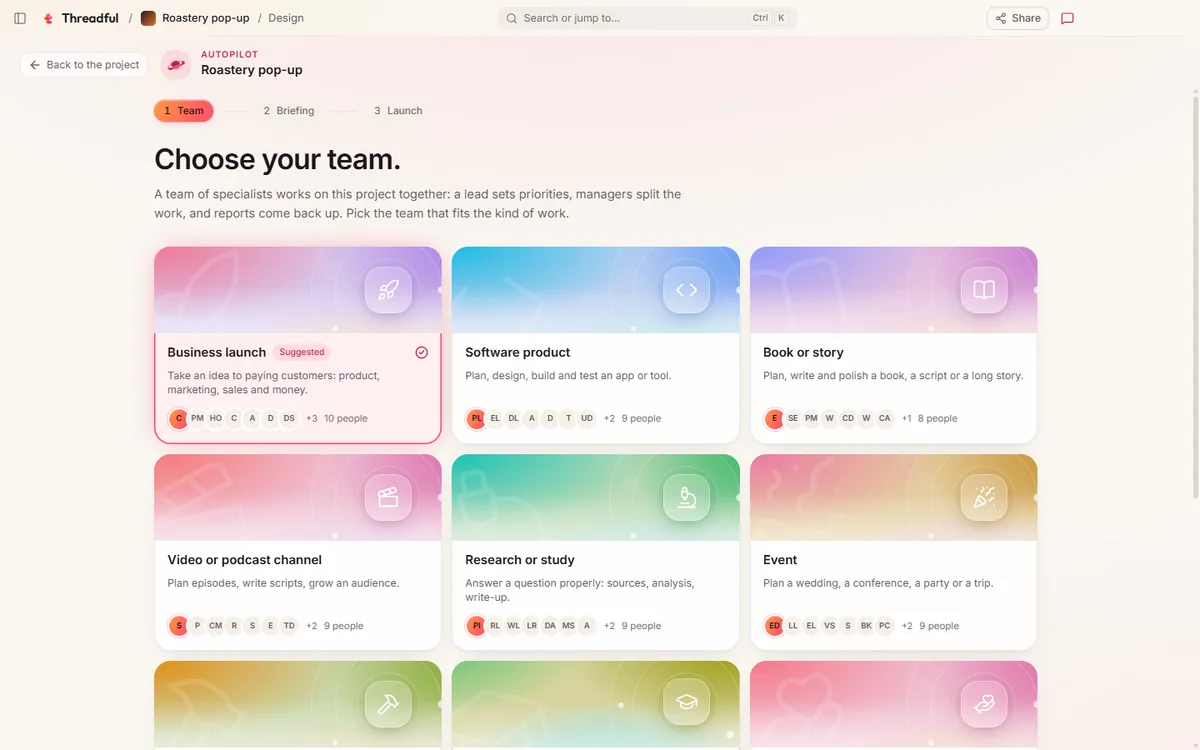
Autopilot fills the window. Back to the project (or Esc) closes it; the team keeps working.
Straight from a new project
Hand it to Autopilot on a new project doesn't ask again what you've already said. Autopilot reads the project (what you wrote, the goal, the plan) and fills in the team's briefing. If that covers everything, it shows "Starting with what you told me." and starts the suggested team after a few seconds (Start the team starts it now; Change it first opens the full setup below). If something can't be told from what you said, like a budget, it asks only that, then starts. It doesn't count down when the team has no AI to work with (it says what to set up, and Start waits until it's done), or when a team that builds software has nothing that can do coding runs: it says so, with what to sign in to, and starts only when you press Start the team.
How to put a team to work
1. Choose your team
Pick the team that fits the kind of work. The one that fits your project is marked "Suggested".
| Team | Lead |
|---|---|
| Business launch | CEO |
| Software product | Product Lead |
| Book or story | Editor-in-Chief |
| Video or podcast channel | Showrunner |
| Research or study | Principal Investigator |
| Event | Event Director |
| Home or physical build | Project Lead |
| Learn a skill | Coach |
| Nonprofit or campaign | Campaign Director |
| Game | Game Director |
| Custom | Made for your work |
For Custom, describe the work (and who you'd hire, if you like) and press Make the team. You can change it with a sentence ("add a role, drop one…") and Make it again. The team is kept with the project.
2. Brief the team
One question at a time. The first is always "What should the team achieve?", filled in with the project's goal. Then come a few questions for that kind of team, like "Who is it for?", and usually "What does done look like?". Suggestion chips help. Skip what doesn't matter.
The last step is "Anything the team should work from?": drop or paste files and pictures there, or use Add files, From the library (documents, pictures and files you already have) and Add a folder (a folder on this computer it may work in, like another code folder besides the project's own). Each shows as a chip with × to take it out. Files from your computer go into the library. Then press Meet the team.
The lead gets what you gave with its first message, and each member gets it with its first piece of work. Members who build work in the folders too, and a coding run the team starts can work in one of them. Your answers, with what to work from, are saved in the library as "Autopilot brief".
3. Launch
- How long: 2h, 8h, 1 day, 3 days or No limit.
- Pace: Fast (rounds back to back), Steady (ten minutes between rounds) or Slow (an hour between rounds, for runs over days). Steady and Slow carry on by themselves after a restart.
- The AI the team uses: one of four choices, each showing who uses what (see The AI the team uses below).
More controls: limits, reviews and AI models shows the rest (see Growing with you):
- Most work handed out, Most pictures, Spending limit and A day at most. Most pictures is how many pictures the team may make and save (60 to start; 30, 150 or No limit). For spending, only pay-per-use AI counts; replies on a plan you already pay for don't.
- Working at once: how many members work at the same time.
- Your say: Approve each round's plan and Review reports before the lead sees them. Both are off, so the team decides for itself.
- Who uses what: change the AI for any part of the team by hand.
Press Launch. A short countdown plays and the team starts.
If only free web search is set up, the setup says so above Launch: a team researches a lot, and free search gets blocked when it's used that much. Make searching reliable opens Settings → Web search (see Web search).
The AI the team uses
Four choices, worded like What matters most in Settings → AI models:
| Choice | What it does |
|---|---|
| Best results | The strongest models for everyone, and for building. Costs the most. |
| Good value | The strongest model where decisions are made; strong models that cost less for the work and the building. |
| Lowest cost | A strong lead; everyone else and the building on plans you already pay for, or the cheapest models. |
| Plans only | No pay-per-use AI at all: the whole team works on your plans. Slower, and nothing extra to pay. It needs Codex or Cursor signed in. |
With Plans only, the checks and reading done for the team aren't billed to an AI key either. The commands it runs are checked by fixed rules on this computer, which read the scripts a command runs too: ordinary work (installing the project's packages, building, testing, starting its servers, saving its work with git) runs, and anything that reaches outside this computer, signs in, installs or changes settings for the whole computer, works outside the team's folders, or runs a script that can't be read comes to you first. A model on this computer, when there is one, can only make that check more careful. Reading a long page for a question and reading the pictures it saves use a model on this computer when there is one; without one, long pages are read in parts, and its pictures wait for Read N pictures in the library (see Library). Its web searches skip searching that's billed to an AI key, and what a click on a website would do is judged by fixed word lists.
Each choice shows who uses what and how it's paid: the lead, the managers, the team, researchers and writers when their work has a model of its own, and Building (the coding runs the team starts). For example "Lead and managers · Claude Opus 5.5 · Pay per use" or "Building · Grok 4.7 on Cursor · Your Cursor plan". Members whose job is coding talk on the team's model; only the coding runs they start use what Building says.
A new run starts from what matters most for the project: Best results, Good value or Lowest cost. Launch again starts from what the run before it used.
Under More controls, Who uses what changes any line by hand: Lead, Managers (when the team has them), Team, Building, Thinking (Deeper, Usual or Quicker: how hard each part of the team thinks before it acts; Deeper takes longer and costs more on pay-per-use models) and How closely work is checked (Light, Standard or Thorough; see How the team keeps quality up). The choice then reads "with your changes", and Undo changes puts it back.
Before you launch
Under Launch, the setup says what may go wrong with the AI you chose, each with a fix you can press:
- A model can't be used right now (signed out, no key, switched off): it says what stands in meanwhile, with Sign in, Add a key or another model.
- Managers on a weaker model than the team they split work for and judge, or a lead weaker than those below it: use the stronger model for them.
- The lead or managers working through Codex or Cursor: each of their turns takes a minute or more, and everything passes through them. Put them on a model with a key instead.
- Building from Cursor's small allowance for top models: a long run can use it up. Build with a model your plan has plenty of, or the same model on your key.
- The team building differently from your own coding runs: build the way your own runs do.
- Pay-per-use AI with no spending limit: set one in a click.
- A member who makes pictures, with no image service set up: set one up in Settings → Images and audio.
- Only use models on this computer is on, but part of the team works online: use models on this computer.
Notes say what's worth knowing without getting in the way: a member working through the Google plan, which can't be told how hard to think or when to stop, so its turns can run long; a choice other than this project's What matters most, with a button to use that one instead; a second look that can't see pages because no model that sees pictures is set up; or, with Plans only and no model on this computer, that the team's commands are checked by fixed rules (Get a model for this computer opens Settings → AI models). Launch waits only when the lead has nothing to run on.
The team keeps what you chose
The AI is worked out when you press Launch: every model, how the team builds, how hard each part thinks and how closely work is checked. The run keeps it through Pause, Resume, Keep going, a restart and picking the run up again. Changing Settings later doesn't change a run under way.
To change it on purpose, press the choice's name at the top of Autopilot: it opens to who uses what and anything that may go wrong, with Change. Or press Change beside "AI:" when you resume. Only what you change is worked out again: every other line keeps what the run kept. Turns already under way finish as they started.
When a model can't be used any more, another stands in until it can (with Plans only, only another plan or a model on this computer), and the feed says so.
How the team keeps it lean
A team is told to take the shortest route to what you need, not to make as much as it can:
- It works toward the files you'll use. Before a piece starts, the team says what it ends in and what the place it goes to takes (a printer's upload rules, a store's picture sizes) and makes exactly that, the simplest way. For print on demand that's usually a picture enlarged to print size with its background cut out, not the art drawn again by hand or in code.
- Options stay light until you choose. When you're to pick between directions or designs, each comes with a picture or two and a few lines, and you're asked as soon as they can be judged. Mockups of every piece, specs, prices and print files come after, for the one you chose.
- It looks before it makes more. Team members see every picture they make or open, and look closely at a part of one without saving anything, so they fix the picture they have rather than making batches to choose from.
- Short briefs that leave room to think. Work is handed down in a few paragraphs: the goal, what's already decided and how to tell it's done, never a long spec that settles every word, pixel and step ahead of time. Whoever does the work decides how. Pages, screens and pictures are handed over as a goal and a feel, with the brand and references to work from, and whoever makes them designs them, looks at them and makes them better.
- One file per thing. Documents are revised in place. What a newer version replaces, or an option you didn't pick, is cleared away as the team goes (see Tidy by itself). A coding run that builds the same files again replaces them in the library instead of adding a second set.
How the team keeps quality up
Checking is part of how the team works, not a role that writes about it:
- The project's checks run after each of the team's coding runs (type checks, lint, tests and the build), judged on what that run changed. When they find problems in it, a fix run follows.
- A second look by a fresh AI at what each run made, against what was asked: the page at desktop and phone width, the changes and the checks. It never reads the builder's own account of the work. Problems it's sure of are fixed once, in the same session; the rest go to whoever owns the work to decide.
- Done when: every piece of work comes with a few lines saying how to tell it's done, and reports say for each one whether it's done, not done or not checked, and how they know.
- Checked against your words: when the lead finishes, a fresh check compares what was made with the goal, your briefing answers and what you told the team. If parts are missing, the lead is sent back; the results say what was checked and what wasn't.
- Testers and reviewers check by using the work like the person it's for, not by writing test plans.
How closely work is checked (under More controls) sets how much of this a run gets: Thorough looks at every change with your strongest model, Standard at most runs, Light only at pages, with a quick model. Best results checks thoroughly; the other choices use Standard. The switch for a second look in Settings → Code is for runs outside Autopilot; a team always gets a second look, at least a Light one.
Watching the team
The top shows the status, the round, how much work has been handed out, reports, pictures, AI use and time, each against its limit. Switch between four views:
- Chart: the team's org chart. Lines light up as work goes down and reports come up, and a bubble shows what each working member is doing.
- Board: a card per member, with its task, what it's doing and Open its chat.
- Feed: everything that happened, with more room for reading and answering. What a report made is under it, each one a link that opens it, and links inside reports open what they name.
- Results: what the team has made so far and what it has done, filling in as reports come back. Once the team has finished, its leading website gets a short tour, a few pictures of it with a line on each: Watch the tour beside Open the website shows them. What leads is picked for you from everything the team made, each with why it matters: finished mockups, designs and the documents that hold the plan, never drafts or near-copies. A website the team is building shows once, as a picture of it with its own name, however many of its pages the team mentioned; Open the website opens it. Drafts along the way are further down. A question for you sits at the top as Your call. When the team finishes, this is where its results are (see below).
Under the chart and board, tiles show the latest documents, images, tasks done and how much of the plan is done in this run. Click Documents or Images to see everything in Results.
The side panel
- AI use: what the run has used today and in total, with the cost per member when prices are known, and what checking the team's work used. For a pay-per-use model without a known price, you can enter one here.
- Jobs: coding runs, work handed to coding apps and watchers. Click one to open it.
- Programs: things the team started, like a local web server, with their addresses (click to open them inside the app) and Stop it.
- Needs you: what's waiting on you, while the rest of the team keeps working:
- Questions from a member. Your answer goes straight to them. While a question is open, the team doesn't finish for lack of new work: it waits for your answer. When the team asks you to choose between things it made, each option shows them (see Chat), and on the Results view the question sits at the top of the page as Your call.
- Coding runs waiting for Start.
- With "Your say" on: round plans (Go ahead or Change the plan) and reports (Accept or Send it back).
- Tidy up: things the team made that nobody has opened or used, with Remove them or Keep.
How to steer the team
At the bottom of the panel, Tell a member something: a change of plan, an idea, an answer. It goes to the lead unless you pick someone else. You can also open any member's own chat from the Board, the Feed or a question. The project chat stays the project chat: a message there does not go to the team.
The whole team follows the project's rules, and work handed out names the skill that fits it, so the member gets it in full (see Library). A note you add to one of the team's coding runs while it works goes to the member with the result.
How the team passes work around:
- Notes on runs instead of more runs. A member with more to say about a coding run the team has queued or running adds a note to it rather than starting another run that would only wait. The run's card says who added each note ("From the Designer"). The team never adds notes to runs you started.
- One report per run. A member who starts a coding run carries on with other work and reports once the run's result is back and checked, not when it starts.
- Reports read together. When several reports arrive close together, a lead or manager waits a few minutes for teammates still working and reads them in one go. Questions, problems, run results and your messages still reach it at once.
Pausing, limits and stopping
- Pause: work in progress finishes; nothing new starts. Resume carries on.
- At a limit (time, spending, work handed out or pictures), the team pauses and keeps the work in hand. Keep going raises that limit by half; Stop ends it there.
- The spending limit counts all the pay-per-use AI the team uses: its turns, its built-in coding runs (see Coding) and the checks on its work. So a run can reach it sooner than its turns alone would.
- Resume and Keep going first ask whether there's anything to add: a few words for the lead (or anyone you pick under Tell), and more files, pictures or folders to work from, just as when you briefed it. Leave it empty and press Resume to carry on as it was. What you add shows in the feed. The dialog also says which AI the run uses ("AI: Good value, as set up on Oct 2"), anything that may go wrong with it today, and Change to choose again.
- At the daily limit, the team pauses for today and carries on by itself just after midnight. Resume before then lifts the limit for the rest of the day.
- If the AI service is busy or the connection drops, the team pauses and tries again by itself after 5, 20, then 60 minutes. Resume tries straight away.
- If you're offline, the team pauses with its work kept and nothing counted against it, and carries on by itself when you're back.
- If a teammate can't start (no AI is set up yet, say), the team pauses with its work kept and says why in the feed. Sort it out (Settings → AI models), then Resume.
- If the coding app is signed out or out of its plan's limit, and no other coding app is set up, the team pauses instead of trying again and again. Sign in (Settings → AI models), or wait for the limit to reset, then Resume.
- Stop ends the run whenever you like.
- What it leaves waiting on you ends with it. When a run finishes or is stopped, a coding run a teammate asked for that nobody started is set aside (its card says Not run), and an OK a teammate was still waiting for counts as no, so Needs you doesn't keep asking about a team that's done. A question a teammate asked that's still open when it finishes becomes a step for you in the results instead.
You get a system notification when the team pauses or needs you: a question, a plan or report to look over, or an OK for a command it wants to run. A team paused at a limit, or because something needs setting up, also shows under what needs you on the Overview. Closing Autopilot doesn't stop the team.
When it finishes
The lead leaves a wrap-up, and Autopilot opens on the Results, in five parts:
- At the top: that it finished, how long it took, and where it stands in a sentence or two, then how many finished pieces there are, how many steps are left for you and how much was made along the way. Open opens the first of them, Talk it over in the chat puts the results in your next message, Resume picks the same run up again (see Picking a run up again), and Launch again starts a new run from this one. The menu beside them has Copy the results, Open as a document and See how it went (the feed).
- What we made: the finished pieces the lead named (the deliverables), as large cards with a picture or their first lines and what each is for. Documents and pictures open right there, over the results (Esc goes back); pages open in the app's browser, apps on their page, and folders on your computer. Files the lead names from the code folder, like a print-ready PDF or a zip, are kept in the library (in the Autopilot collection), so they open in the app.
- What we did: a line for each part of the work, with who did it.
- What you need to do: the steps only you can take, in order, with when and what to use for each (click it to open it), and how many are done. Each step is on your task list too; tick it here or there. A question from the team that you hadn't answered when it finished is one of the steps, with Answer, which opens that member's chat. Under the steps, Checked against your goal says how many parts of what you asked for are there; open it to see each part (a tick, a dash for one missing or only partly there, a question mark for one it couldn't tell) and where it was seen, and what it couldn't check.
- Everything else the team made: the drafts, notes and pictures from along the way, folded away so the finished pieces stand out. Open it to see them by kind, or find one by its words; earlier versions of a document fold into the newest.
Tidy by itself
A team saves a lot along the way: drafts, test pictures, notes. When it finishes, what it made that nothing uses is cleared away, so the library and what the AI reads about the project stay about the work that matters. What stays: the finished pieces, anything a member said was worth keeping, anything a kept document links to or shows, anything the design or an app uses, and anything you opened, starred or put in a folder yourself (folders the team made don't count, and neither do drafts that only link to each other).
The team also clears away what it no longer needs while it works, like an earlier version or an option you didn't pick, so Cleared away can fill in before it finishes.
The results say how much was cleared away. Under Everything else the team made, Cleared away lists it: Put back returns one to the library, Put them all back returns them all, and Remove them now removes them for good. Otherwise they can be put back for two weeks, then they go.
If the run ended without a wrap-up from the lead (it ran out of work to hand out, or it finished before Autopilot had results), one is written from what the team reported and saved the first time you open the results.
If a teammate's question to you is still open when the lead tries to finish, the lead hears it first: it can wait for your answer, or finish and leave the question with you.
Finding the results again
- In the chat: the project's chat gets a card with the headline, the main results, your steps and See the results. The chat's AI reads it too, so you can ask about what the team made.
- In the library: the document "Autopilot results: …", with every result linked.
- On the Overview: "Autopilot finished" beside the project's name for a week, with how many steps are left for you. Your steps also show up under what needs you.
- In the sidebar: Autopilot says "Results ready" until you've looked.
- In Autopilot: opened later, it starts on its main screen with the last run in a card: its goal, how it ended, its main results, See the results and Resume. The team and the goal below are filled in from it.
Picking a run up again: press Resume on the last-run card, beside a run under Past runs, or beside Launch again on the results. Like resuming a paused team, it first asks whether there's anything to add: a few words for the lead (or anyone you pick under Tell), and more files, pictures or folders to work from. Leave it empty to carry on as it was. The same team carries on the same run, with its goal, its chats and what it made: the lead hears where the run ended and what was left undone, and sets the next priorities from there. The run gets its time limit again from now and room for half as much again under its other limits. It becomes the current run (an older one moves back to the top; the one that was last waits under Past runs), and when it ends again its results are written again in the same "Autopilot results" document. Only one run works at a time, so stop a running or paused one first.
Archiving a run: press Archive on the last-run card to put it away. It leaves the card, the Overview's "Autopilot finished" and the sidebar's "Results ready", and waits under Past runs on the same screen, along with your earlier runs. Open a past run there to see its results card; Show archived lists the archived ones, and Restore (or Undo in the note that appears) brings one back. Archiving only tidies the screen: everything the run made stays in the project, and the chat's card for it stays too.
- A system notification says when the team has finished.
A run you stop shows what it made and did up to then the same way. Pages the team left running keep running until you quit the app; after Stop, everything the team started stops.
The team on the Agents page
The Agents page has an Autopilot section: the team suggested for this project, or the one you've put together, grouped as Lead, Managers and Team. Put this team on it (or Open Autopilot) opens it. Hover a member for Talk to. See Agents.
Related
- Automations: react when an Autopilot round ends or the team finishes, or tell the team something.
- Reaching you: hear from the team when you're away.
Every page of the guide
The same guide is in the app: open Help or press F1. Something missing or unclear? Write to hello@threadful.ai.
