
On this page
Plugins are the parts of Threadful the AI can use in a project, like the Plan, Tasks, Web search or Code. Connections link Threadful with other apps: other AI apps can work on your projects, and tools from other apps can be used in yours. You choose what each project, and each agent, may use.
Plugins
Plugins are in Settings → Plugins. Plugins in the sidebar (or in the search box) opens it for the project you're in.
At the top of Settings, All projects or the open project's name says which projects your changes are for:
- All projects: every plugin starts on. A plugin switched on or off here changes every project that hasn't chosen for itself, and new projects start with these.
- The project's name: a switch here changes only that project. It then has its own choice for that plugin ("On here only" or "Off here only" under its name), and changes for All projects leave it alone. Follow All projects on the plugin's page takes it back. A switch the project hasn't set itself is shown a little fainter.
Each plugin has a switch in the list; pick one to read what it does and set how it may be used. Plugins are grouped:
| Group | Plugins |
|---|---|
| Plan | Map, Plan, Tasks, Memory |
| Research | Web search, Search, Drives |
| Write and present | Library, Share |
| Design and media | Design, Images and audio, Image tools |
| Build and publish | Code. Its folder and coding app are in Settings → Code |
| Measure | Dashboard |
Memory, Search and Share are always on (Share is the button in the title bar, not a page). Pages like Plan, Tasks and Dashboards show in the sidebar only while their plugin is on. Map lets the AI put the key ideas in memory and link them; Memory's Map shows them either way. Tools from other apps are under Your own tools, with a switch each (add them in Settings → Connections).
Starters
With a project picked at the top, Starters come first in the list (a new project's Overview shows them too). They get a job going in one click, switching on what it needs:
- Brain dump to a plan: write everything on your mind, then Make the plan.
- Slides from the plan: opens Presentation Studio on the Design page.
- A one-page site
- A weekly look back: adds the Weekly look back to your apps (or opens the one you have).
- A research brief: say what it should look into, then Start the research.
- A small app from a sentence
Allow, Ask or Off
Each plugin and connection can be set to:
- Allow: works on its own. Anything that acts for you outside the app still asks.
- Ask: asks before each use.
- Off: not used at all.
You can set this at three levels. The strictest one counts.
- For the whole app: Settings → Plugins with All projects picked, on a plugin's page under "What the AI may do with it".
- For a project: pick the project at the top, open a plugin or connection and choose under "What the AI may do with it here". As for the app follows the app-wide setting.
- For an agent: on the agent's page, under "What it may use". As for the project follows the project. See Agents.
Only your own clicks change these. Agents and tools can't.
When the AI wants to act for you
Tools that send, post, pay, delete, share, merge or deploy something outside the app always ask first, even on Allow. A small window asks, like "Let GitHub act for you?", and shows what it would send:
- Allow once: for the rest of this reply.
- Always for this project: don't ask again here. Its page in Settings → Plugins (for that project) then says "Acts for you without asking here", with Ask again to undo it.
- Don't: it doesn't happen.
The question stays until you answer it: Later (or Escape) sets it aside under Needs you on the Overview, where Answer brings it back, and only what asked waits meanwhile; the rest of the work carries on. Its buttons wait a moment when it appears and when you come back to the window, so a click meant for something else never answers it. Stopping the reply counts as Don't, and the question says so until you close it. If you're away, the question also reaches you through Reaching you. Reading, searching and drafting never ask.
Using Threadful from other AI apps
Claude Desktop, Cursor, Claude Code and others can read and update your projects, and what they do shows up in the project's chat. This is also how you use a Claude Pro or Max plan with Threadful.
- Open Settings → Connections and pick Use Threadful in other apps, first in the list.
- Find the app (Claude Desktop, Cursor, VS Code, Windsurf or Claude Code).
- Press Connect, then Add. This also switches on Allow connections.
- Restart the app (Claude Desktop), or start a new session (Claude Code).
Threadful saves a backup of the other app's settings file before changing it. Only apps on this computer can connect, and they need a private key.
- If the row says "Set up for another address", press Point it here.
- Set up another app by hand shows the address, the header with the private key, and a Claude Code command to copy.
- New key makes a new private key. Apps you've already connected then need reconnecting.
Connecting your services from the chat
When a chat names a service you use, like PostHog, AppsFlyer, Stripe or Notion, or leans on figures one of them holds (revenue and margins, signups and retention, installs and campaigns), a small card under the reply offers to connect it. The AI offers one too when it needs your real figures. Once it's connected, answers come from your own data instead of estimates.
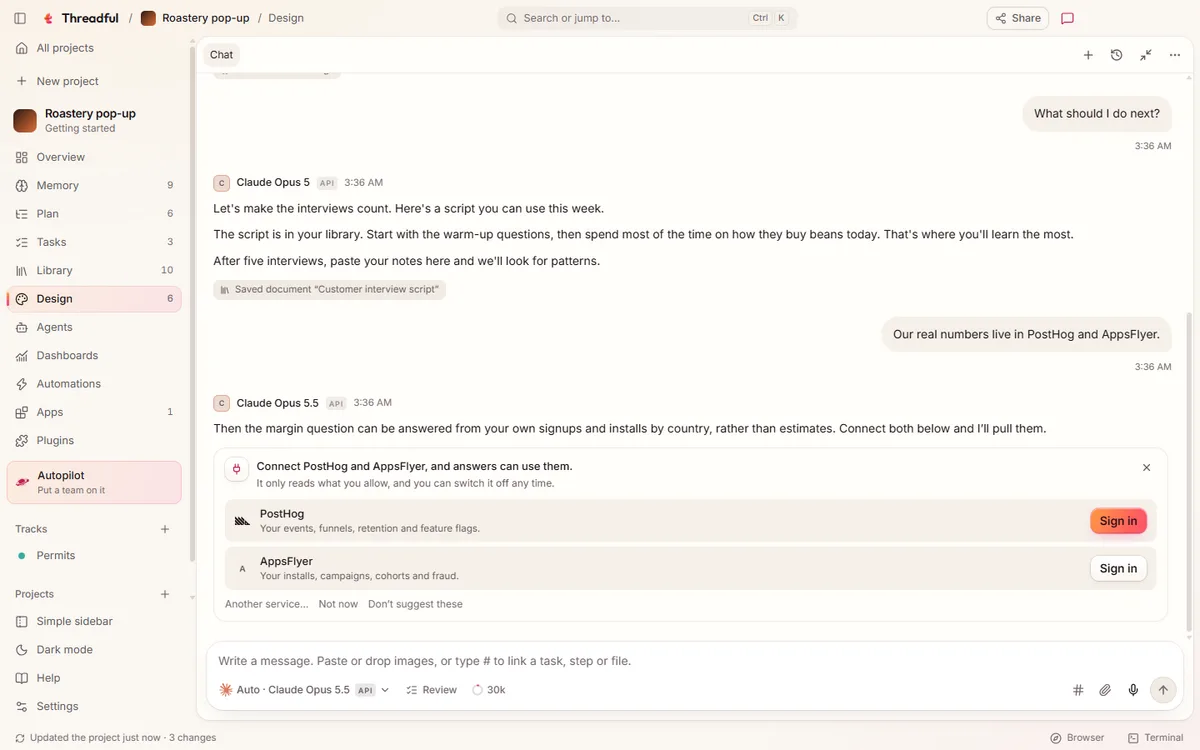
Each service has one button:
- Sign in: your browser opens the service's sign-in page. Approve it there and come back: it's connected and switched on for this project. Cancel stops waiting.
- Connect, for a service that takes a key: Get a key opens the service's key page in the app. Create the key there, and when it shows, Use it connects with it. You can paste one instead.
- Use it here: it's set up already, just not on in this project.
- Bring it in from Cursor (or another app): it's set up in that app already.
If signing in is turned away, Use a key offers the other way when the service has one. If the services offered aren't the one you use, Another service… takes its name and finds it. Some services don't let apps like this one sign in yet (QuickBooks, HubSpot, Slack); the card says so and what to do instead, like exporting a report and dropping it in the chat.
When everything offered is connected, Carry on with them asks the AI to go on, using your real figures.
The card stays out of the way: one per reply at most, never the same service twice in a short while, never one that's on already. Not now (or ×) keeps it away from this project for two weeks, unless you ask to connect it in so many words. Don't suggest keeps it away everywhere, for good. Settings → Connections → Offers in the chat lists those, with Suggest again, and Offer to connect services switches the offers off.
A service you signed in to stays signed in. If its sign-in runs out, its page in Settings → Connections says so, with Sign in.
Ad accounts
Settings → Connections → Ad accounts holds the Meta, TikTok and Google ad accounts campaigns run from, the same in every project: what each runs as, Read it again and Disconnect. When the chat talks about your Meta, TikTok or Google ads, its offer connects them the same way. How to connect each one, and run a campaign: Running ads.
Your drives
Google Drive, OneDrive, Dropbox, iCloud Drive and Box each keep a folder of your files on this computer once their app is installed. The AI can find and read files there: spreadsheets as rows of cells, Word documents, slides, PDFs and text. It can also see what changed lately ("What's new in my Drive this week?"), and workflows use your drives the same way, with no key. It only reads. Nothing in your drives is changed, and a file is copied into the library only when you ask.
When a chat names one of them, the card under the reply has its button:
- Use your folder connects the folder it found on this computer.
- For Google Drive, Connect does that and also opens Google's sign-in. A Drive folder only holds shortcuts to Google Docs, Sheets and Slides, so signing in is what lets the AI read those. It reads them and nothing else, and you can sign out any time.
- With no Drive folder here, Sign in with Google still lets the AI read a Google Doc, Sheet or Slides deck you paste a link to.
- If the app isn't installed, Get Google Drive for desktop (or OneDrive, Dropbox and so on) opens its download page.
Settings → Connections → Drives lists the drives found on this computer, each with a switch, and who's signed in with Google, with Sign out. Which projects may read them is the Drives plugin in Settings → Plugins.
Built in: domains and trademarks
Instant Domain Search comes set up and switched on for all projects, with nothing to sign in to and no key. When you name something (a business, a product, an app), the chat, agents and Autopilot's team can check whether its domains are free across endings like .com, .ai and .co, suggest .com alternatives, and search US trademark records for the name. Domains are checked against an index made each day, not live, and a trademark search isn't legal advice. Each domain comes with a link to its page there, with prices.
It's listed under MCP servers in Settings → Connections like any other. To leave it out, switch it off in Settings → Plugins (for all projects or one), or remove it in Settings → Connections; it isn't added again.
Adding tools from other apps
Under MCP servers in Settings → Connections, you can add tools from other apps and services, like GitHub, Notion, web search or a folder of notes. Each one shows in the list with a light: green when it works, red when it doesn't. Then switch them on in Settings → Plugins, for all projects or one.
Find a server, under the list, searches the official directory. Known publishers show first; switch on Everyone to see the rest.
- Search, like "notion" or "postgres".
- Pick a result. Check who publishes it, what it can do, and how it runs (on the web, or on this computer).
- Fill in any keys it needs. They're kept encrypted on this computer.
- Press Add server.
If it signs in with your account (most services on the web do), your browser opens to sign in; approve it there and it's ready.
An unknown publisher gets a warning: look at its source before you add it. If it needs a program you don't have yet (like Node.js), an install button shows.
Add by hand, beside it, takes a name and either a Command (a program on this computer) or a Web address. Press Save and test.
Found in your other apps, at the end of the list, shows tools already set up in apps like Claude Desktop or Cursor. Press Import to bring one in.
Pick a server to see how many tools it has and what they are, or "Not working" with the reason. Test, Change and Remove are at the top of its page.
Programs Threadful uses
Settings → Programs lists the programs Threadful can use on this computer, each with a light: green when it's installed. Anything missing has an Install button right in the list, and installs in the background: nothing to type.
| Program | What it's for |
|---|---|
| Node.js | Runs many connected tools, and Claude Desktop connections |
| Python | Runs Python for coding runs, agents and connected tools |
| uv | Runs connected tools made in Python |
| Git | Keeps code history for coding runs |
| GitHub CLI | Pull requests and repositories on GitHub |
| Vercel CLI | Preview and production deployments, and publishing apps |
| Neon CLI | Database branches for coding runs |
| Claude Code | Handing work to Claude Code |
| Codex | Using a ChatGPT plan, and coding runs |
| Docker Desktop | Runs connected tools shipped as containers |
| Ollama | Runs AI models on this computer, free and private |
| FFmpeg | Puts ad videos together from your pictures, on this computer |
- Install installs it. Codex comes as its own build, downloaded and checked by Threadful, so it needs nothing else first. On Windows, Git does too: a small Git kept with Threadful's own files, which needs no installer. A program that needs Node.js (Claude Code, Vercel, Neon) installs Node.js first when it isn't there. If it can't install by itself, it opens the download page and says whose.
- Sign in signs you in to GitHub, Vercel or Neon inside the app. Approve it in your browser (Open in browser opens the page again), entering the code it shows if it asks for one. It notices when you're done. Claude Code signs in in a terminal window instead.
- Check again looks again.
Related
- AI models and keys: connect the AI you think with.
- Coding: GitHub, Vercel and Neon in a project.
Every page of the guide
The same guide is in the app: open Help or press F1. Something missing or unclear? Write to hello@threadful.ai.
